12. Control Center
Version 1.1 supports cross-version coexistence; i.e., if version 1.0 of Baosky IDE exists, you can directly install version 1.1 of Baosky IDE.
- You can switch the version of Baosky IDE Control Center through the upper left corner.
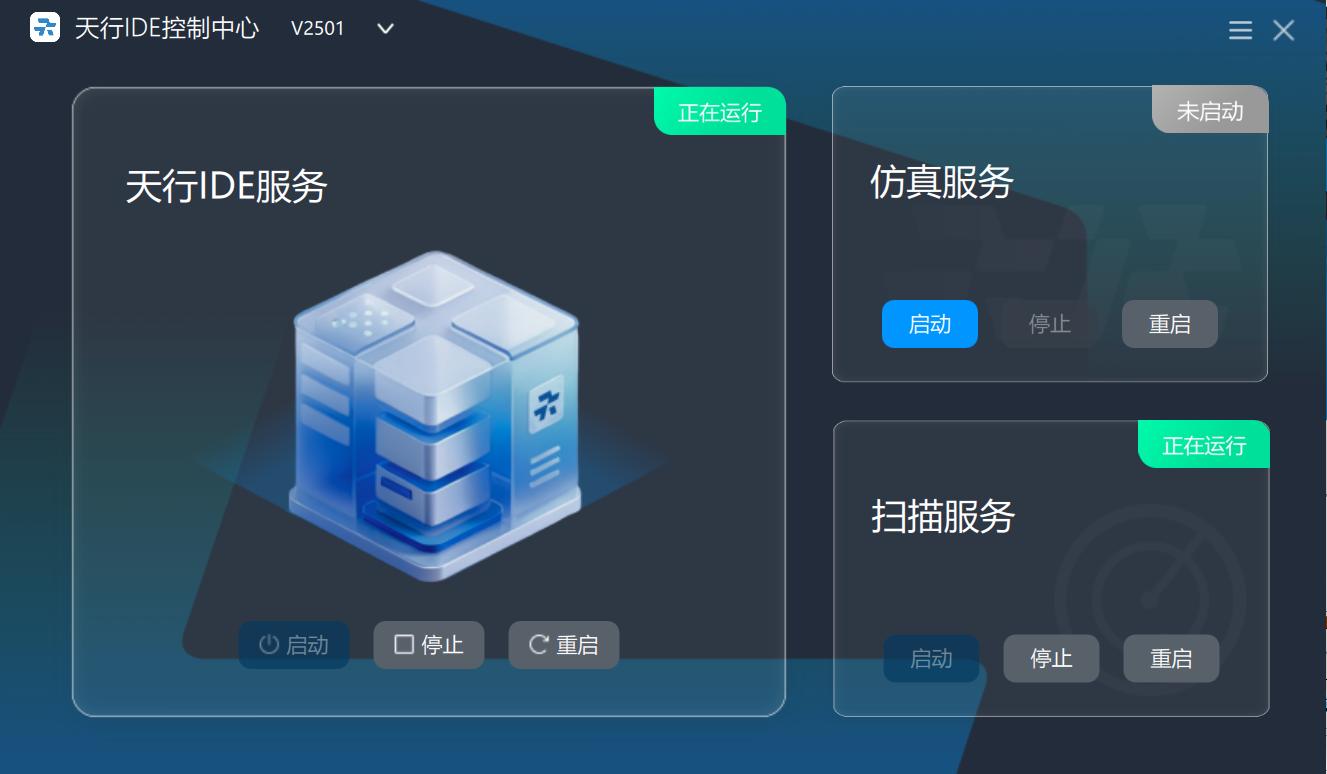
12.1 Overall interface introduction
-
After Baosky IDE is successfully installed, there will be shortcuts to Baosky IDE Control Center and Baosky IDE on the desktop
- Click Baosky IDE Control Center for the first time to open Baosky IDE and the backend of Baosky IDE Control Center. Baosky IDE Control Center is automatically hidden in the system tray in the lower right corner of the machine
- Click the Baosky IDE Control Center for the second time to open the Baosky IDE and Baosky IDE Control Center page
- Baosky IDE control center can manage three services: Baosky IDE service, simulation service and scanning service
-
Baosky IDE service: enabled by default, it mainly controls the status of Baosky IDE
-
Simulation service: Control the connection and disconnection status of Baosky IDE simulation service
-
Scanning service: enabled by default,it mainly controls the scanning network service of Baosky IDE
-
12.1.1 Baosky IDE service
This partition controls the start and stop of the entire Baosky IDE
- Baosky IDE service:
-
Operations include start, stop, restart
-
- When the status of Baosky IDE service is stopped, you can operate the start and restart buttons, and the stop button will be grayed out
- When the status of Baosky IDE service is running, you can operate the stop and restart buttons, and the start button is grayed out
12.1.2 Simulation service
This partition controls the start and stop of the simulation service of the entire Baosky IDE
- Simulation service:
-
Operations include start, stop, restart
-
- When the status of the simulation service is stopped, you can operate the start and restart buttons, and the stop button will be grayed out
- When the status of the simulation service is running, you can operate the stop and restart buttons, and the start button is grayed out
12.1.3 Scanning service
This partition controls the start and stop of the entire Baosky IDE scanning service
- Scanning service:
-
Operations include start, stop, restart
-
- When the status of the scanning service is stopped, you can operate the start and restart buttons, and the stop button will be grayed out
- When the status of the scanning service is running, you can operate the stop and restart buttons, and the start button is grayed out
12.2 Version information
- Baosky IDE Control Center version information description
Click the version description icon in the upper right corner to display the current version
12.3 Start/stop/restart service prompt information
When the user clicks "Start" and the startup fails, an information prompt is displayed below the Baosky IDE control center and does not appear after 5 seconds
12.3.1 Baosky IDE
Prompt message: Baosky IDE lacks necessary services, please uninstall and reinstall it
12.3.2 Scanning service
Prompt message: The scanning service failed to start. The necessary components of the scanning service may be missing. Please uninstall and reinstall it
12.3.3 Restart
Prompt message: Please click the "Restart" button to restart. If it fails multiple times, it is recommended to restart the computer or reinstall
12.4 Settings
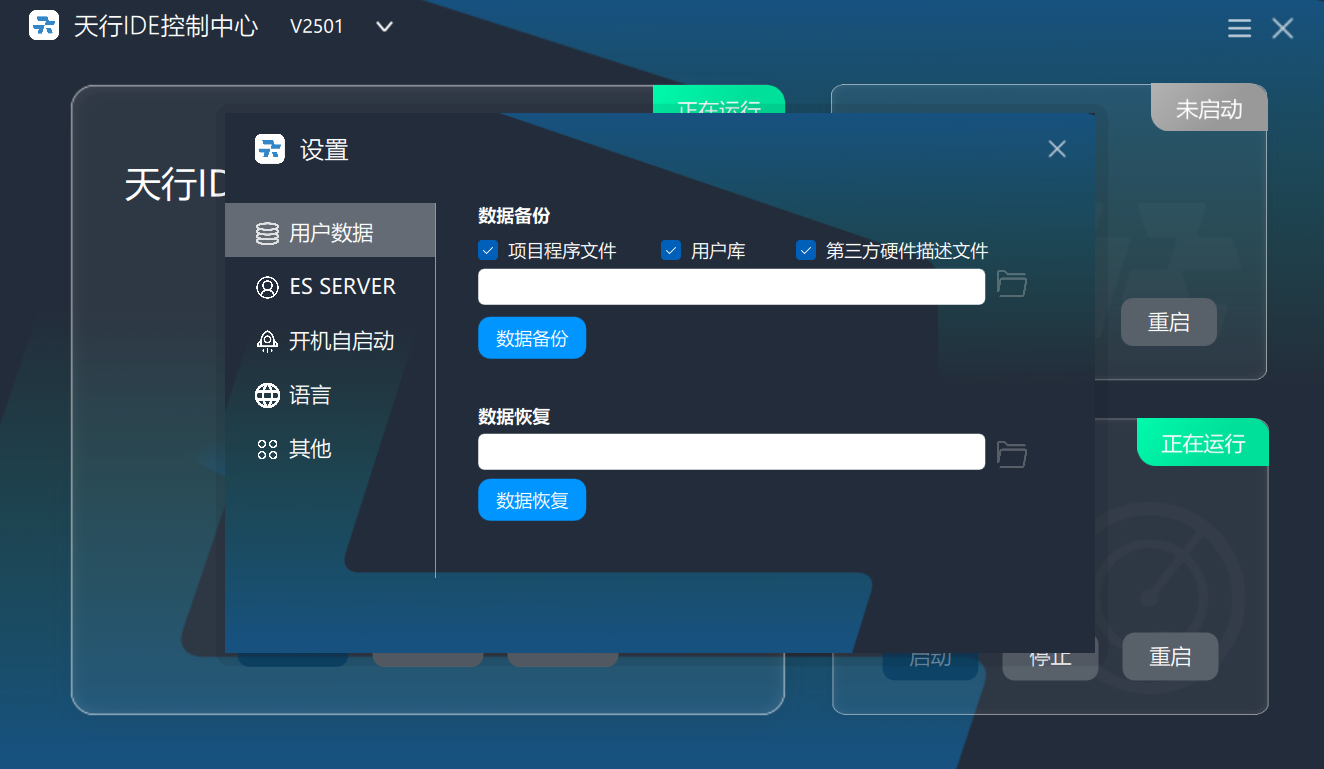
12.4.1 User data
Data backup
You can choose whether to back up project program files, user libraries, and hardware description files
At least one of project program files, user libraries, and hardware description files must be selected
- Click the folder icon to select the backup path. The file after successful backup will be in bsbk format
Data recovery
-
Click the folder icon to select a file in the form of bsbk to continue data recovery
12.4.2 Auto-start at boot
- Default check box [Set as boot-up]
After setting, Baosky IDE control center will be automatically launched after booting and displayed in the system tray icon
12.4.3 Language
-
Default is Chinese
-
You can select English in the drop-down list to change the Baosky IDE control center language to English
12.4.4 Others
Restart the WSL service
This function will restart the WSL service
Restarting WSL will cause Baosky IDE to go offline. Do you want to restart it?
Rebuild Baosky IDE service
After clicking the rebuild button, the Baosky IDE service will be rebuilt
12.5 Baosky IDE control center reset function
The Baosky IDE service failed to start. User can try to reset the service. Resetting the service may cause the existing project code to be lost. User can choose whether to reset it
During the reset process, click the "Close" button to terminate the reset process
12.6 Baosky IDE control center exit function
- Exit function
Click the Baosky IDE Control Center icon hidden in the taskbar, and the exit function will be displayed. After clicking the exit function, user can successfully exit the Baosky IDE Control Center
12.7 Switch default image
The WSL default startup image is not the Baosky IDE service image. User can choose whether to set the Baosky IDE service image as the WSL default startup image
12.8 Scan service switching path
The scanning service is not found, the scanning service path configuration is abnormal or the installation package is not installed correctly. Please configure the scanning service path or uninstall and reinstall it