11. Install
- WSL and some virtual machine software, such as VMware, rely on virtualization technology and may have incompatibility issues. You can update the versions of Windows and VMware (VMware 17 and above are recommended) to improve compatibility
- Some hosts may need to manually enable virtualization in the BIOS interface, otherwise the WSL environment cannot be configured
- When using the Baosky IDE Control Center, there is a conflict with Docker Desktop. It is recommended to uninstall or prohibit Docker Desktop from managing the Baosky IDE distribution of Baosky IDE
- If the installation process crashes or there is a long freeze during the uninstallation process, it is recommended to end the process and try again. If it happens repeatedly, it is recommended to restart the computer
- If the desktop icon flickers after installing Baosky IDE, please check whether Lenovo PC Manager is installed and the browser protection function is turned on and turned off
- During the serial number verification process, please enter the complete and correct user name, unit, and serial number
11.1 Software operating environment
11.1.1 Recommended system configuration
11.1.1.1 Recommended environment requirements
- CPU: Intel i5 1.6GHZ*4
- Memory: 16G or more
- Hard disk: total remaining space greater than 30G, single disk space greater than 15G
- Operating system: Windows10 x64 2004 internal version higher than 19045; support WSL 2
- Browser: Chrome v120.0.6099.200 / Edge v120.0.2210.121 or above
11.1.1.2 Software installation and operation requirements
- Baosky IDE runs based on WSL 2, and needs to enable the "Windows Subsystem for Linux" and "Virtual Machine Platform" functions, and configure and upgrade WSL2
- The installation process will automatically enable the above functions and perform configuration upgrades. If the configuration fails, you can enable the functions in Control Panel-Programs and Features-Start and Turn Off Windows Features, and refer to https://learn.microsoft.com/zh-cn/windows/wsl/install to configure WSL
11.2 Software Installation and Uninstallation
11.2.1 Software Installation
- Double-click to run: Double-click to run the installation program "setup.exe"

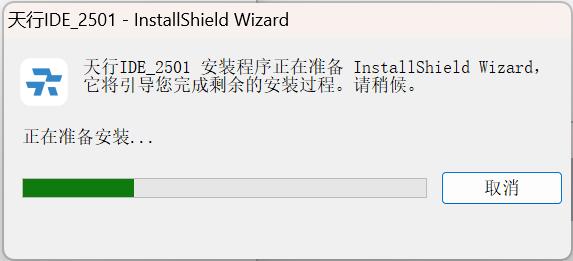
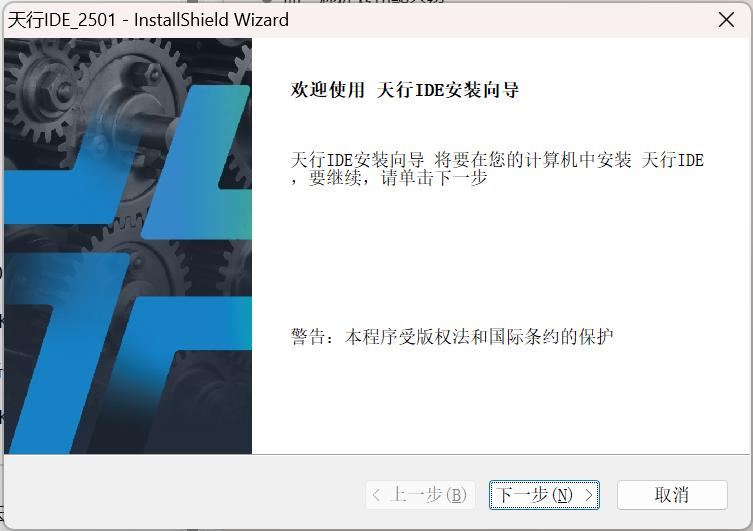
- Click "Next" (it will take some time to detect the relevant environment, please be patient)
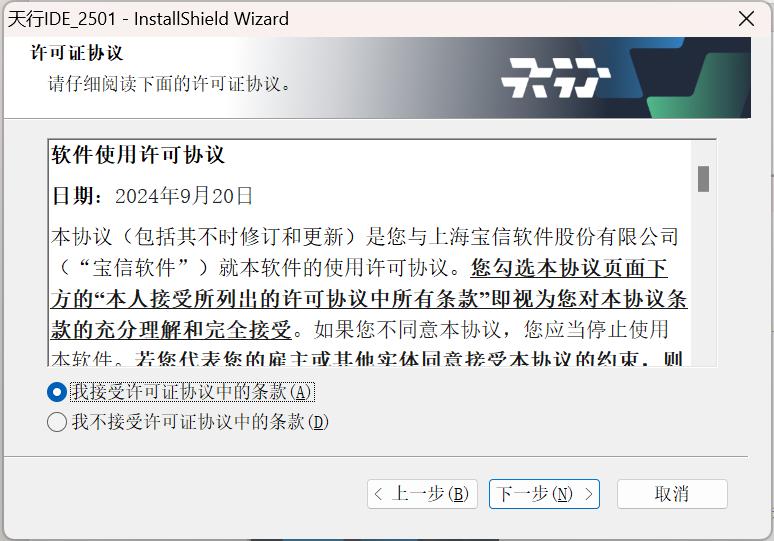
- The software license agreement is displayed. After checking the content, select "I accept the terms in the license agreement" and click "Next"
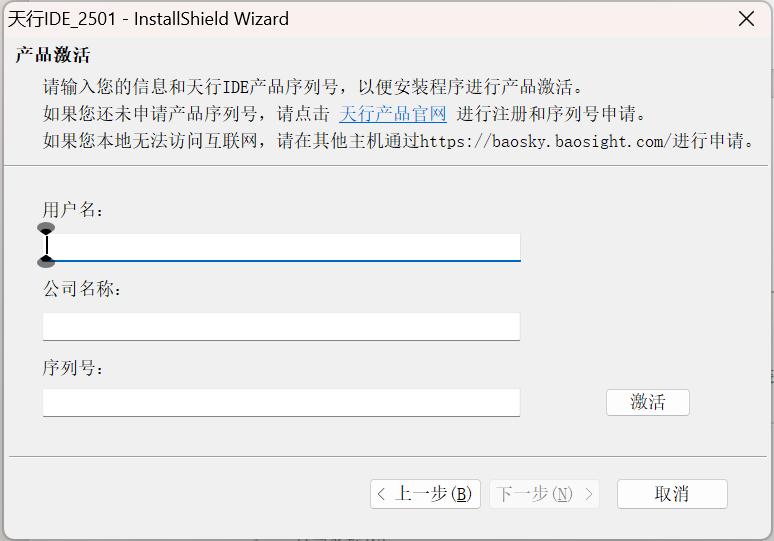
- User information, serial number
- Enter the user information and the purchased Baosky IDE product serial number for activation
- User can CLICK HEREapply for serial number
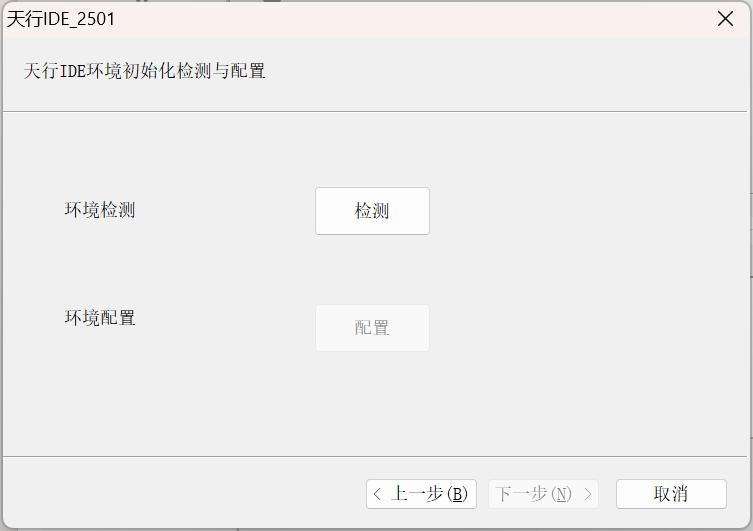
- Perform the initialization test and configuration of the Baosky IDE environment.
- Click “Test”, wait for the test, and then select “Next”.
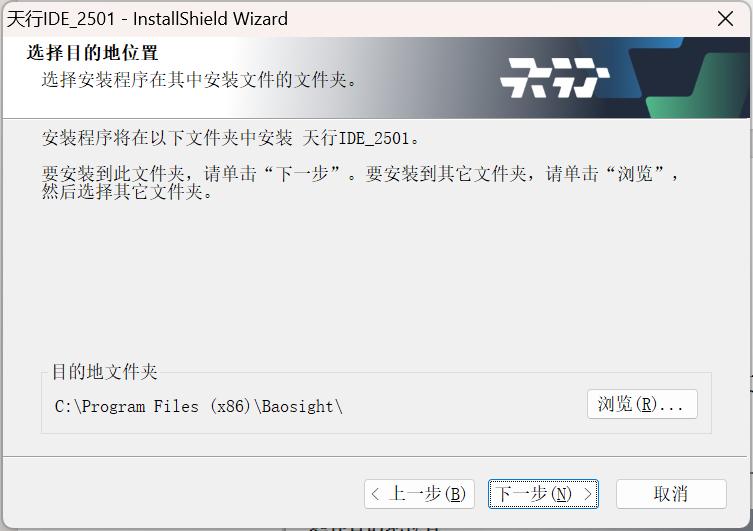
- Select the installation path and click "Next". Click "Change" and you can customize the path installation in the pop-up "Change current destination folder" window
-
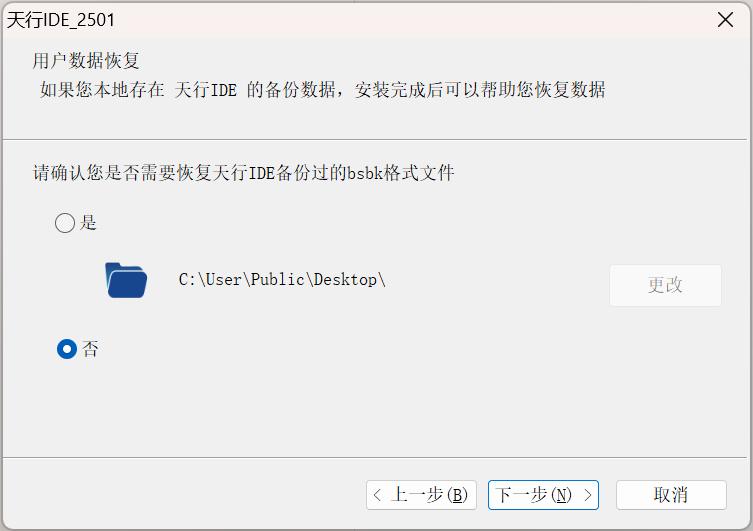
Choose whether to restore the bsbk file backed up by Baosky IDE
-
If you do not want to restore data, click "Next", the default is "No"
-
If you want to restore data, click "Yes", then click "Change", and in the pop-up "Select Unzipped File" window, you can select the bsbk format file for data recovery
-
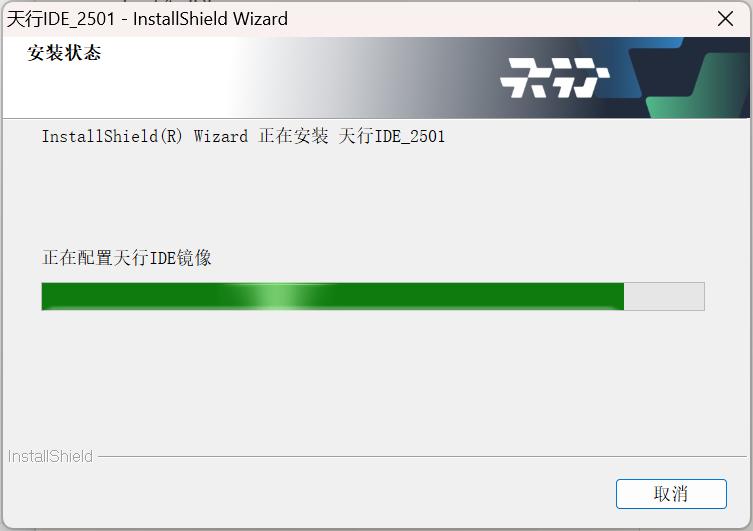
- Install Baosky IDE
- If you are installing this software for the first time, the software required to run this software will also be automatically installed during the installation process. Therefore, it will take some time to complete, please wait patiently
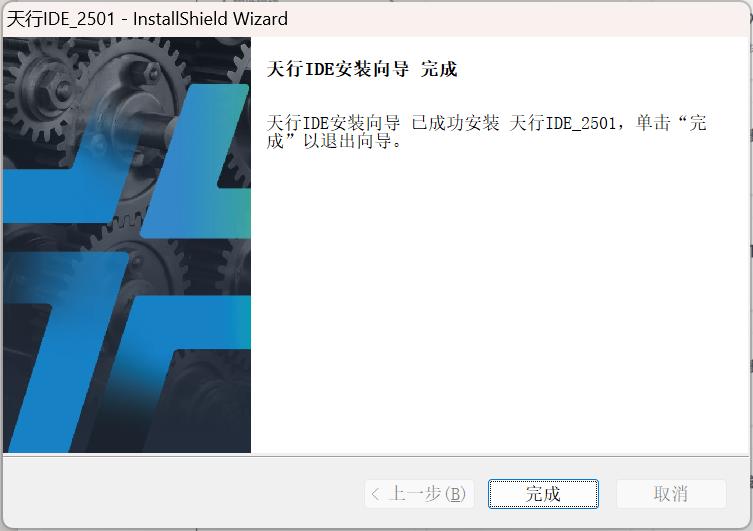
- Click "Finish", and the desktop will form "Baosky IDE" and "Baosky IDE Control Center" shortcuts, and Baosky IDE will start automatically. For subsequent product introductions, please refer to the "Software and Function Introduction" section
11.2.2 Software Uninstallation
- Currently supports the following three uninstall methods: Start menu, control panel, and installation program setup.exe
11.2.2.1 Uninstall from the Start menu
-
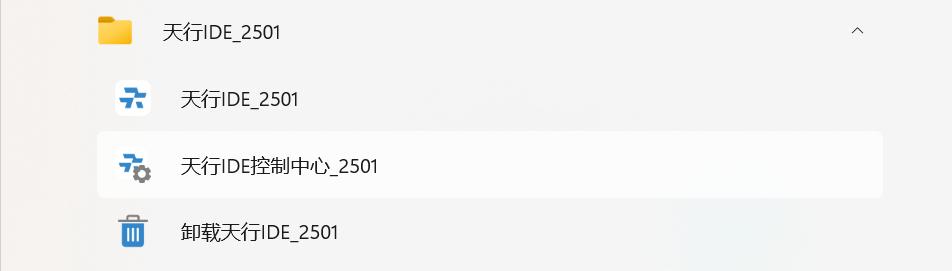
Select Start > All Apps and search for Baosky IDE
-
Open the Baosky IDE folder and select "Uninstall Baosky IDE"
11.2.2.2 Uninstall from the Control Panel
-
When searching on the taskbar, enter Control Panel and select it from the results
-
Select "Programs" > "Programs and Features"
-
Long press or right-click Baosky IDE and select "Uninstall" or "Uninstall/Change"
11.2.2.3 Uninstall from the Installer
- Select the installer "setup.exe" file and double-click to run it
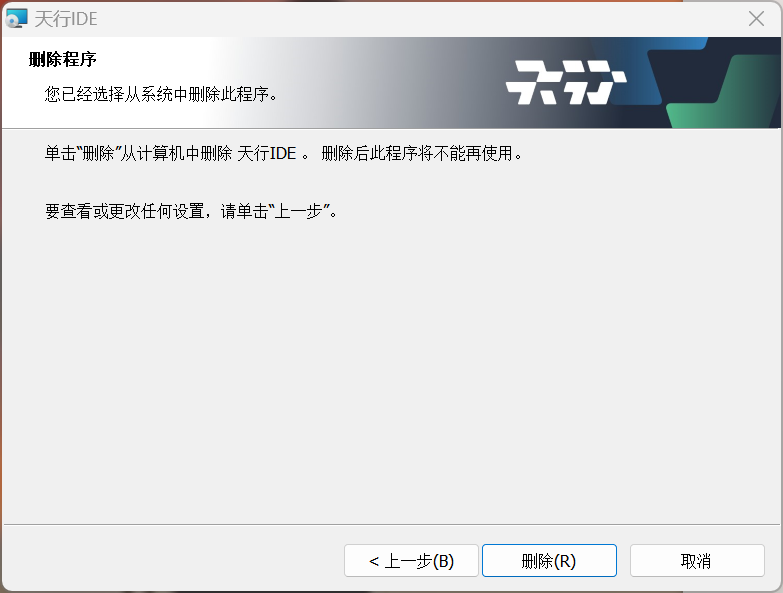
- Select the "Delete" option and click "Next"
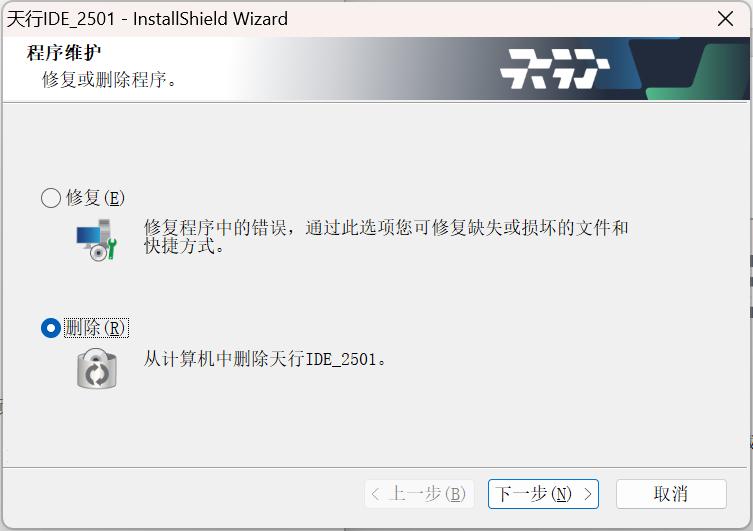
- Click "Delete"
-
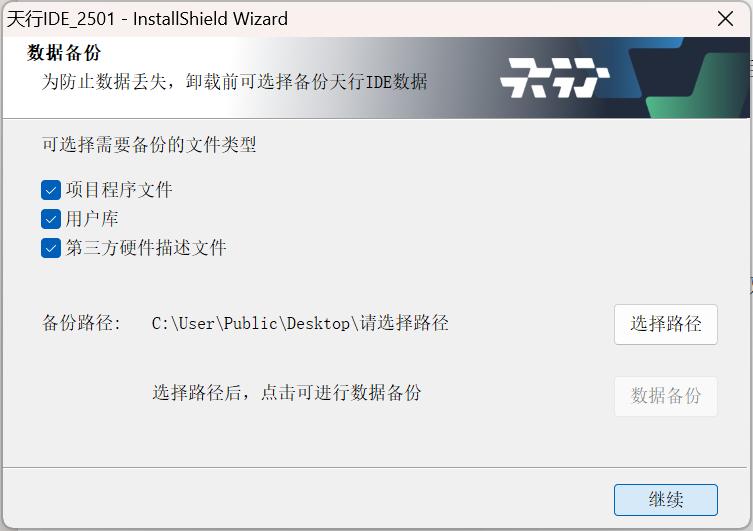
Choose whether to back up the project files (refer to the "Uninstall Backup" section)
-
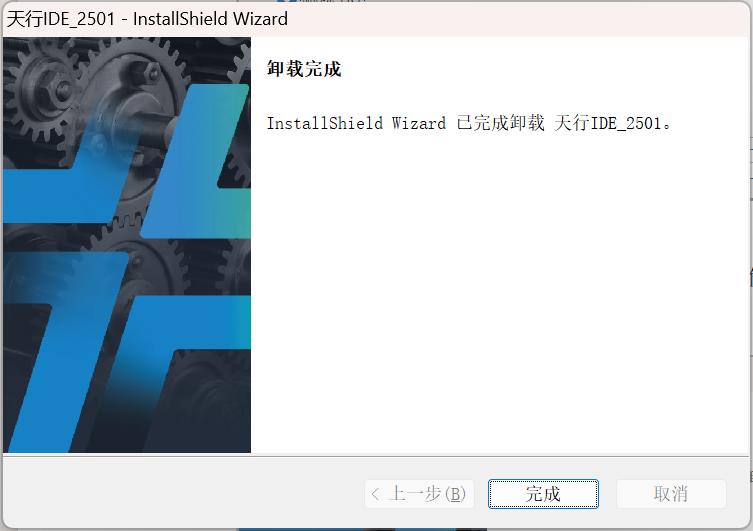
Click "Finish" to successfully uninstall Baosky IDE
11.2.2.4 Uninstallation Backup
- After selecting the uninstallation method, proceed to the subsequent process
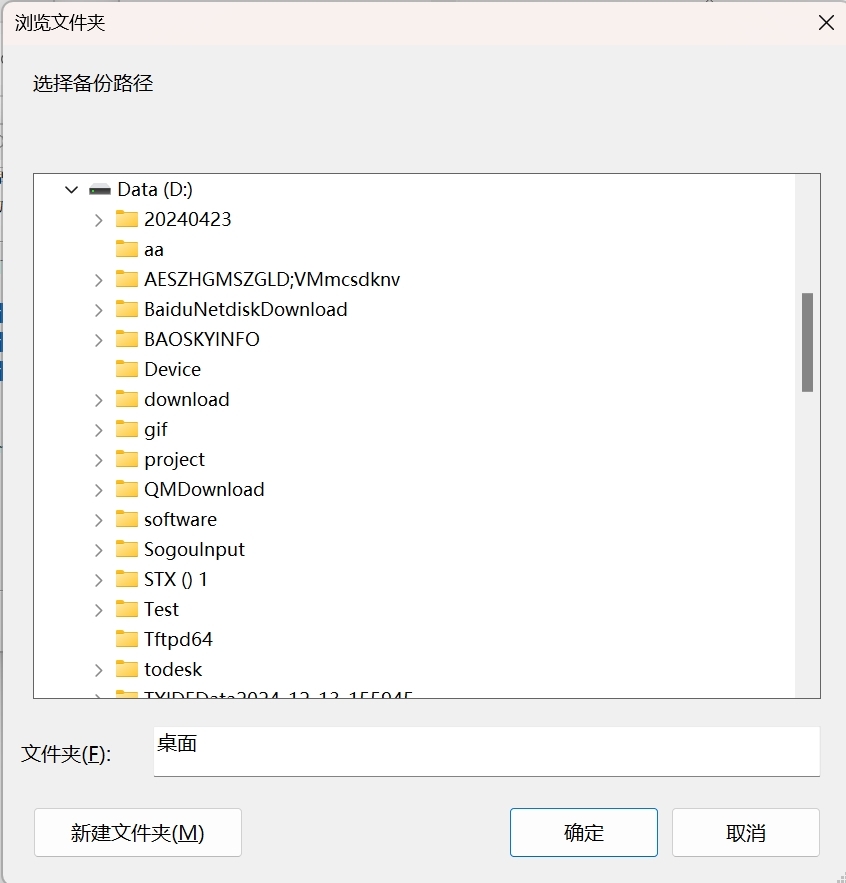
- After that, a confirmation screen will appear, asking you whether you want to backup all the project files of the software If you do not want to save the relevant data, please click “Continue” to enter the subsequent uninstallation process; If you want to save the relevant data, please select the type of data that needs to be backed up, and enter the subsequent uninstallation process. In the pop-up window “Select backup file storage path”, select the path to be backed up, and click “Continue” to enter the subsequent uninstallation process after the backup is completed.
11.2.2.5 Repair Function
- Repair errors in the program, which can repair missing or damaged files, shortcuts, and registry entries
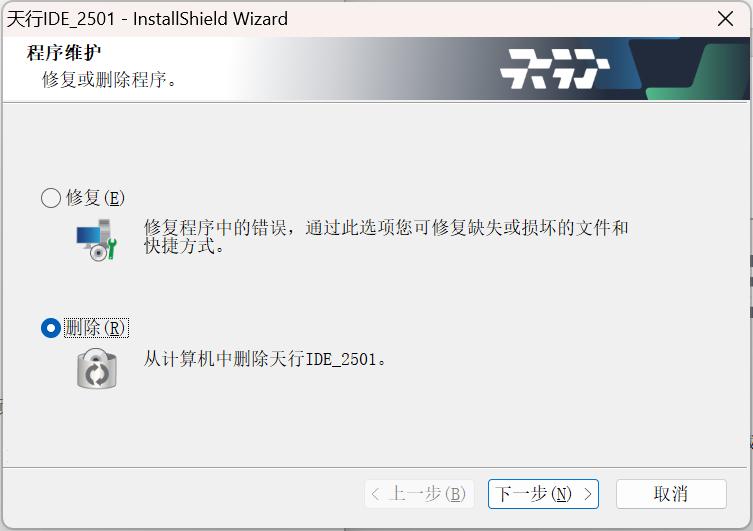
11.3 Software installation and uninstallation
11.3.1 Baosky IDE
- Double-click the "Baosky IDE" icon to pop up the following interface
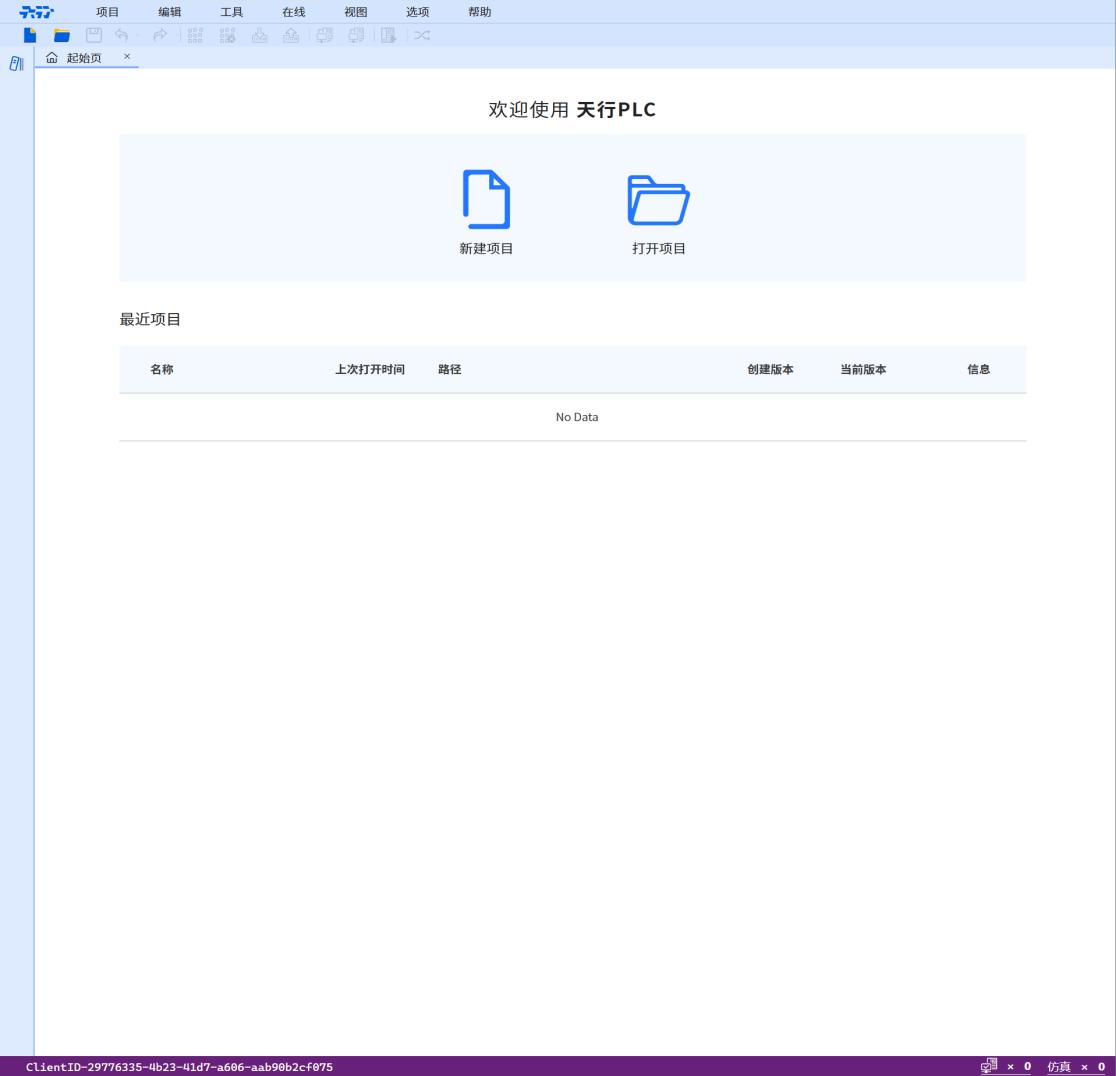
-
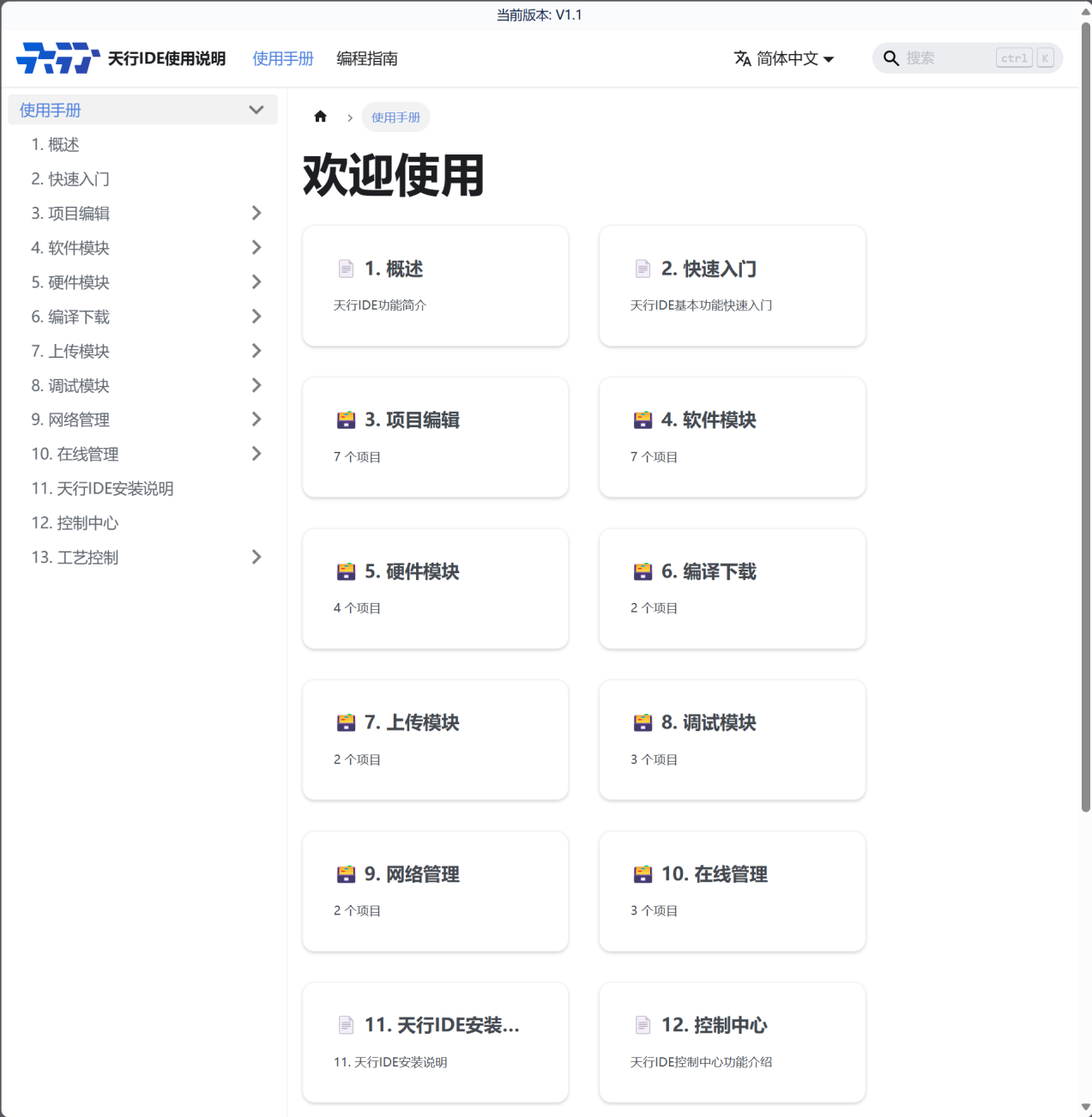
You can click the upper option bar <Help>-- <Help Document> to jump to the help document and view the instructions for using Baosky IDE
-
The user manual will give you a brief introduction on how to use Baosky IDE; the programming guide provides guidance and reference when using a specific programming language, framework or library
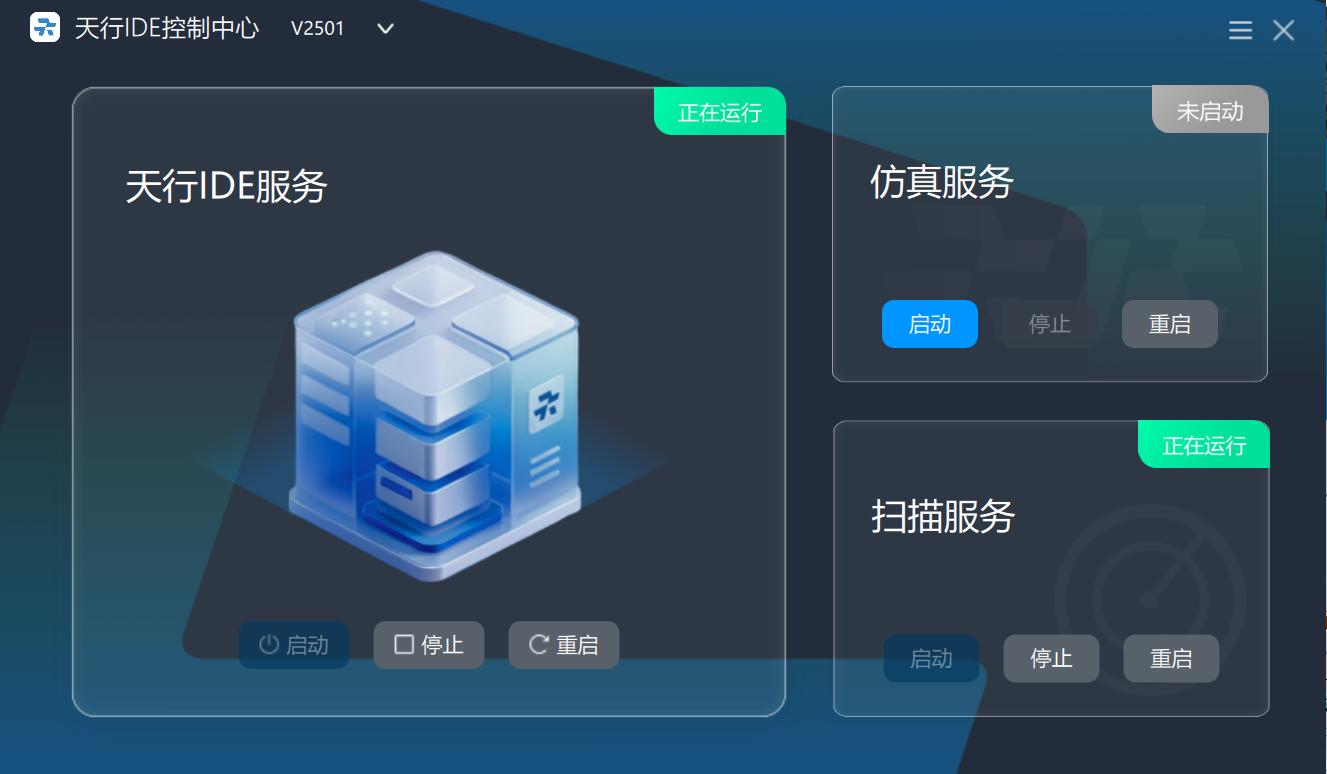
11.3.2 Baosky Control Center
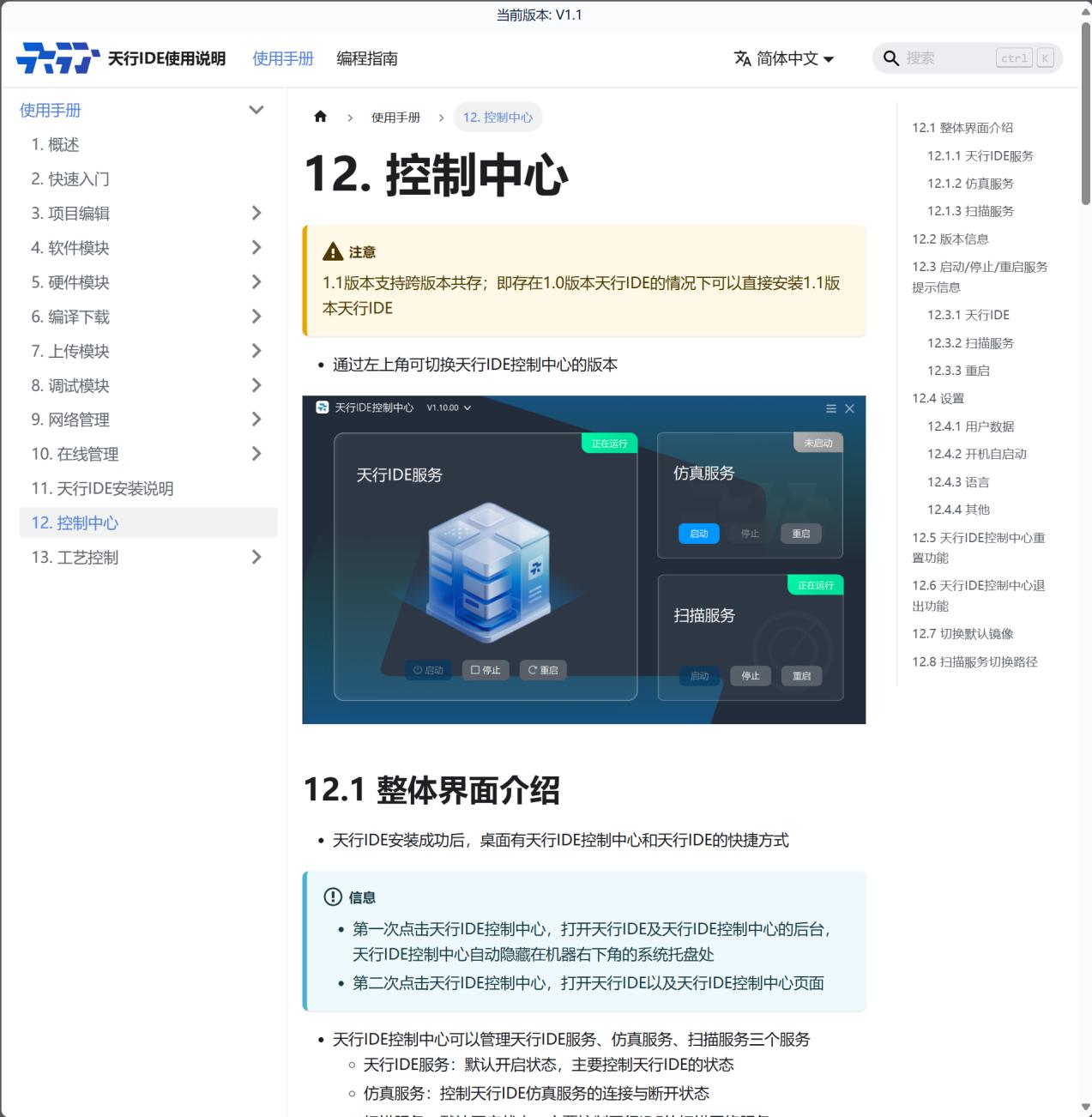
- Double-click the "Baosky IDE Control Center" icon to start the software
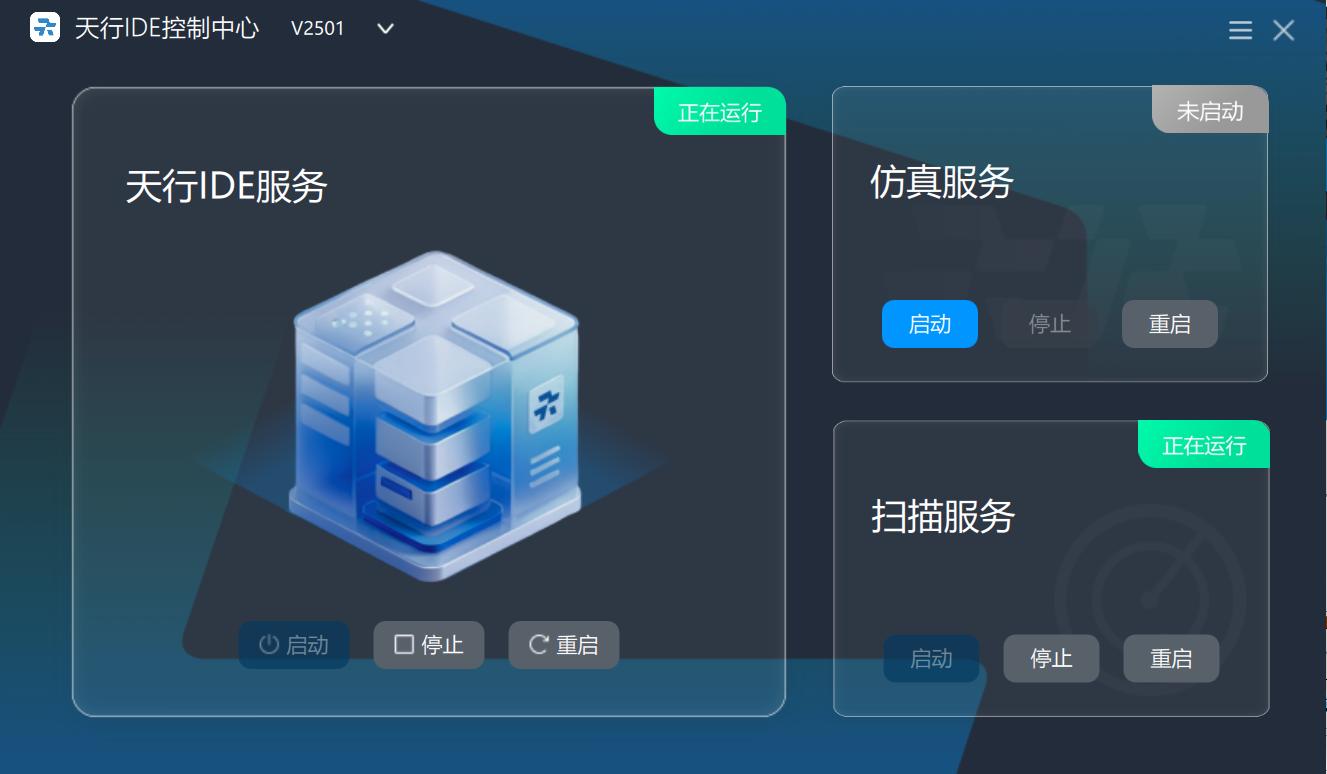
- You can click the upper option bar <Help>-- <Help Document>-- <User Manual>-- <Control Center> to view the instructions for using the Baosky IDE Control Center
11.4 Version Coexistence
- Different versions of Baosky IDE can run at the same time, i.e. Baosky IDE version 1.1 supports coexistence with version 1.0 of Baosky IDE (i.e. if version 1.0 already exists, version 1.1 can be installed directly), and they will not interfere with each other.
- Running Baosky IDE will take up more resources, when coexisting with multiple versions, if you run multiple Baosky IDE services, it may cause resource constraints, please allocate the resources reasonably according to the actual situation.
- When multiple versions coexist, if you install or uninstall a certain version, it may affect the operation of other versions. It is recommended not to install/uninstall other versions while a certain version of the program is running.
- If Baosky versions 1.0 and 1.1 coexist, to ensure the accuracy of configuration operations and system stability, it is recommended to use the Control Center of V1.10 to perform related operations after installing version V1.10. (You can switch the control center version in the upper left corner of the control center of Baosky version 1.1 to control different versions of Baosky IDE)