7.1 Upload Software
- The upload software function can upload the parameter configuration in the PLC device to the host computer
Before the upload operation, user need to create a project
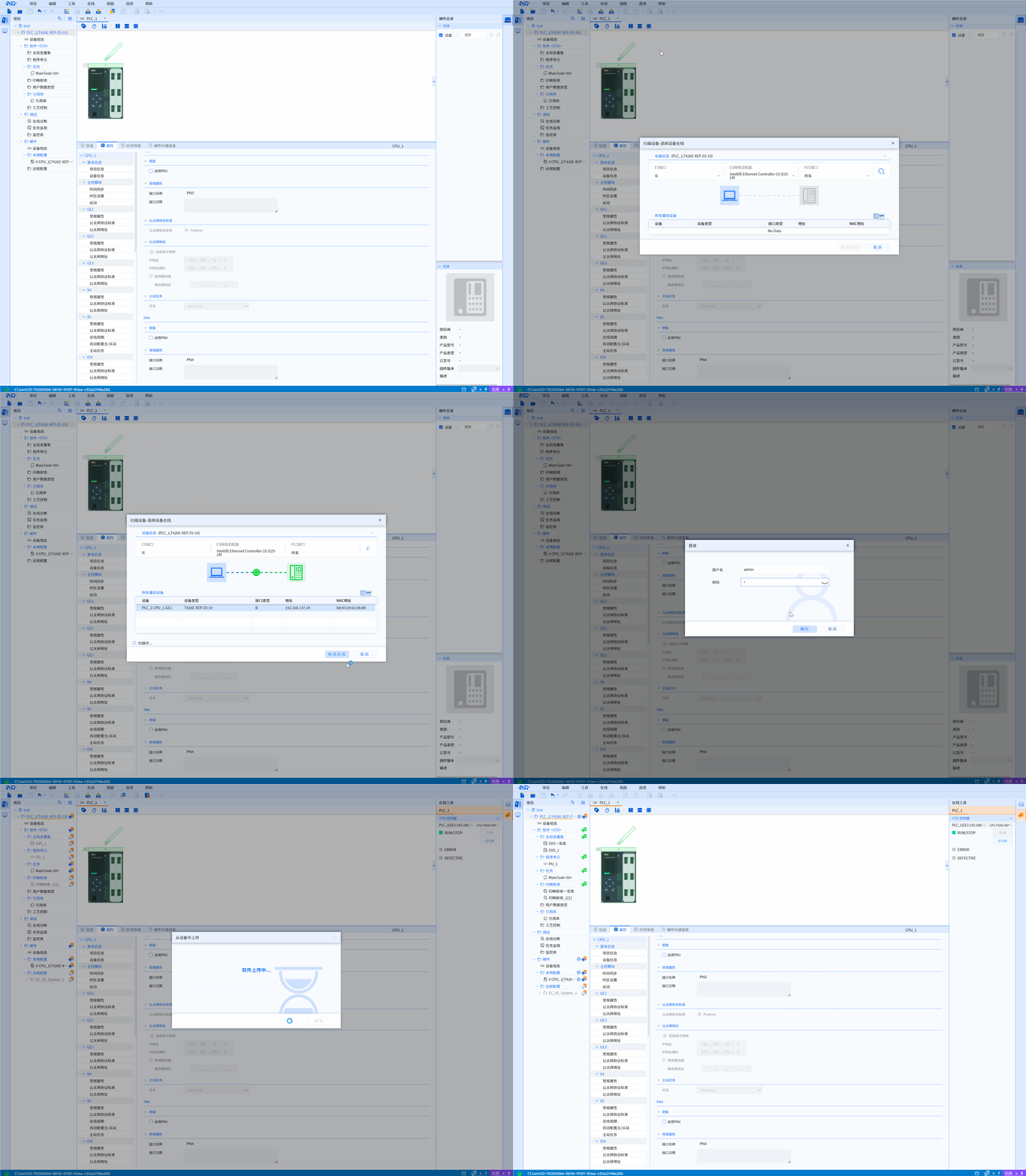
7.1.1 Load all blocks from the device
To load all blocks from the device, follow these steps:
-
Establish an online connection with the device to be loaded with blocks
-
In the project tree, select Software
-
In the "Online" menu, select the "Upload from device (software)" command, or the "Upload from device (software)" button on the toolbar
-
Enter username and password in the pop-up login window.
-
Click the OK button to complete uploading the software
7.1.2 Load selected blocks from device
-
Establish an online connection with the device to be loaded with blocks
-
In the project tree, select the TASK, PU,GVS, UDT, IO mapping table, reference library node to upload (the project tree only supports multiple selection under the same node, and overwriting support for one-click overwriting during uploading)
-
In "Online" menu, select the "Upload device to project" commandor ,or via the toolbar button or right-click shortcut
-
When there are inconsistencies between the upper and lower computers, the system will open the "Upload Preview" dialog box. This dialog box will display alarm information and related operations required for loading
- GVS (different contents), IO mapping table (different contents), reference library (versions are inconsistent), overwrite option only for users
- TASK (different content), PU (different type, different interface, different implementation), UDT (different content) , two options for users: overwrite and rename
-
Click the Upload from Device button. A load operation will be performed (actual results only upload objects that are inconsistent between online and offline)
Uploading device information to the host computer through this method will only upload software information.