6.2 Download
- The purpose of downloading the program to the PLC is to load the instructions for control instructions, logical operations, sequence control, timing, counting and arithmetic operations into the memory of the PLC to control the mechanical equipment or production process.
- Create a project
- Add a PLC device
- Complete writing program unit
- Download: In the project tree, one block, several blocks or all blocks can be downloaded to the device
6.2.1 Download Type
- Software
- Incremental download (can not stop PLC download)
- Reset download
- Hardware
- Full download
6.2.1.1 Incremental Downloads
Software
Operation steps:
To incrementally download, please follow the steps below:
-
Select PLC or software and any node under software in the project tree
-
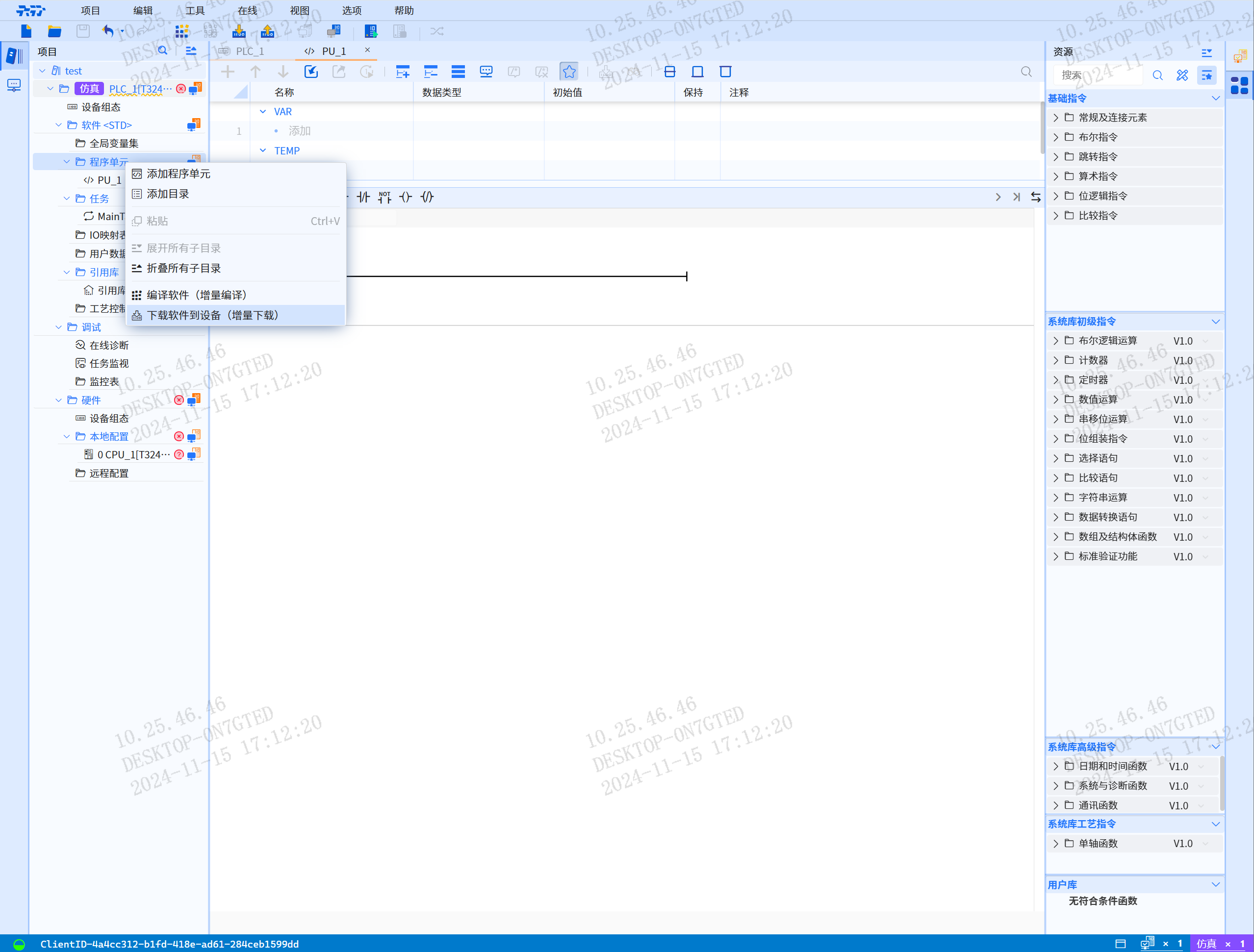
Select "Download to Device --> Software (Incremental Download)" from the shortcut menu
- Incremental download requires download consistency check to perform consistent download, click "Download"
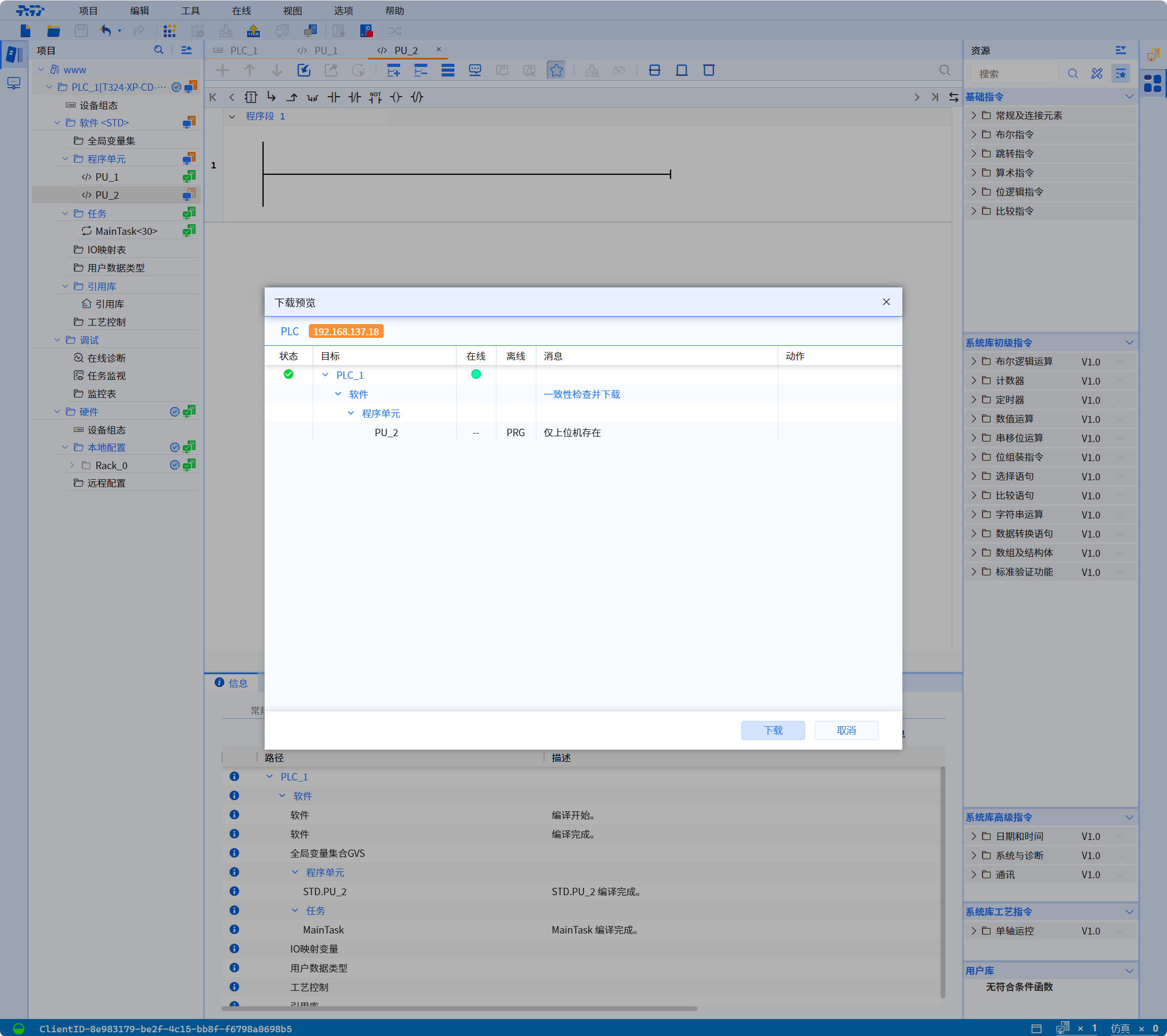
A message in the inspector window under "Info > General" reports whether the download was successful
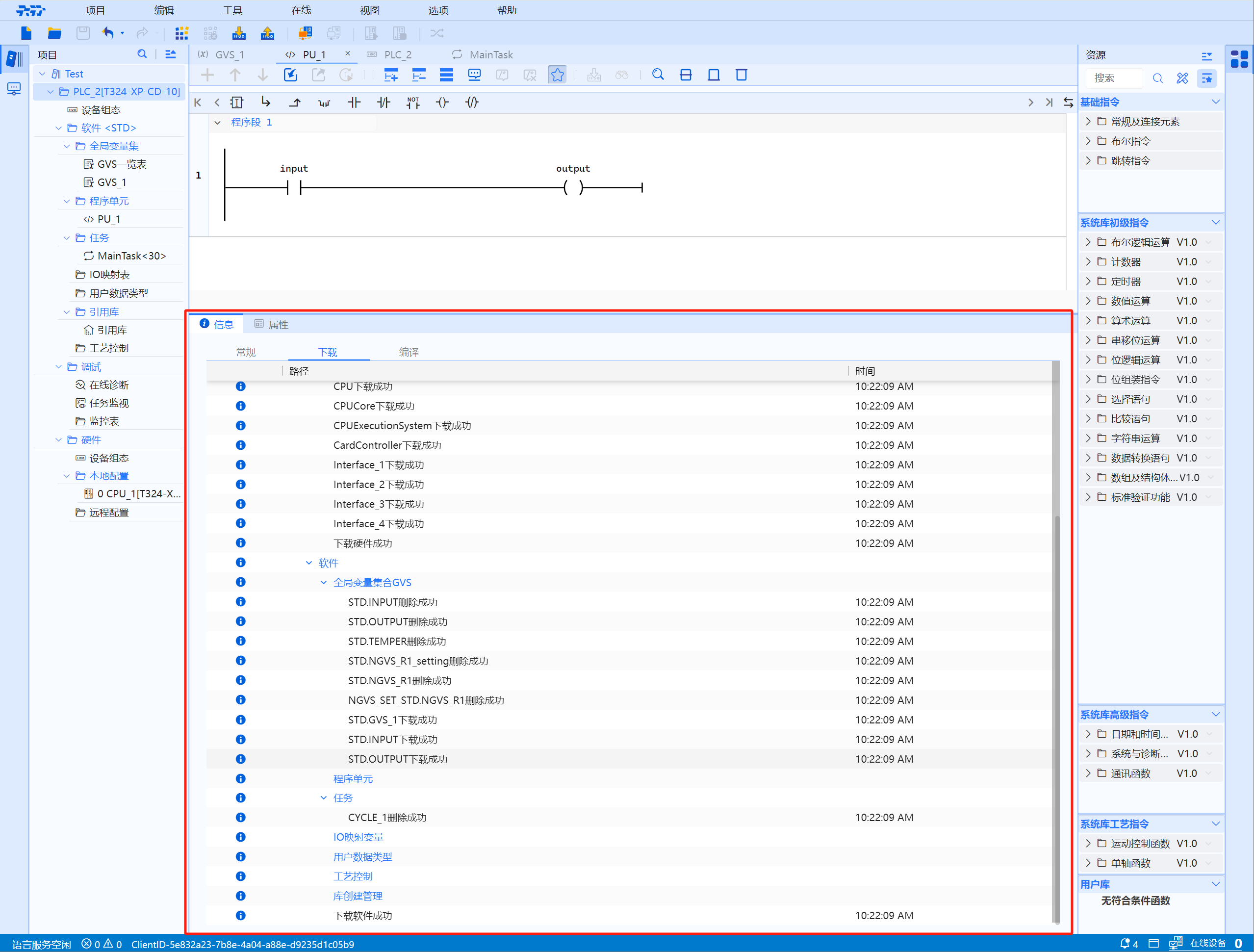
6.2.1.2 Reset download
(a). Software
Operation steps:
To download all blocks in the "Program Units" directory of the project tree from the project tree to the device, follow these steps:
-
Select PLC or software in the project tree
-
Select the "Download program reset to device" command from the "Online" menu
A message in the inspector window under "Info > General" reports whether the download was successful
-
Note 1: No valid hardware configuration available
- If a valid hardware configuration is not found when downloading the software, existing hardware will also be loaded during "Download to Device". Please note at this point that even if the software loading command is executed, the hardware components will be loaded during the download process
-
Note 2: Compile and load all affected blocks
- To avoid inconsistencies between calling and called blocks, after every global or individual module change (such as a block interface change), all affected blocks are compiled and loaded
(b). Hardware
- Full download refers to downloading and installing the complete version of the PLC program, including all codes and data. This method will replace all existing program content in the PLC during the update process. Full download can ensure that the latest and complete program version is running in the PLC, avoiding potential problems caused by partial updates
6.2.2 Download method (entrance)
- Users can download from and upload to the device in several different ways:
- Menu bar-->"Online" menu
- The program is reset and downloaded to the device (only here is the "full software", the others are "software incremental")
- Select device to download
- Download to device
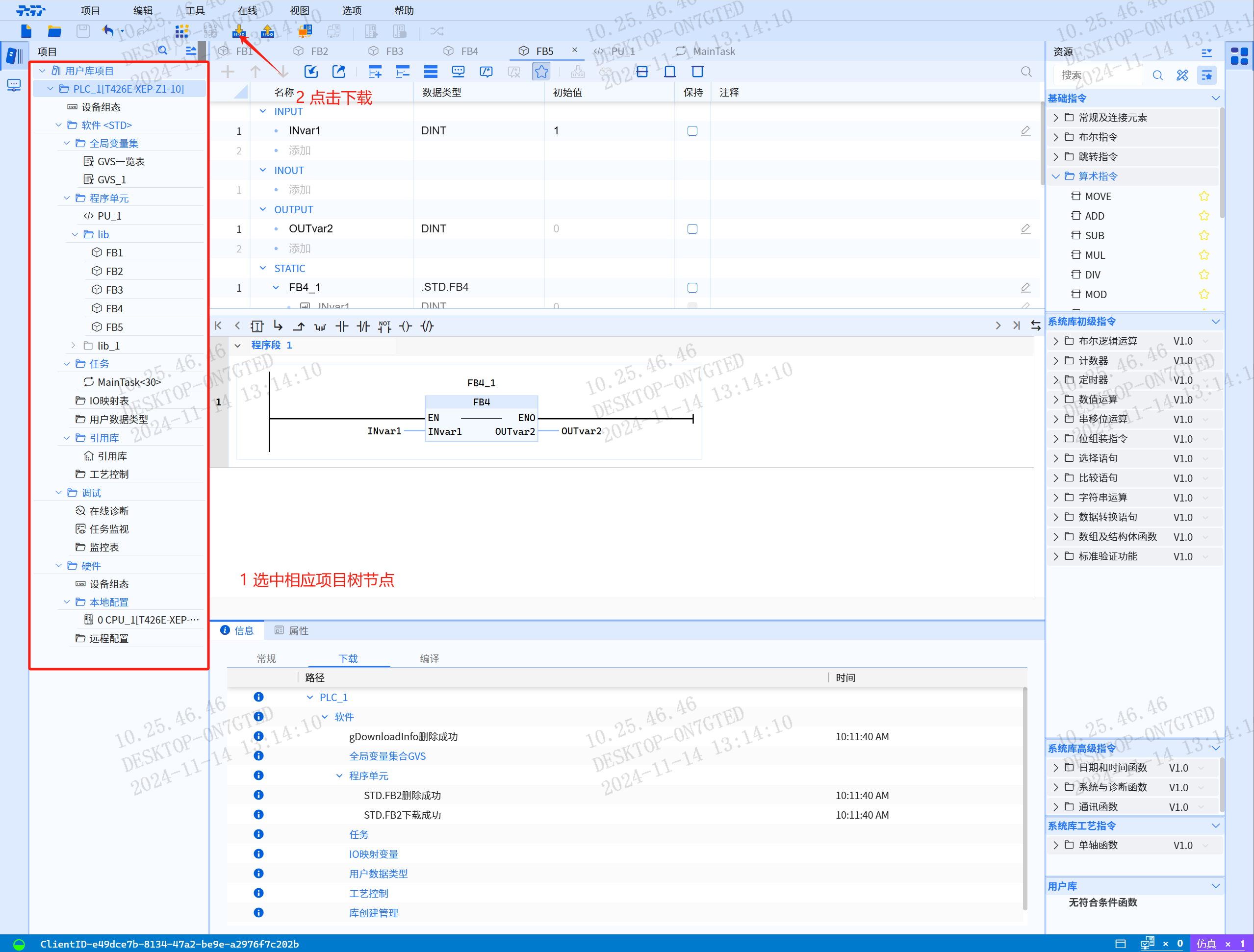
- Toolbar-->Download to device (download content based on the selected "Project Tree Node")
- Download Software + Hardware (PLC_1)
- Download Software (software and software sub-nodes)
- Download Hardware (hardware and hardware sub-nodes)
- Right-click the project tree node (download content based on the selected "project tree node")
6.2.3 Download preview window
- Before entering Download Preview, the program will be compiled, program errors will be checked, device information will be read, and program differences between the host computer and the slave computer will be compared.The download preview window displays status, target, online, offline, messages, actions
- Status list displays items that failed the inspection
- Target list displays the name of the target device and the software and hardware information of the upper computer and lower computer
- Online list displays the online status of the slave computer and the software and hardware information of the slave computer
- Offline list displays the information of the host computer software and hardware
- Message list displays the differences between the upper computer and the lower computer
- Action list displays the actions that can be performed
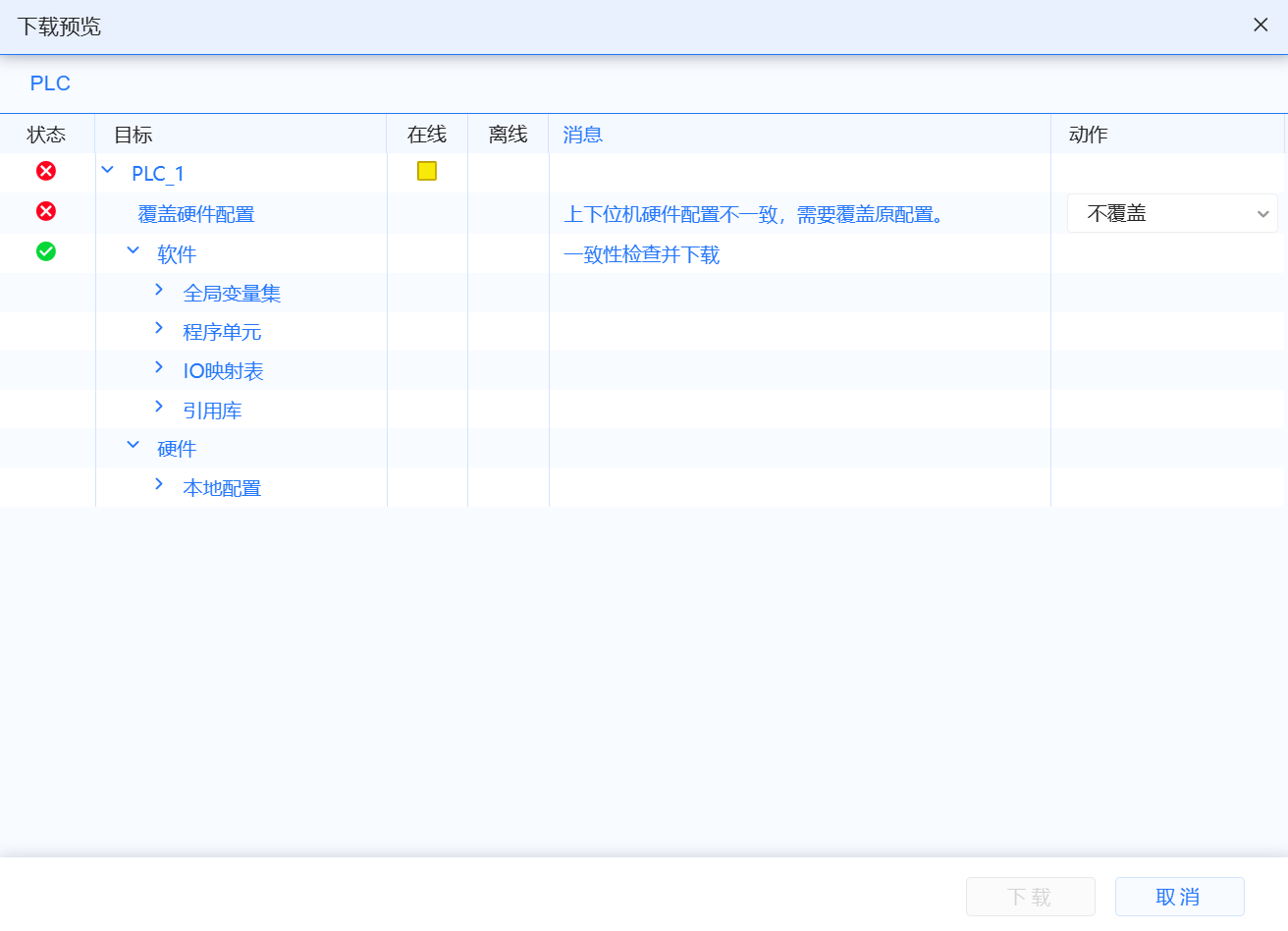
- If the hardware configuration of the upper computer is inconsistent with the hardware configuration information of the lower computer, user cannot directly download to the device. User can choose to use the hardware configuration information of the upper computer to overwrite the hardware configuration information of the lower computer, or modify the hardware configuration information of the upper computer and the lower computer. The hardware configuration information remains consistent, click the Download button to complete the download process
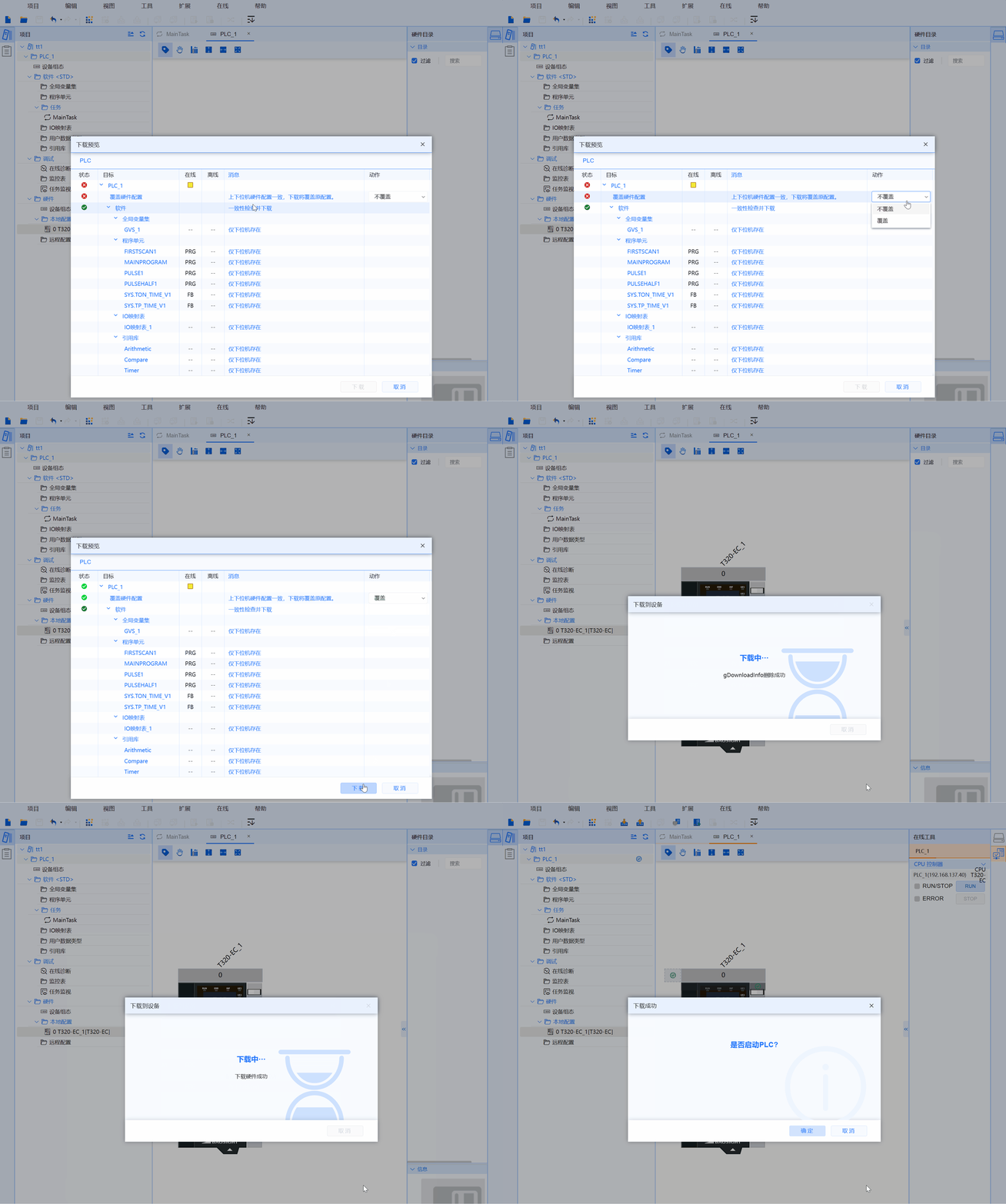
6.2.4 Start PLC program
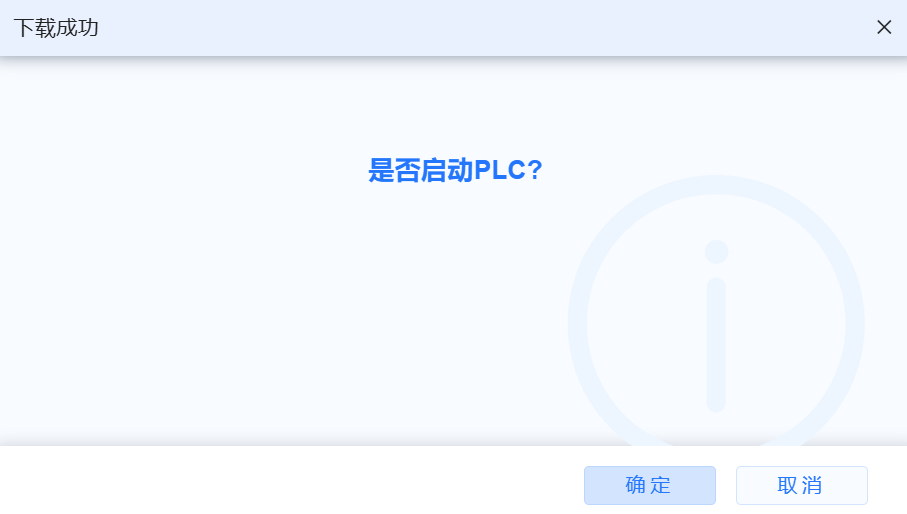
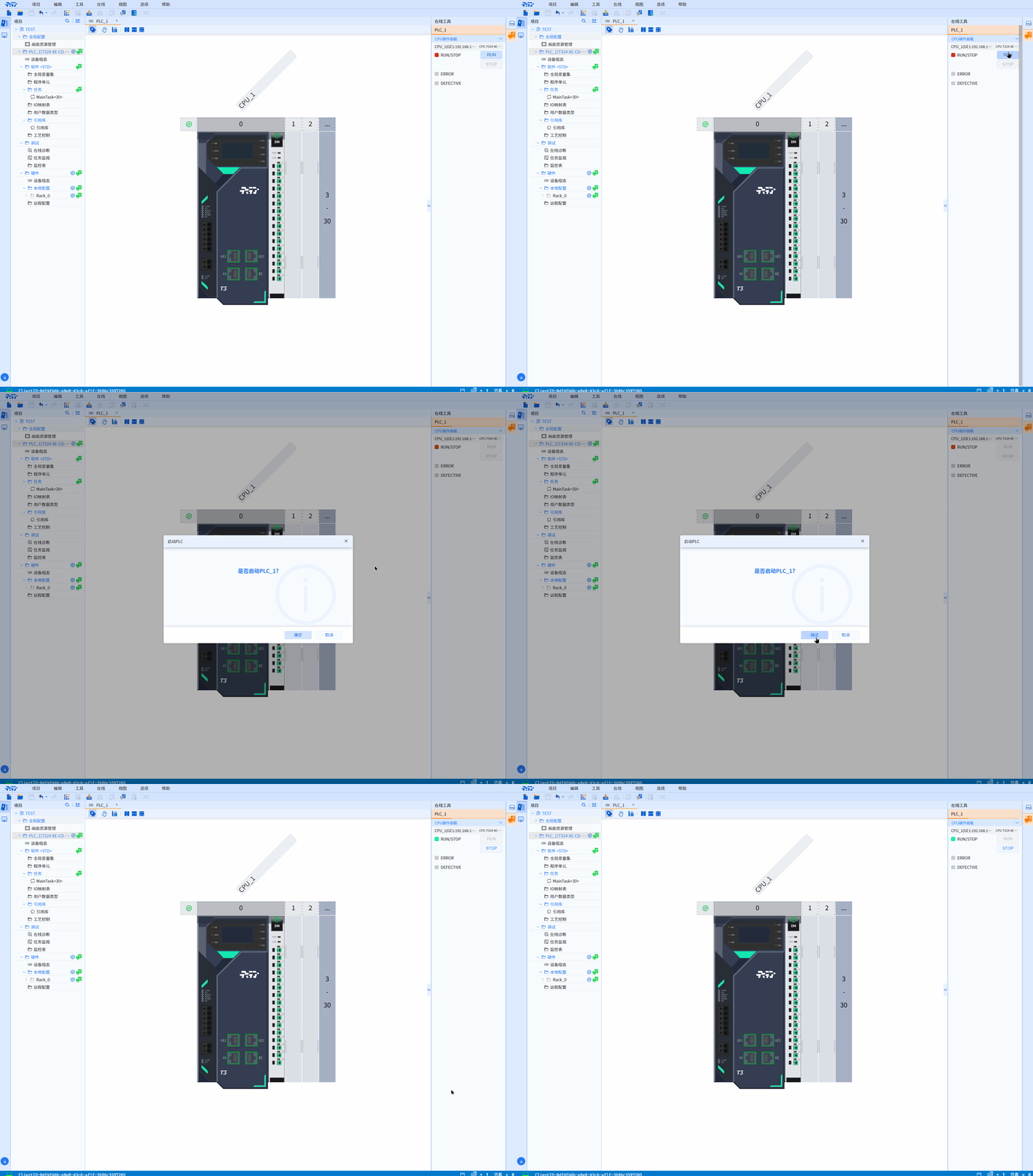
- After the download is completed, it will prompt Download Successfully and the Whether to Start PLC window will pop up. Click the Confirm button to start the PLC. Click the Cancel button to close the window.
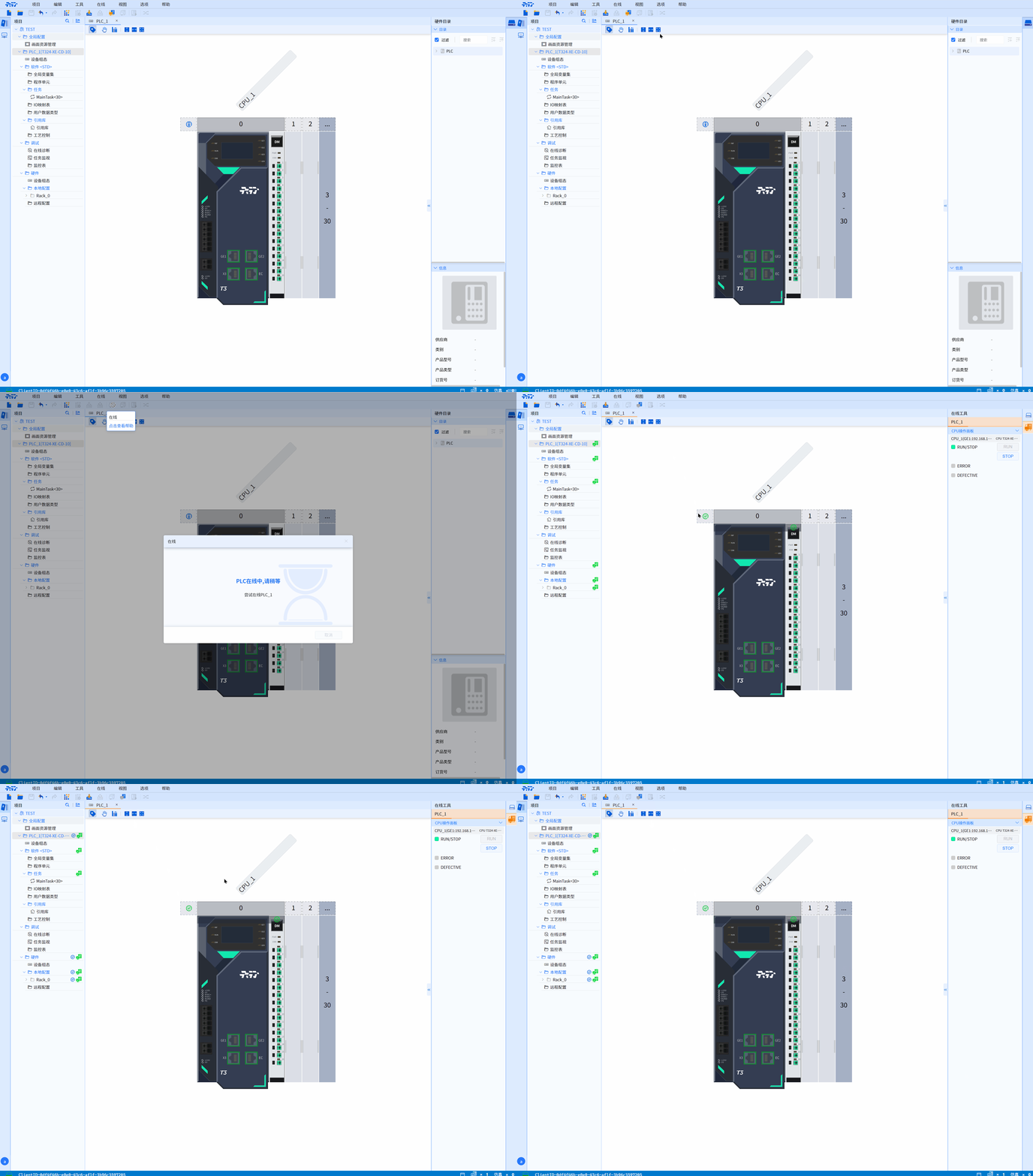
- If the PLC is offline, user can click on the menu bar Online>Go to Online to select the target device to switch to online mode, or directly click the Online button to switch to online mode
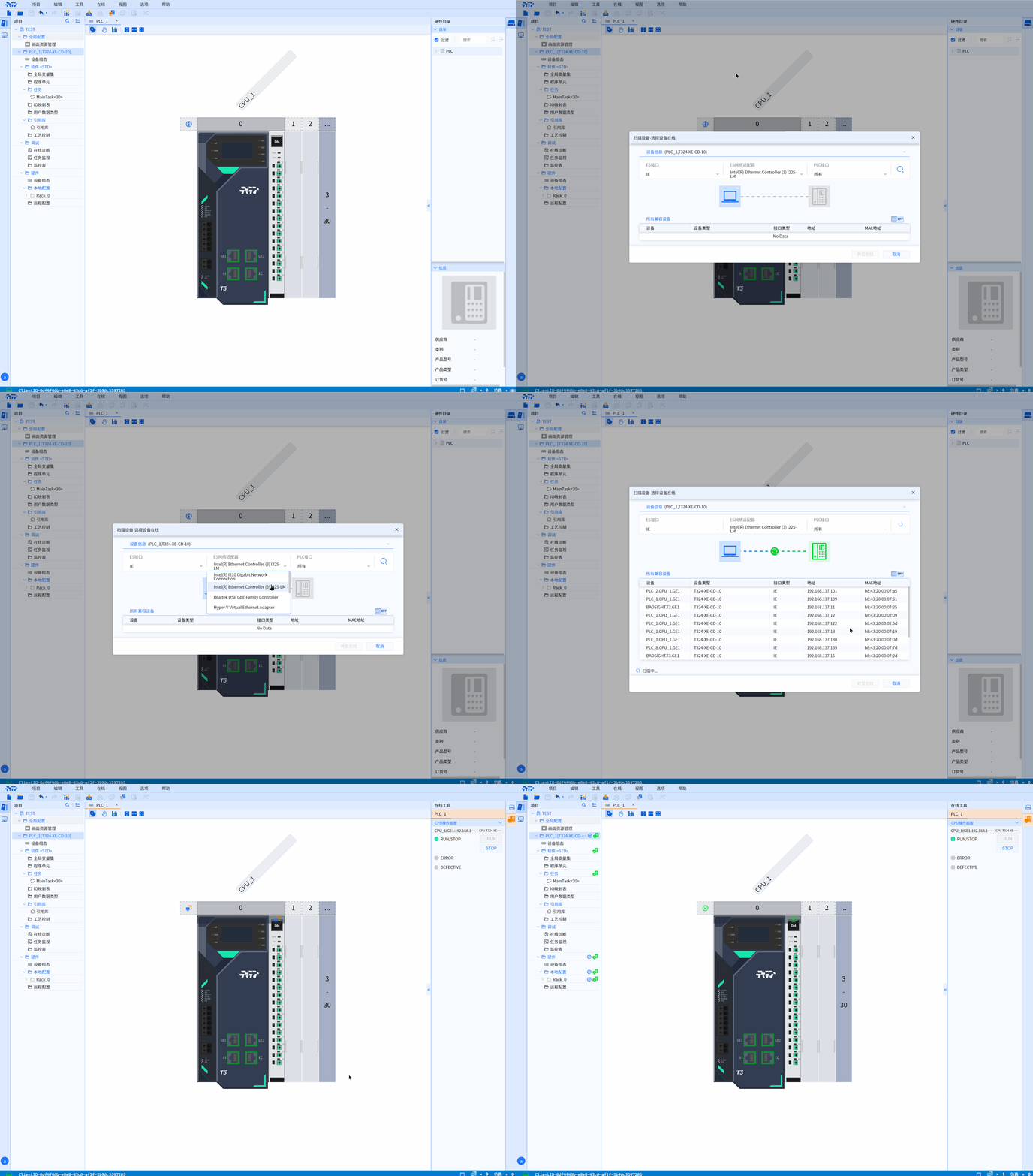
- If it is already in online mode, find the target device in Online Tools, and click the RUN button in the CPU Controller of the target device to start the PLC
6.2.5 Single module download
- Only one Baosky IDE is online, and the variable declaration area was not modified between the last download and the current download, only the code of this module was modified
6.2.5.1 Baosky IDE allowed scenarios
-
Baosky IDE is online, and the upper and lower computers of this PLC are completely consistent
-
The PU module to be downloaded has been opened
-
The program code for this PU has been modified (at this point the PU exits the online monitoring mode), the interface has not been modified, and no new PUs have been added that call the user library
(a). Operation steps
-
Press the "Download" icon in the editor toolbar (this icon is valid only if the above "Baosky IDE allows scenarios" condition is met)
-
After clicking download, first compile the software in a single module
-
The system will determine whether the prerequisites are met and meet the download conditions. If they are not met, a pop-up window will report an error and remind the user to do an incremental download of the software
(b). Result
A message in the inspector window under "Info > General" reports whether the download was completed