10.1 Orientation Download
- Download hardware and software by selecting the path
- When selecting PLC, if there are differences between the online version and the offline version, download both hardware configuration and software to the target location. Select device download allows you to select the target device and the settings for the target device
10.1.1 Select device to download
Operation steps:
-
Select PLC or software and any node under software in the project tree
-
Select the "Select Device Download" command in the "Online" menu
-
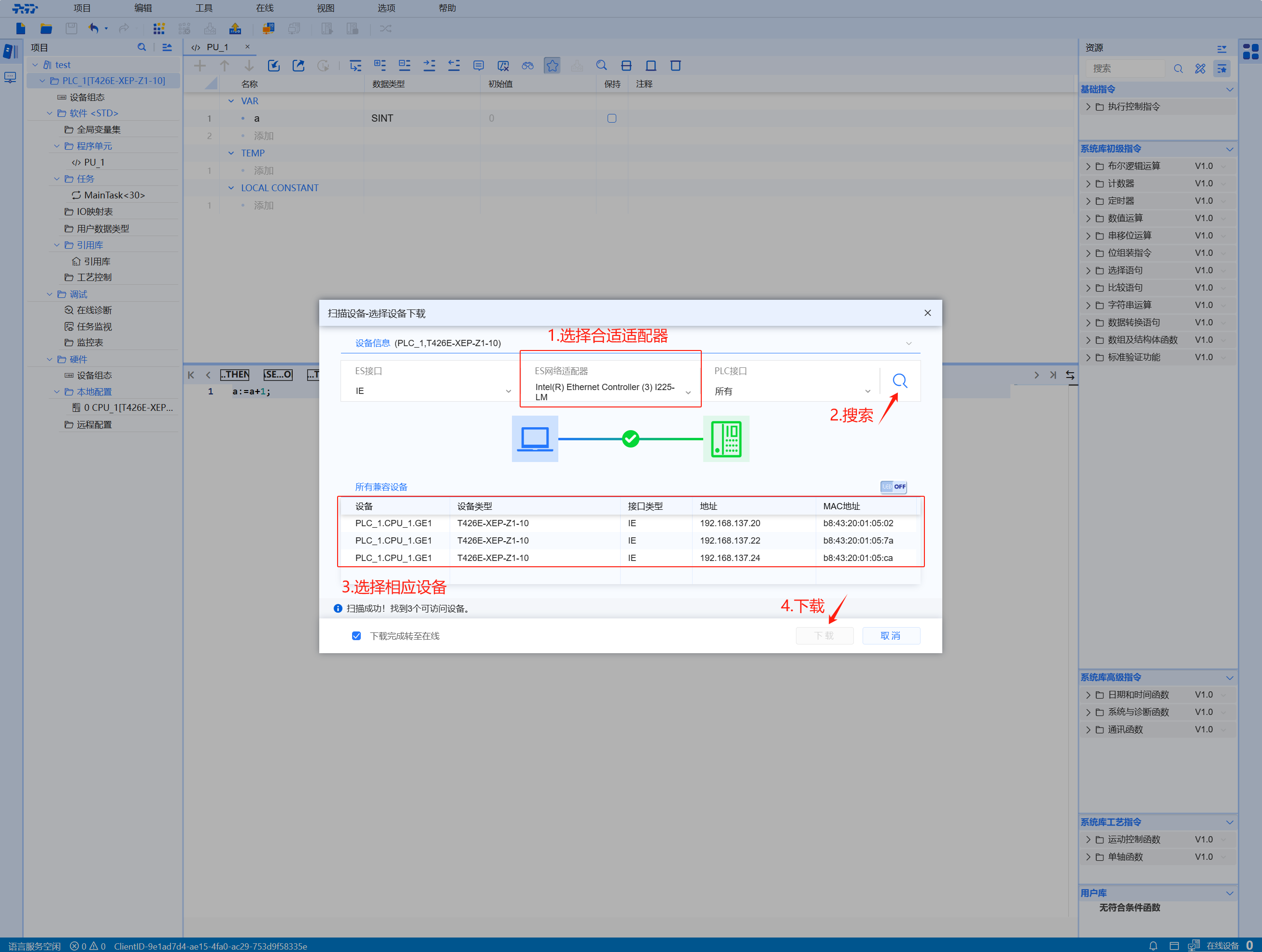
On the pop-up "Scan Device-Select Device Download" window, select the appropriate ES network adapter for network scanning, and select the corresponding device and click the "Download" button
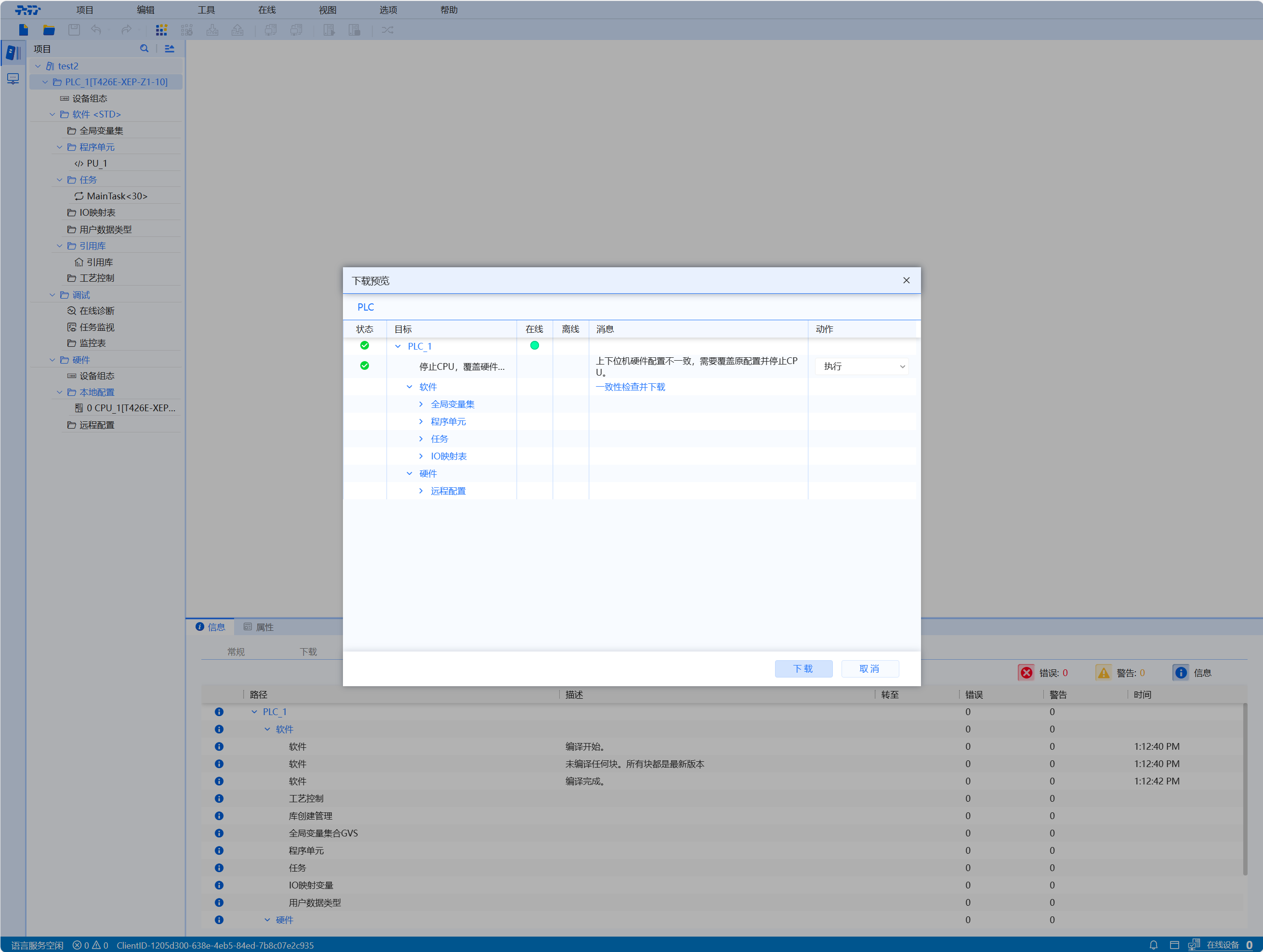
- Click the download button in the "Download Preview" page to download the program to the PLC device
note
If the Baosky IDE hardware configuration is inconsistent with the PLC hardware configuration , it cannot be downloaded directly to the device. User can choose to use the Baosky IDE hardware configuration to overwrite the PLC hardware configuration , or modify the Baosky IDE hardware configuration to be consistent with the PLC hardware configuration