10.2 Go Online
-
T3 supports two es online at the same time when both the host and host computer are V1.10. At the same time, when one es opens monitor, the other es can download (if the download content involves the monitor object of the other es, the related monitor of the other es will be exited automatically, otherwise it will not be affected). However, when downloading (including download preview), another es cannot open a new monitor.
-
T4 supports 4 people to be online at the same time when both the upper and lower computer are V1.10. Other functions are the same as above.
- To use the device's online features, user need to specify the connection path when establishing a connection for the first time
At least one ES interface is installed and there is a physical connection between this interface and a PLC device, for example via Ethernet cable. (Baosky IDE only supports Ethernet)
10.2.1 Go to online steps
Operation steps:
To establish or change an online connection, follow these steps:
- Select a device (PLC) that needs to be connected online in the project tree
- In the "Online" menu, select the "Online" command
- If the device has already been logged in, an online connection will be automatically established using the previously specified connection path.
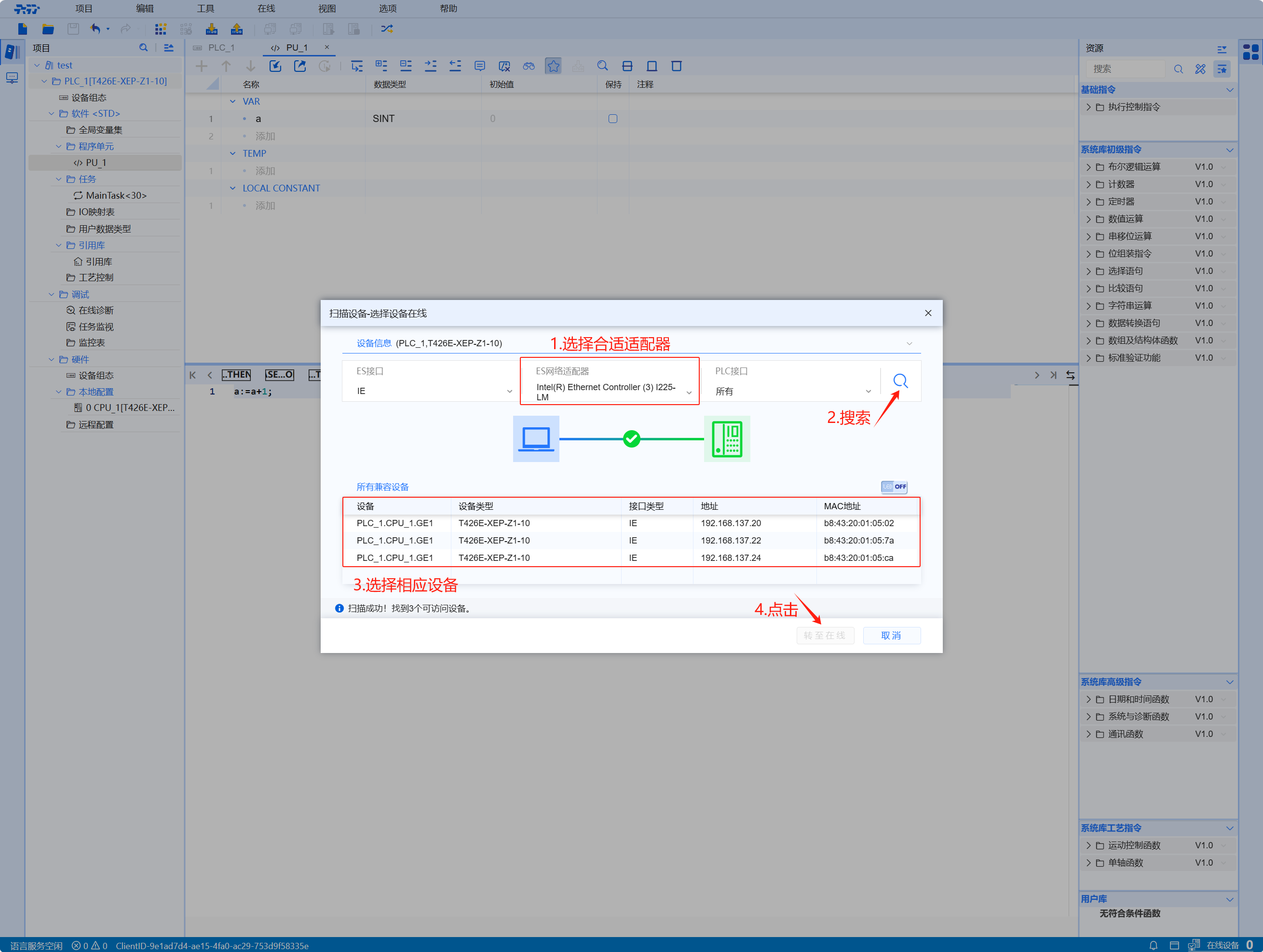
- If there was no previous connection, the "Select Device Online" window will open
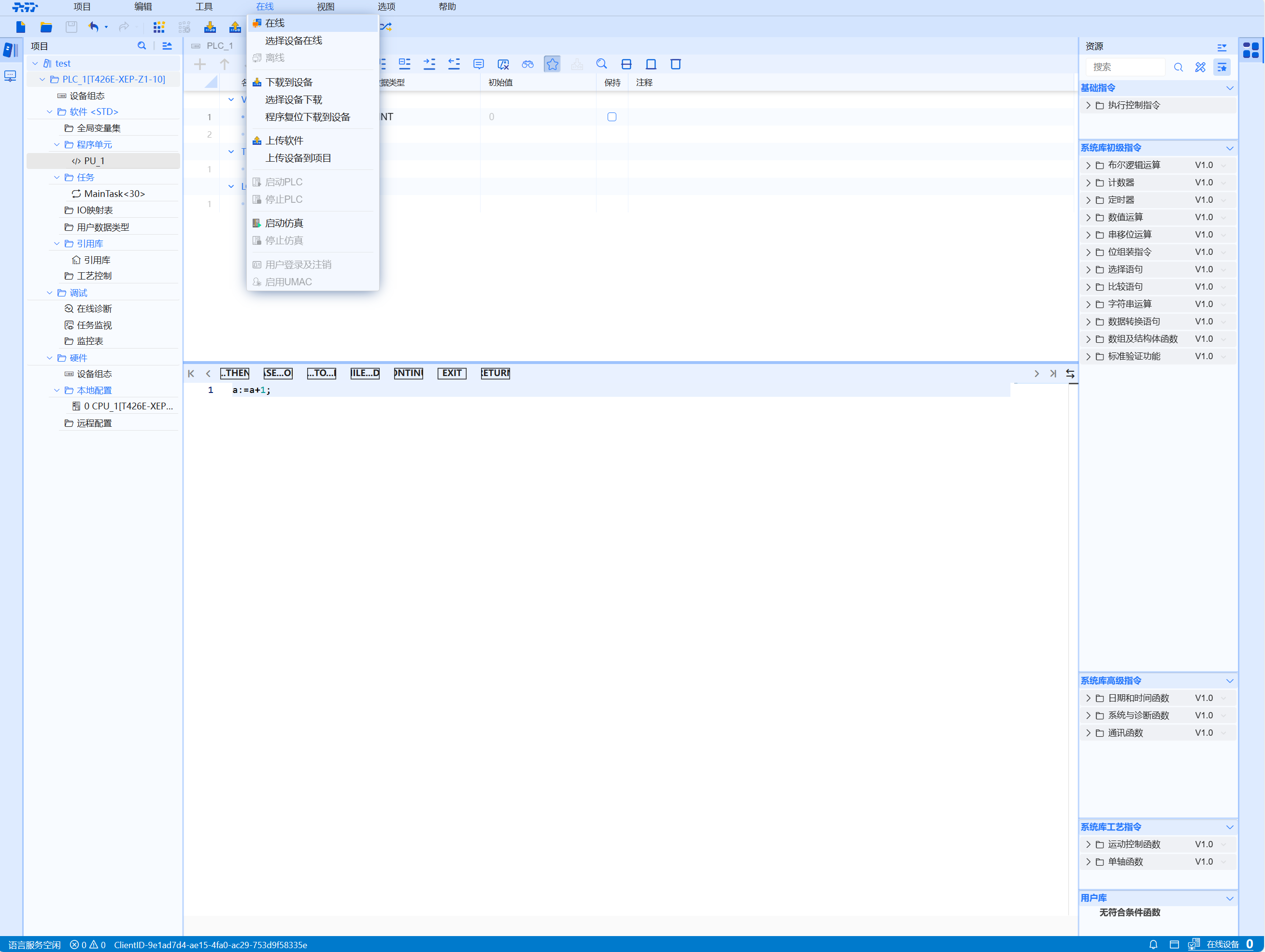
To change the specified connection path, select the "Select device online" command in the "Online" menu. The Select Device Online dialog will open again
Unable to undo an operation after establishing an online connection
Compatible devices displayed that meet the following criteria: (1) Filtered according to PLC interface; (2) Scanned PLC device models are consistent with the PLC device models selected from the project tree
Device : Displays the device name. The PLC device name consists of: PLC name,CPU name and Interface name
When the device leaves the factory, the default device name is: BAOSIGHT.CPU family.Interface name
Device Type: Displays the device type. If it is a PLC device, the product model of the CPU is displayed.
- After establishing an online connection, the editor window displays the online status (depending on the specific UI design)
- At the same time, in the project tree, online and offline objects are distinguished through status symbols
- The set connection path will be stored for future connection attempts
- When the engineering station address is automatically assigned, the dialog will reappear when the computer is restarted. At this point, the connection needs to be re-established
Use direct connection or subnet connection
- The online connection between Baosky IDE and the connected device can be through direct connection or subnet connection
- Simultaneous cross-subnet connections are not possible if the devices are physically connected via the same interface. Subnets that cannot be connected at the same time can only be connected through routing
- When connecting devices through subnets, direct connections cannot be made to the same interface at the same time
10.2.2 Cancel online operation steps
Operation steps:
To terminate an existing online connection, follow these steps:
-
- Select the device (PLC) to be disconnected online in the project tree
-
- In the "Online" menu, select the "Offline" command, and the online connection is disconnected
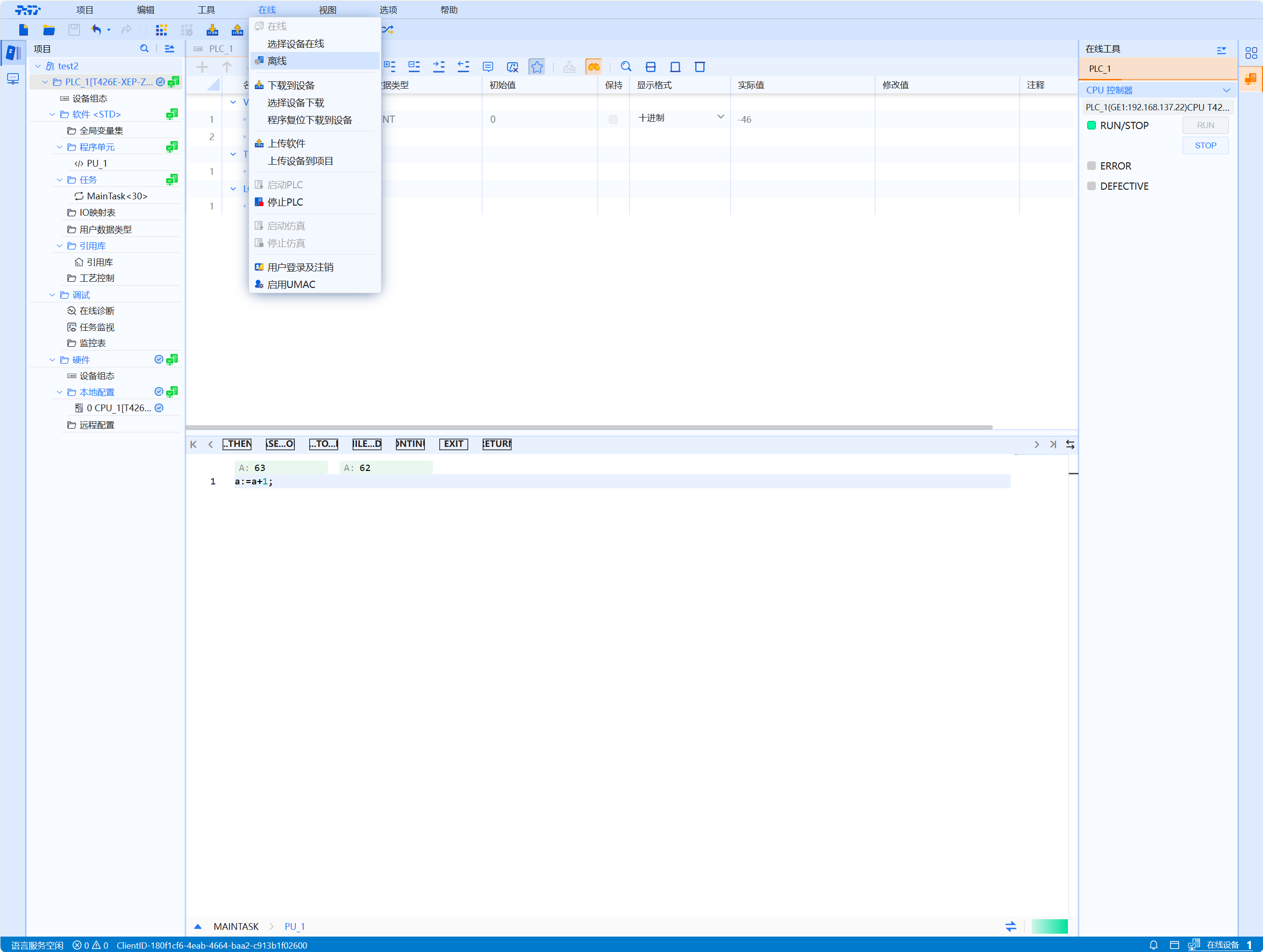
Unable to undo operations after disconnecting online
10.2.3 General information about online mode
In online mode, an online connection will be established between the engineering station and one or more devices (PLC)
- To perform the following tasks, an online connection needs to be established between the engineering station and the equipment (PLC):
- Test user program
- Display and switch the CPU working mode
- Display and set the date and day clock of the CPU
- Display module information
- Compare blocks
- Hardware diagnostics
-
Before establishing an online connection, the engineering station and device (PLC) must be connected physically or remotely. As an alternative, the PLC supports simulation mode. In this case, the connection to the device can be simulated through the PLCSIM virtual interface
-
Once the connection is established, user can access the data on the device using the "Online Diagnostics" view or the "Online tools" task card. The icon to the right of the device in the project tree will indicate the device's current online status. The meaning of each status icon can be found in the associated tooltip
Some online function depends on the functional scope of the installed software or whether the project is open