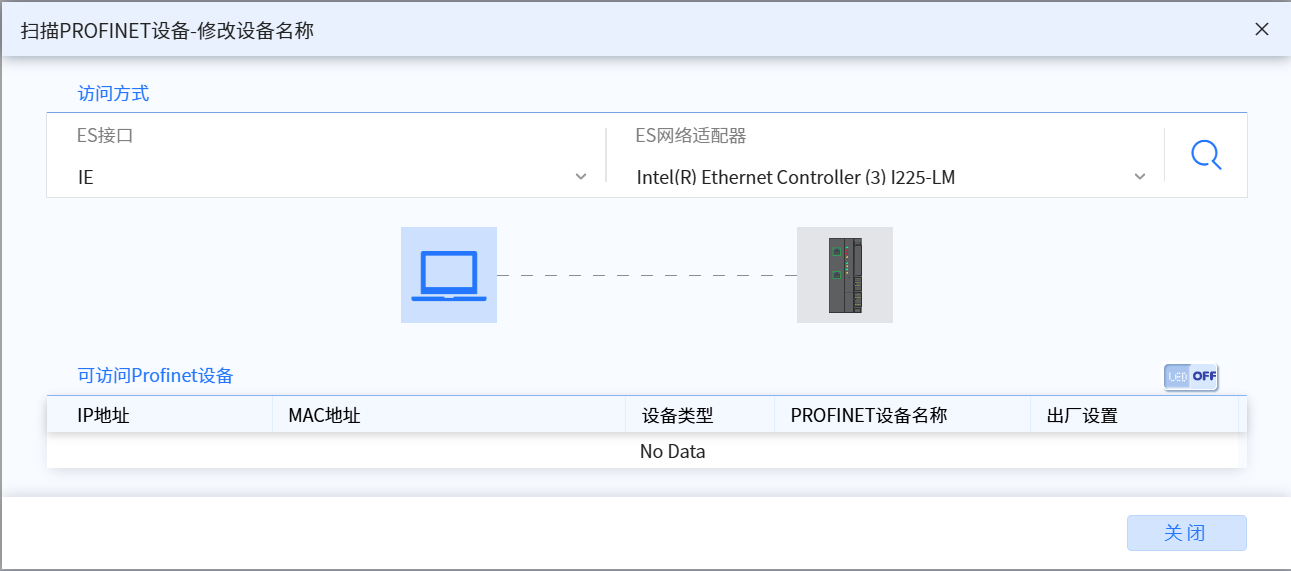
9.2 Scan Profinet Device
- The purpose of using the scan PROFINET device function is to identify and configure PROFINET devices to ensure that PROFINET devices can correctly connect to the network and communicate with other devices. Through this function, users can easily identify and configure PROFINET devices and conduct necessary fault diagnosis. and test
9.2.1 Scan devices using the Scan PROFINET device function
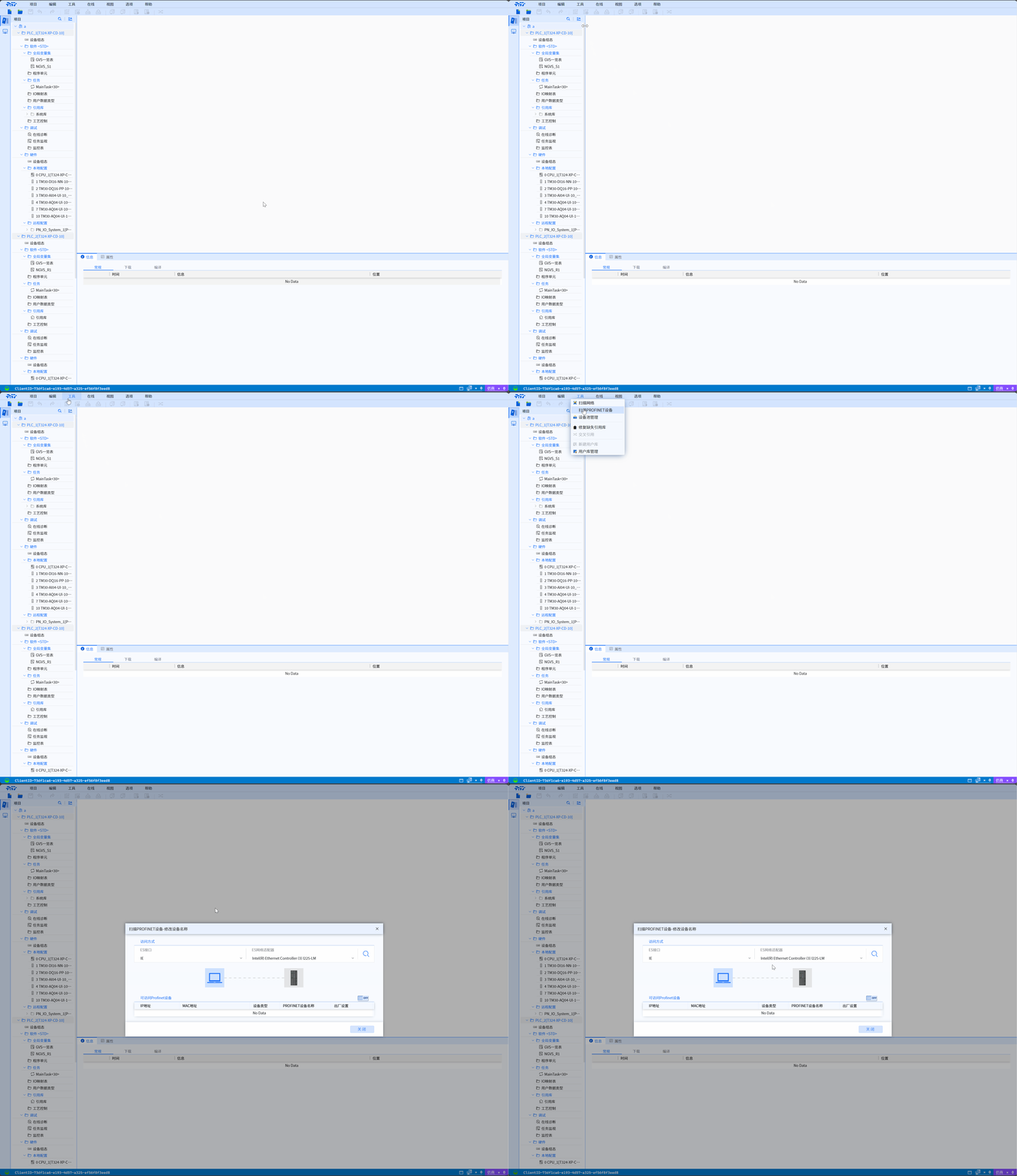
9.2.1.1 Turn on the function of scanning PROFINET devices
- Open the Menu Bar and select Tool>Scan PROFINET Device
9.2.1.2 Select the corresponding network adapter for network scanning
- Open the ES Network Adapter tab, select the corresponding network adapter, and click the scan button on the right to start scanning
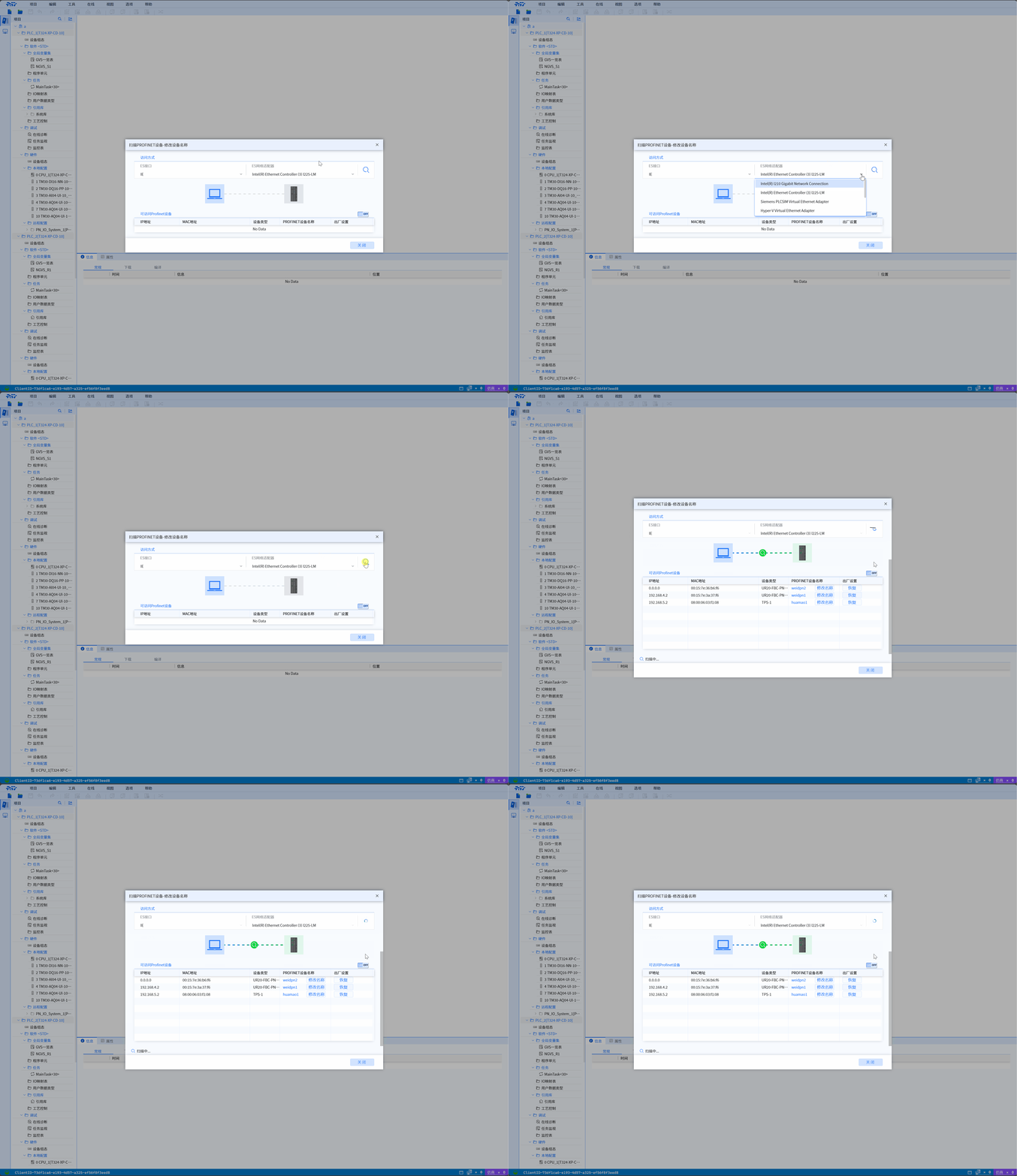
9.2.2 View the scanning results of PROFINET device functions
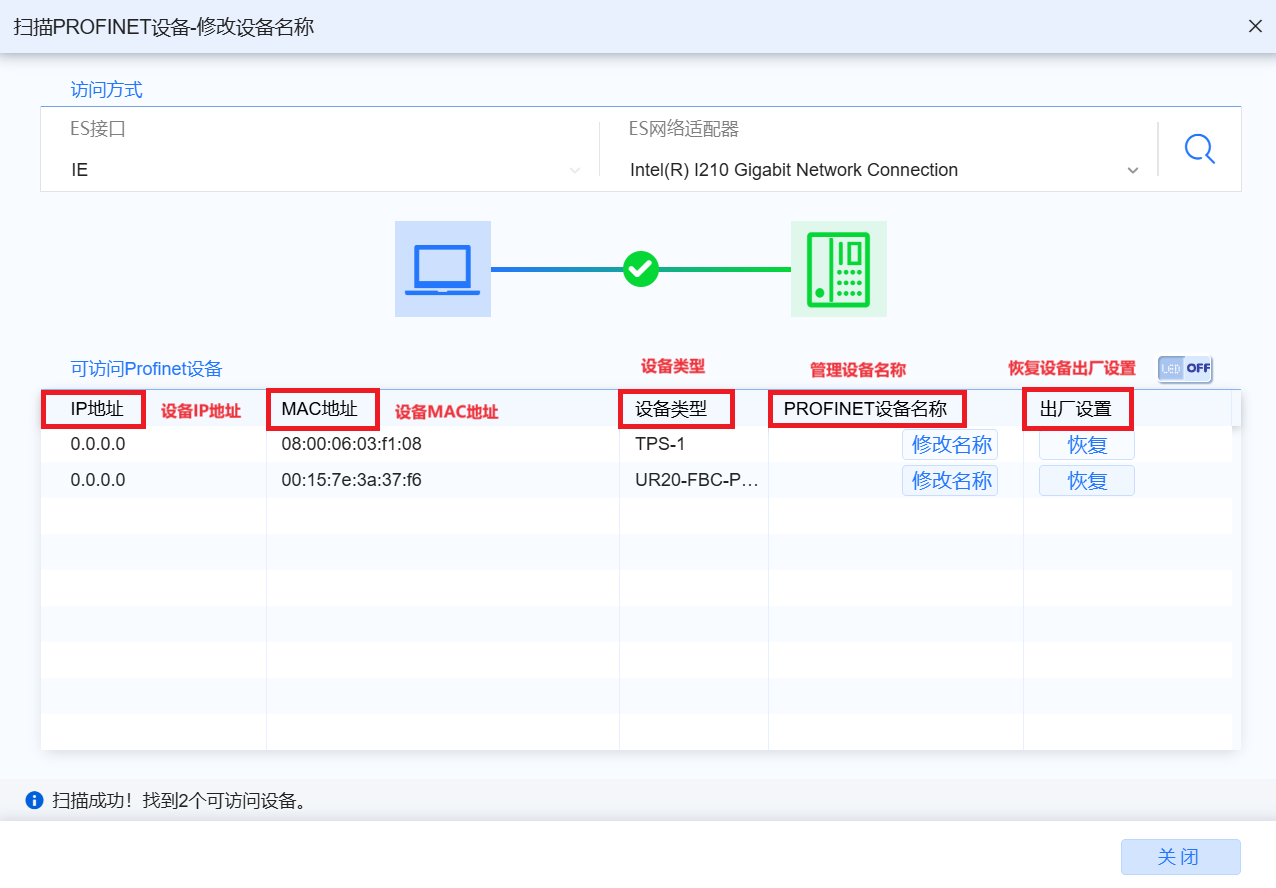
- As shown in the figure below, the scanned devices are displayed in Accessible Profinet Devices, which shows the IP address, MAC address, device type, PROFINET device name, Factory settings
9.2.3 Manage PROFINET device name
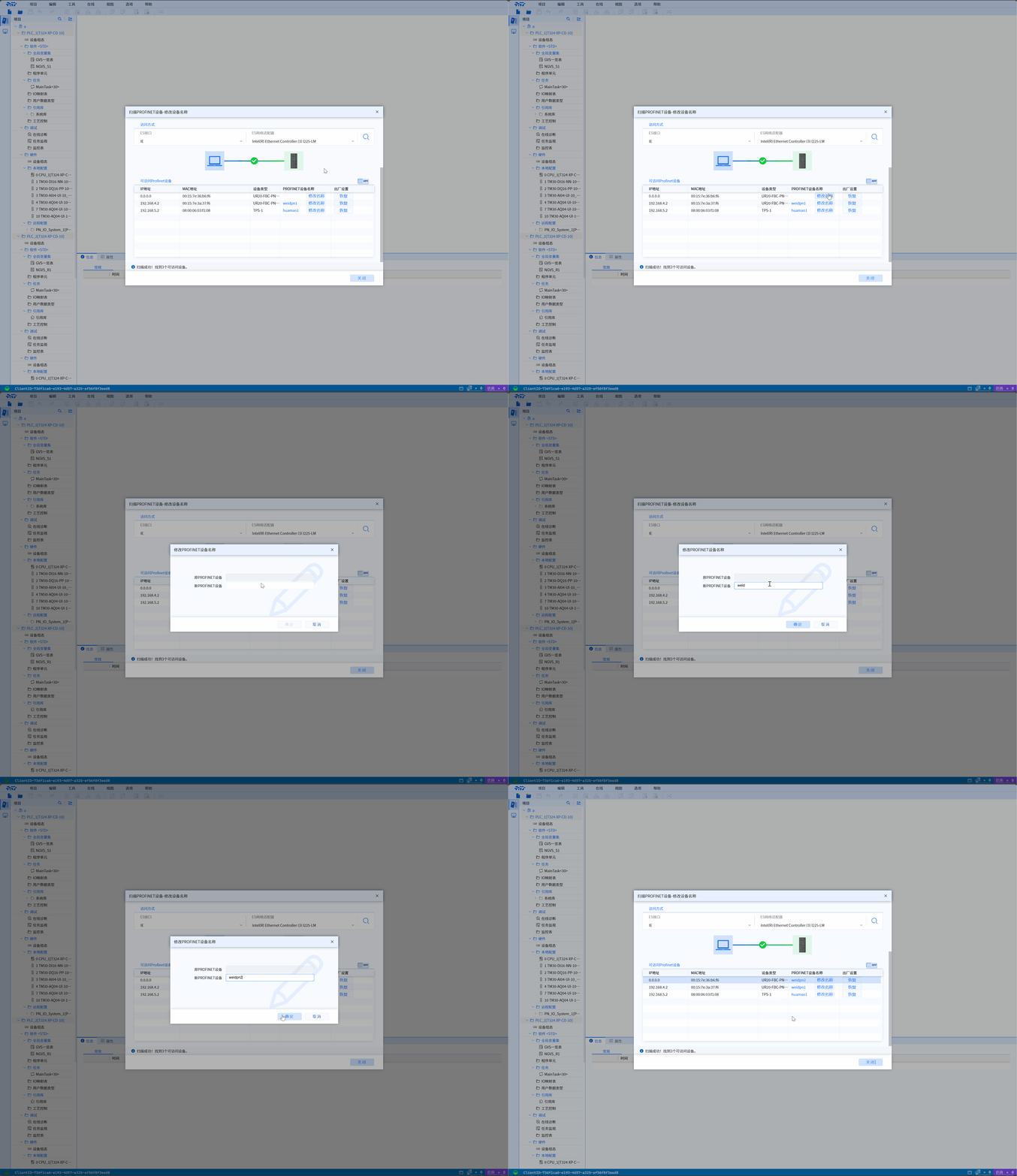
- Click the Modify Name button in Scan PROFINET Device Function Scan Results, and in the displayed Modify PROFINET Device Name window, the Original PROFINET Device column displays the old name of the device. User can Enter the new name in the New PROFINET Device field and click the OK button to save the changes
NOTE
- The device name can only use a-z,-,0-9, and can only start with a-z
9.2.4 Restore PROFINET device to factory settings
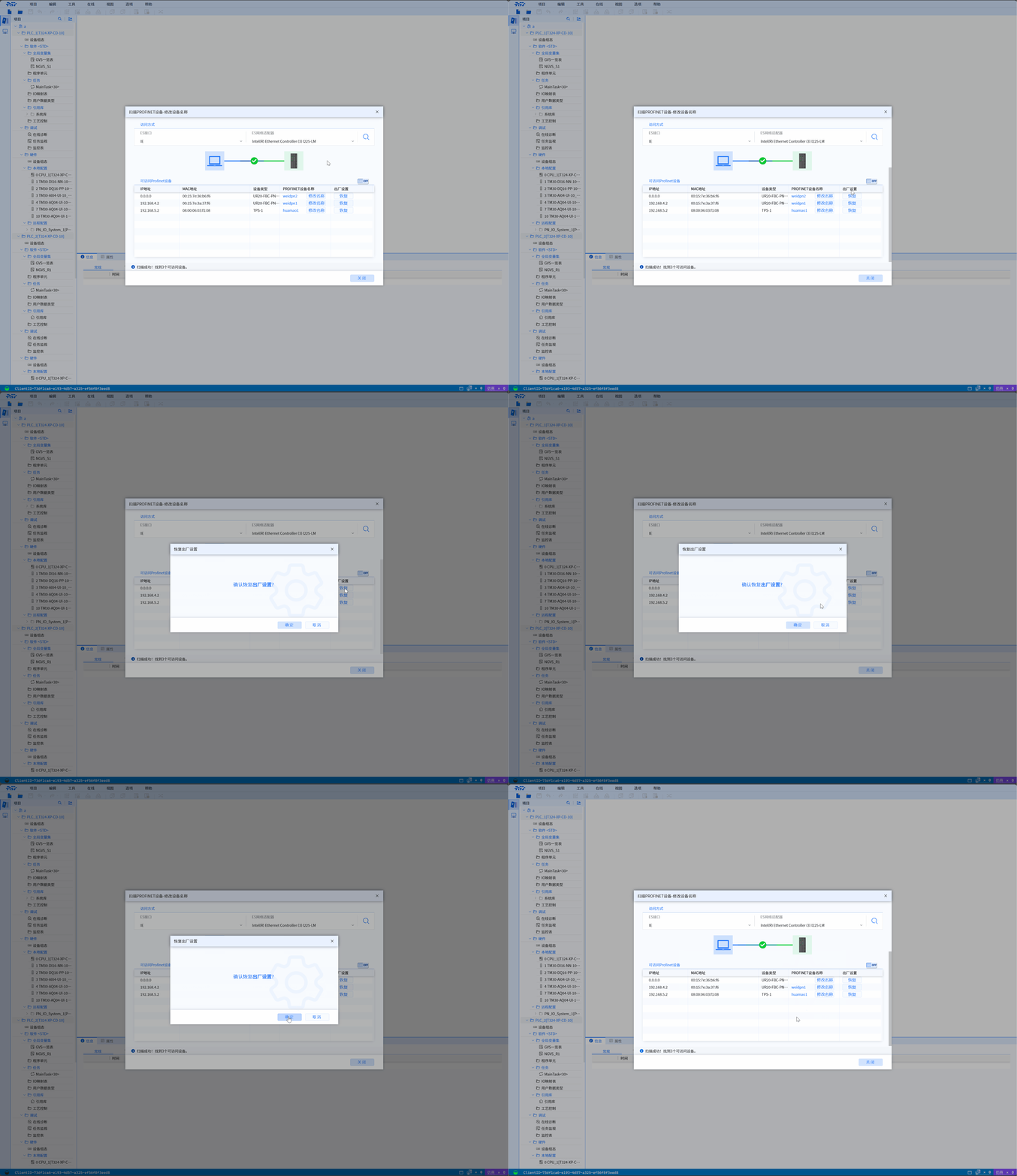
- Click the Restore button in Scan PROFINET device function scan results to restore the Profinet device to factory settings. Restoring factory settings will set the Profinet device name and IP to default values