8.1.3 UMAC
UMAC (User Management and Access Control) is used for user rights management of PLC and is usually used in the Online function of the first-level menu bar. Baosky PLC has designed a total of 4 types of users and differentiated access levels
Access Level:
-
Full access rights: This type of user is also called an administrator. They can read and modify projects, and can also operate system settings (firmware upgrade, factory reset, and UMAC settings). There is only one super user admin among the users with full access rights, who can add, modify and delete all other users in the list; users with full access rights cannot modify, add and delete each other, but can manage other permissions users and change their own passwords, but cannot modify their own permissions
Add a new user with full access rights Modify (except password) a user with full access rights Modify a user with full access rights' own password Delete a user with full access rights admin √ √ √ √ User with full access × × √ × -
Write access permission: This type of user is also called Writer and can read and modify projects
-
Read access permission: This type of user is also called Reader and can read items
-
External-user permission:Accessing PLCs via Baosky HMI/Baosight SCADA requires external-user permissions.
- The following shows the UMAC permissions in Baosky PLC for users from different sources
| Accessing User | UMAC User/Role | Software | SDK | PLC Start/Stop | Online Diagnostics | ||||||||||||
|---|---|---|---|---|---|---|---|---|---|---|---|---|---|---|---|---|---|
| Download | Delete | Upload | Task Monitor | Program Subscription | Variable Table Subscription | Variable Table Write | Interface Variable Write | Start/Stop PLC | Get PLC Status | Diagnostic Buffer | UMAC Management | Read/Set Time | Firmware Update | User Program Reset | Load and Monitor | ||
| Baosky IDE | admin user Full Access User | √ | √ | √ | √ | √ | √ | √ | √ | √ | √ | √ | √ | √ | √ | √ | √ |
| Write Access User | √ | √ | √ | √ | √ | √ | √ | √ | √ | √ | √ | - | √ | - | √ | √ | |
| Read Access User | - | - | √ | √ | √ | √ | - | - | - | √ | √ | - | Readable, not settable | - | - | √ | |
| Baosky HMI Baosight SCADA | External Access User | - | - | - | - | - | √ | - | √ | - | √ | - | - | Readable, not settable | - | - | - |
- When connecting the device for the first time, user need to set the admin super user password for online device verification and UMAC management. The user sets the admin password according to the password rules, and logs in to admin after confirming the password twice. account
- This chapter mainly introduces several operations related to UMAC, including 6 sections: adding new users, deleting users, modifying access levels, modifying passwords, user login and logout, and password protection
Each section mainly introduces the operation process corresponding to this section and the results obtained after the operation
8.1.3.1 Add new user
- After the user logs in with the admin account for the first time, he can perform online PLC user management
- Only users with full access rights can add new users
The following introduces the new user functions:
Operation steps:
- Click the first-level menu Online-Enable UMAC to jump to the UMAC page
- Click the "+" sign in the upper right corner of the UMAC page to add a new user
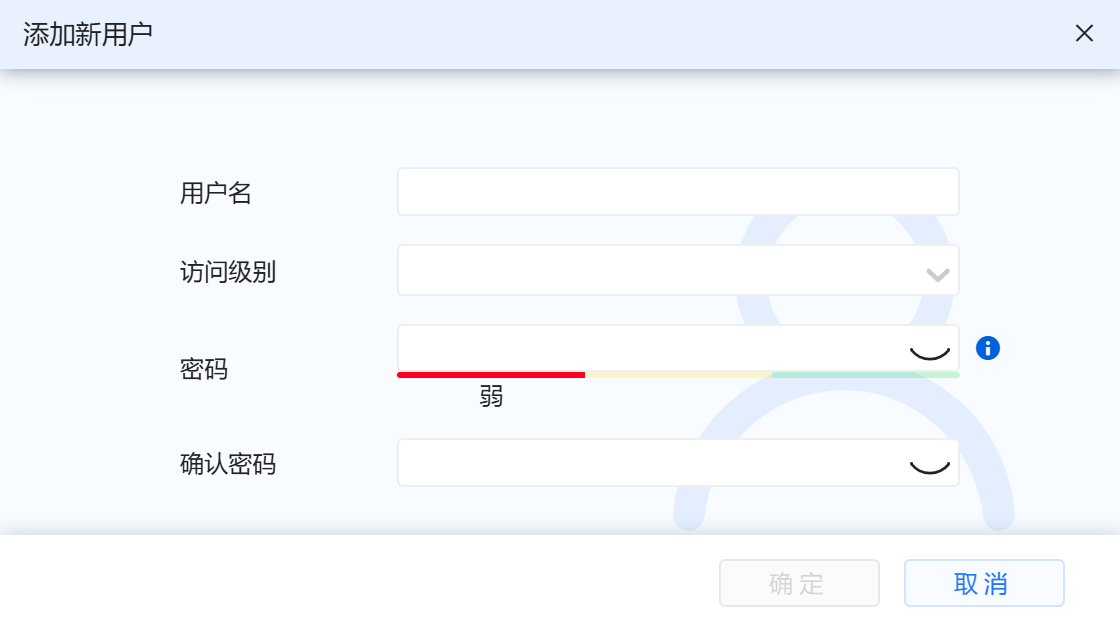
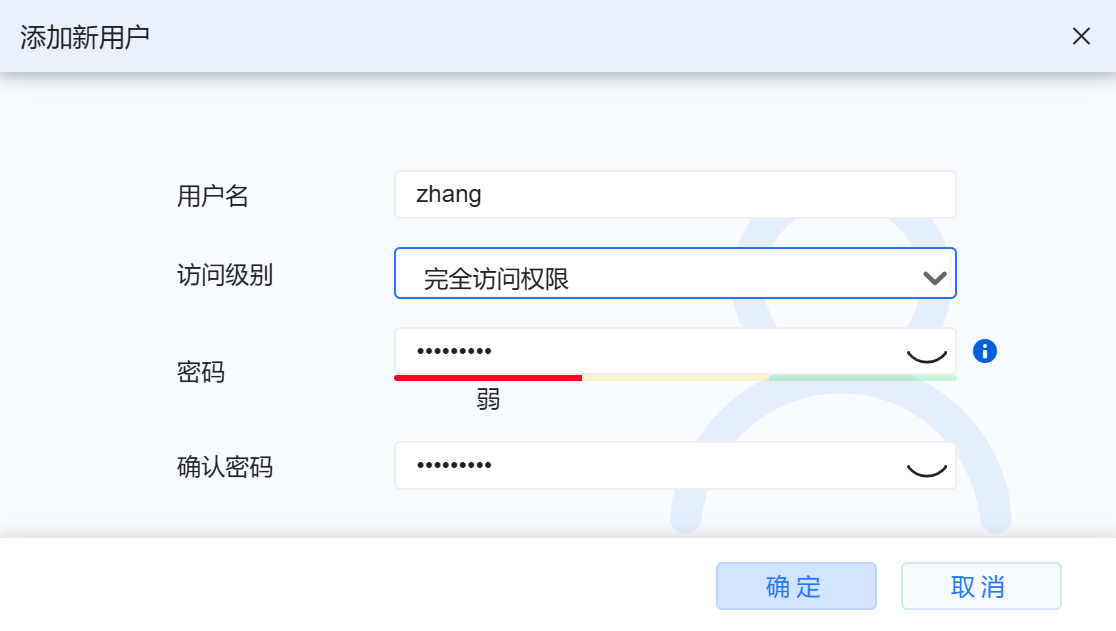
- Set the user name, access level, password respectively, and fill in the confirmation password. After completing the filling, click "OK"
When setting a user password, it is recommended that the password length be greater than or equal to 8 characters, including uppercase and lowercase letters and more than 1 number or symbol, to improve the security level of the PLC during use
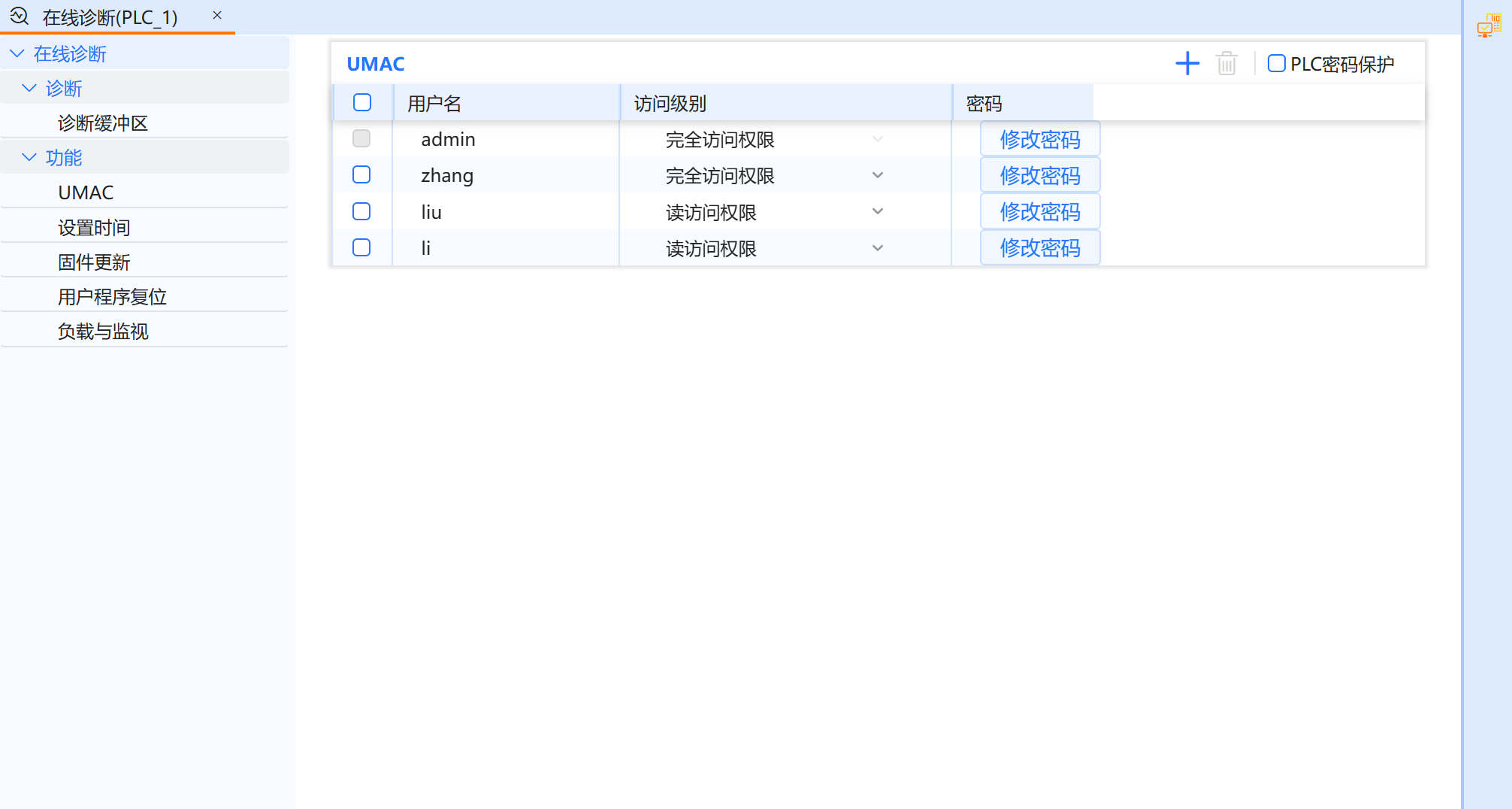
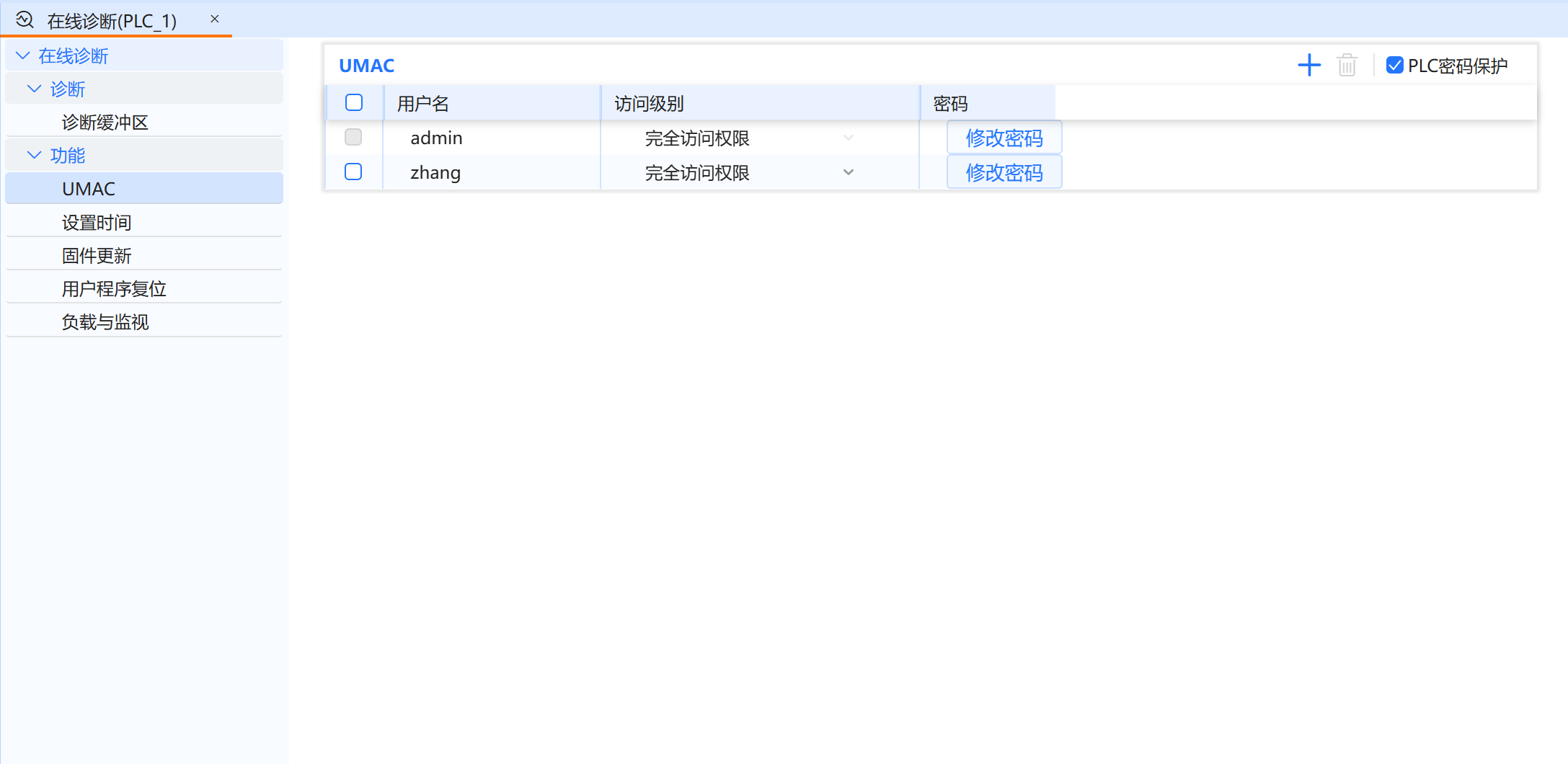
- Complete the user addition and view the new user on the UMAC page
8.1.3.2 Delete user
- After the user logs in with the admin account for the first time and downloads it to the PLC to take effect, he can click the first-level menu Online - Enable UMAC to jump to the UMAC page for online PLC user management
- Only users with full access rights (including admin) can delete users
The following introduces the delete user function:
Operation steps:
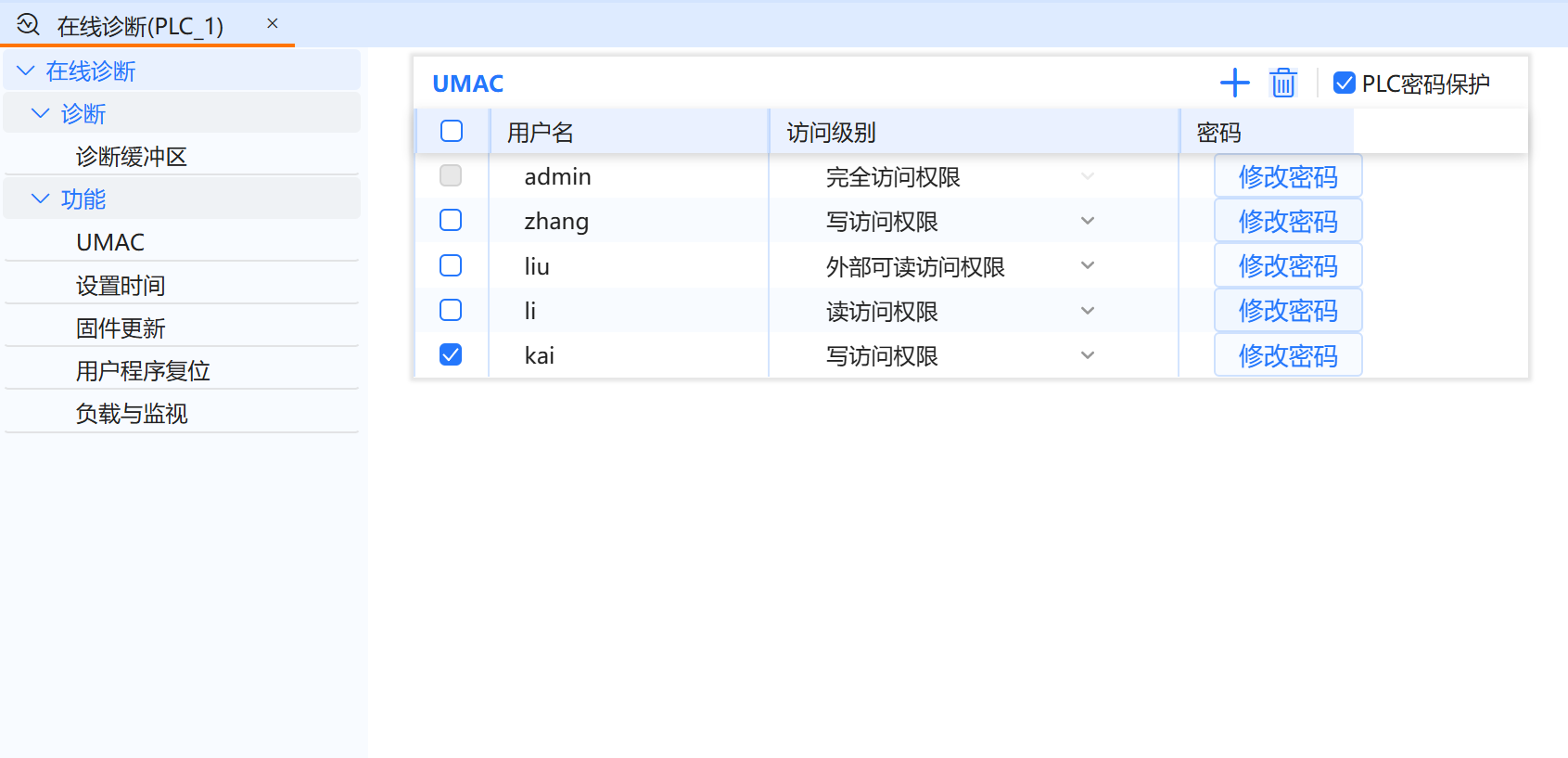
- On the UMAC page, select a user and click the delete icon to delete the user (except the admin user)
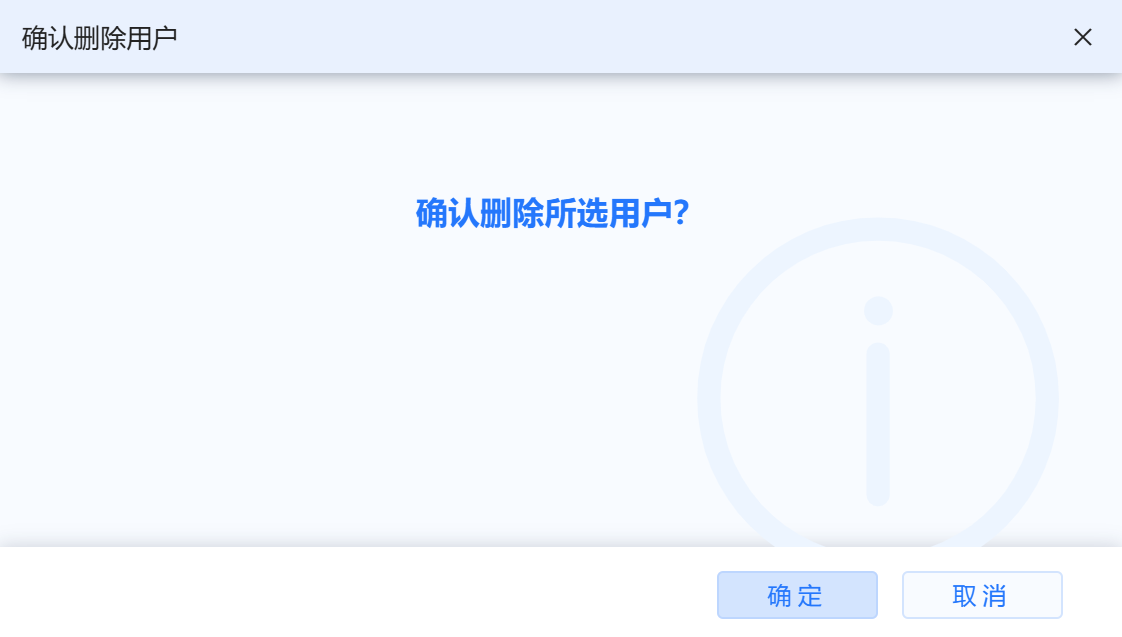
- Click "Confirm" to confirm deletion of the selected user
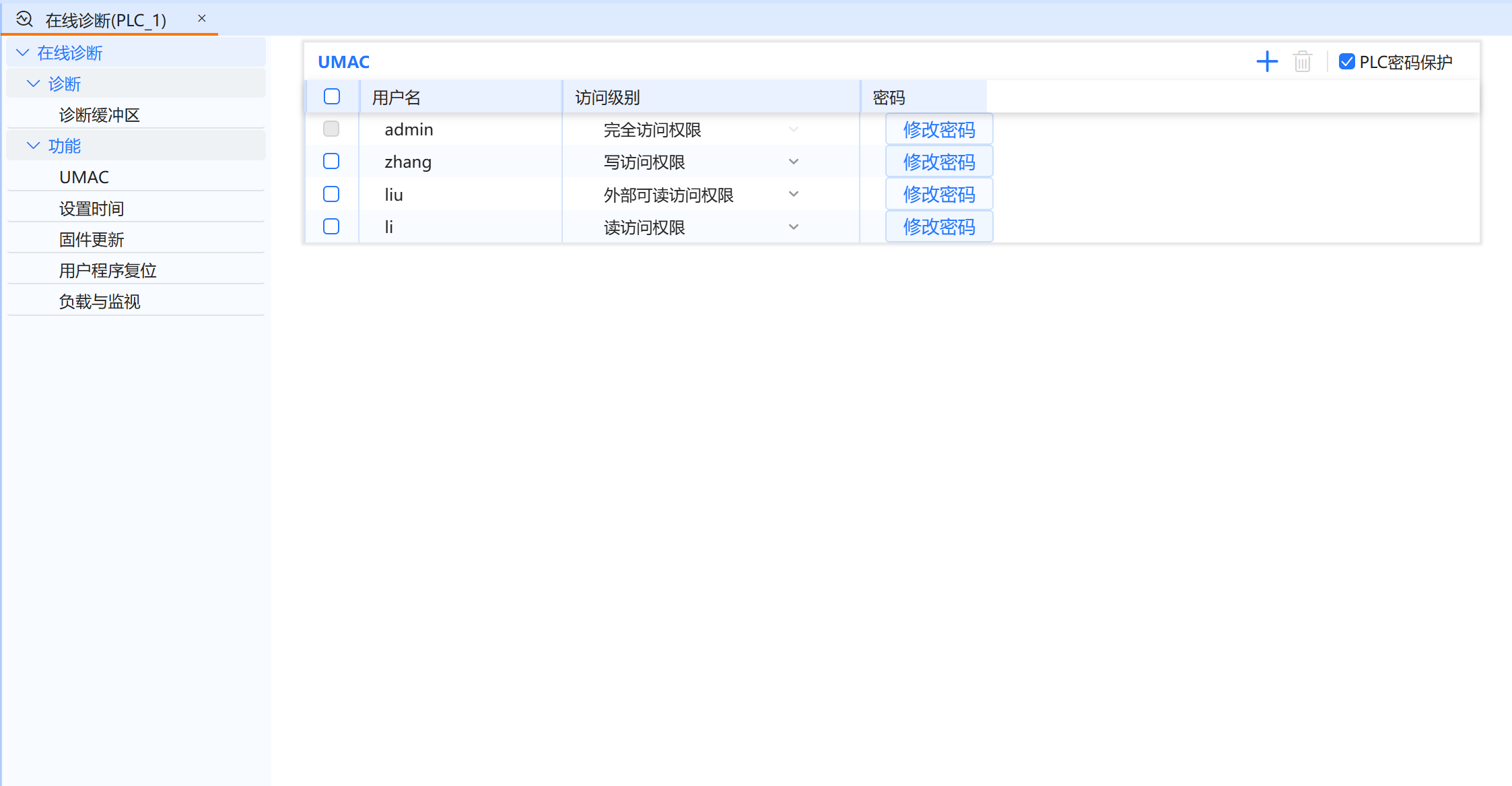
- Return to the UMAC page, user can see that the selected user "kai" has been deleted
8.1.3.3 Modify access level
- After the user logs in with the admin account for the first time and downloads it to the PLC to take effect, he can click the first-level menu Online - Enable UMAC to jump to the UMAC page for online PLC user management
- Only users with full access rights (including admin) can modify access rights
- Users with full access rights cannot modify their own permissions and the access levels of users with the same permissions
Access to the PLC via Baosky HMI or Baosight SCADA requires an external access privileged user.
The following describes the function of modifying access levels:
Operation steps:
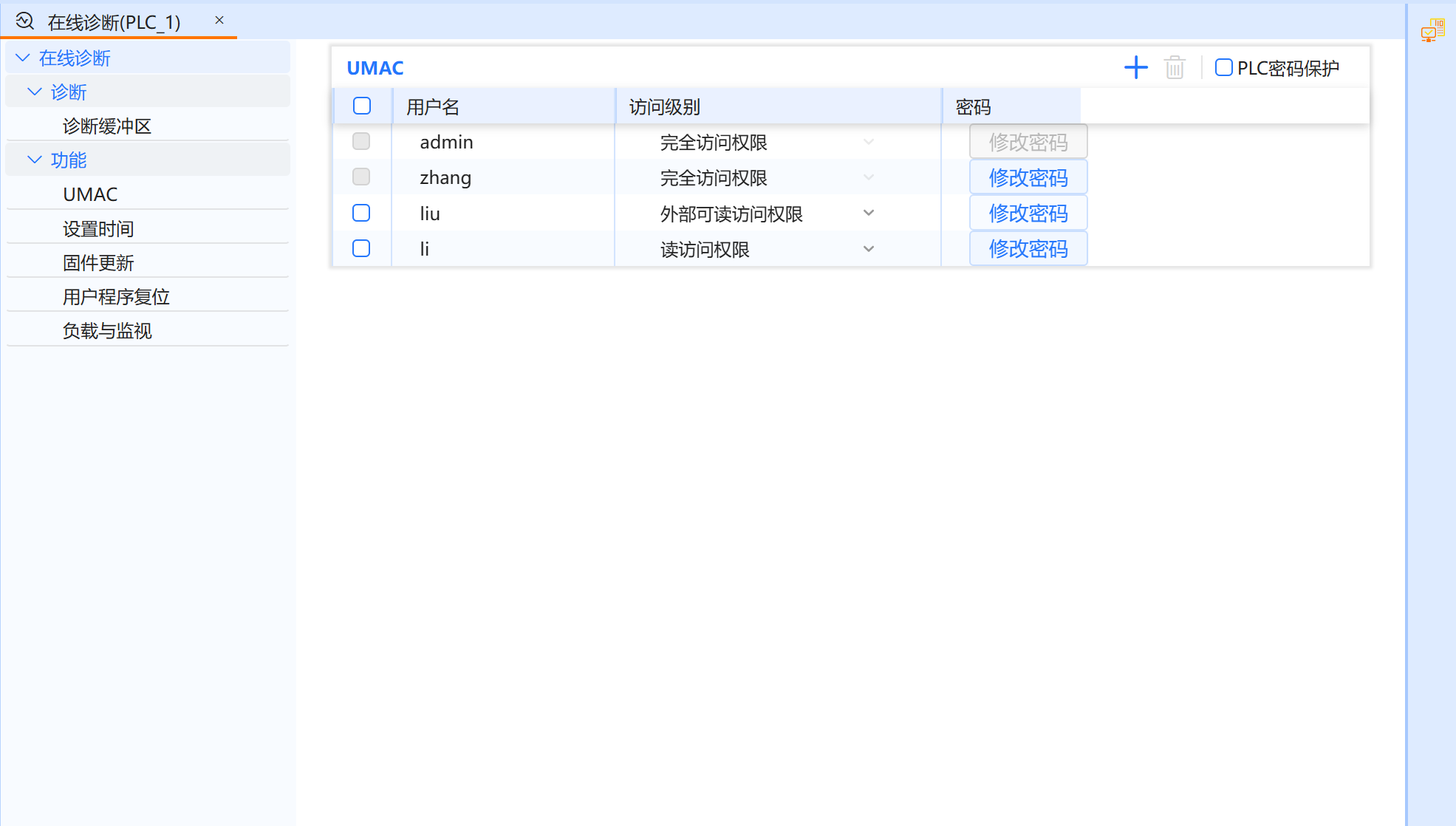
- On the UMAC page, click the drop-down list in the access level column to switch the access level of "liu"
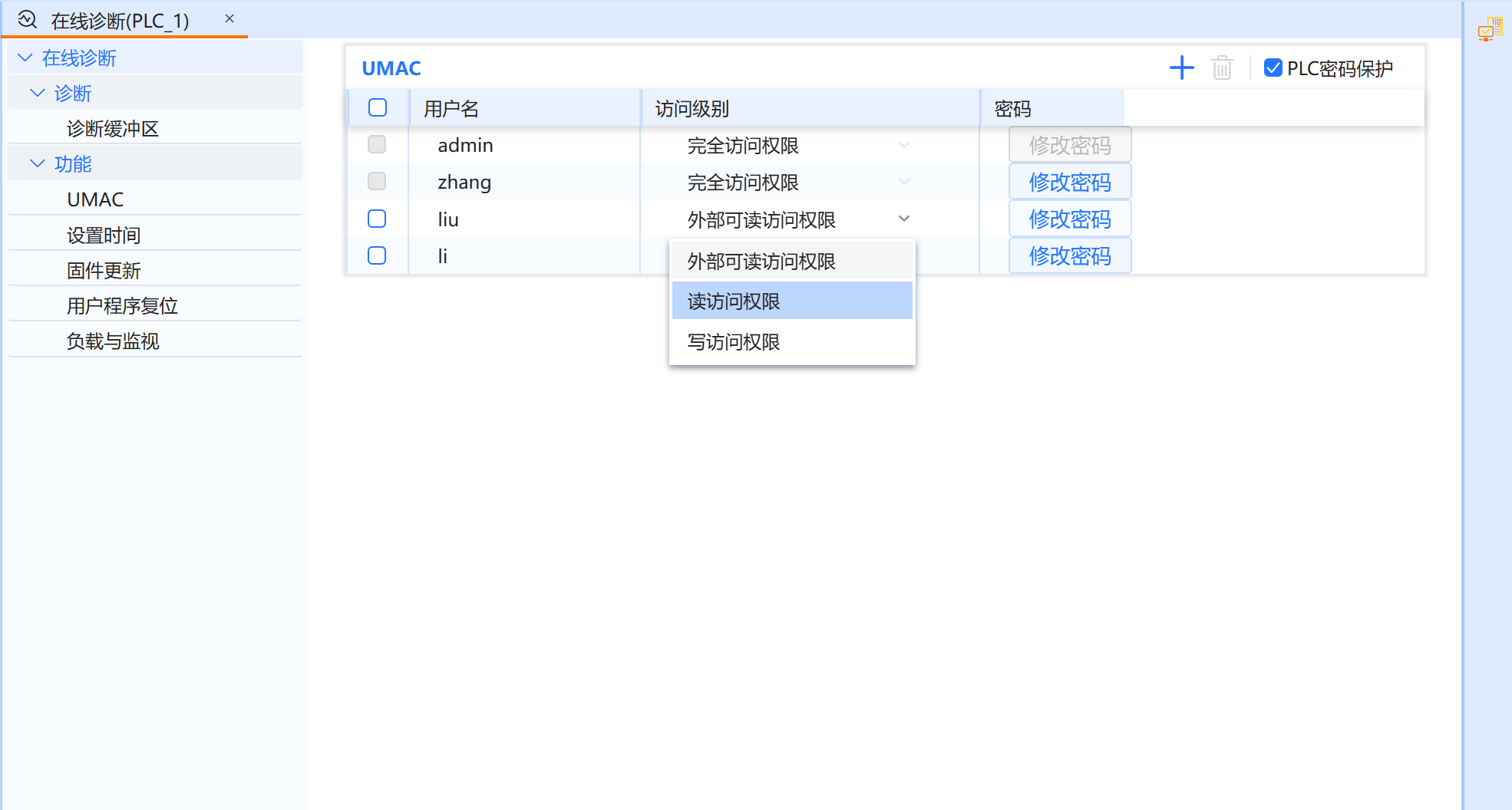
- The modification is successful, and the access level of user "liu" is changed to read access permission
8.1.3.4 Change password
- The admin user can modify the passwords of all users
- Users with full access rights other than admin can modify their own passwords and those of users with lower rights than themselves
The following introduces the password change function:
Operation steps:
- On the UMAC page, click to change li's password as user zhang with full access rights
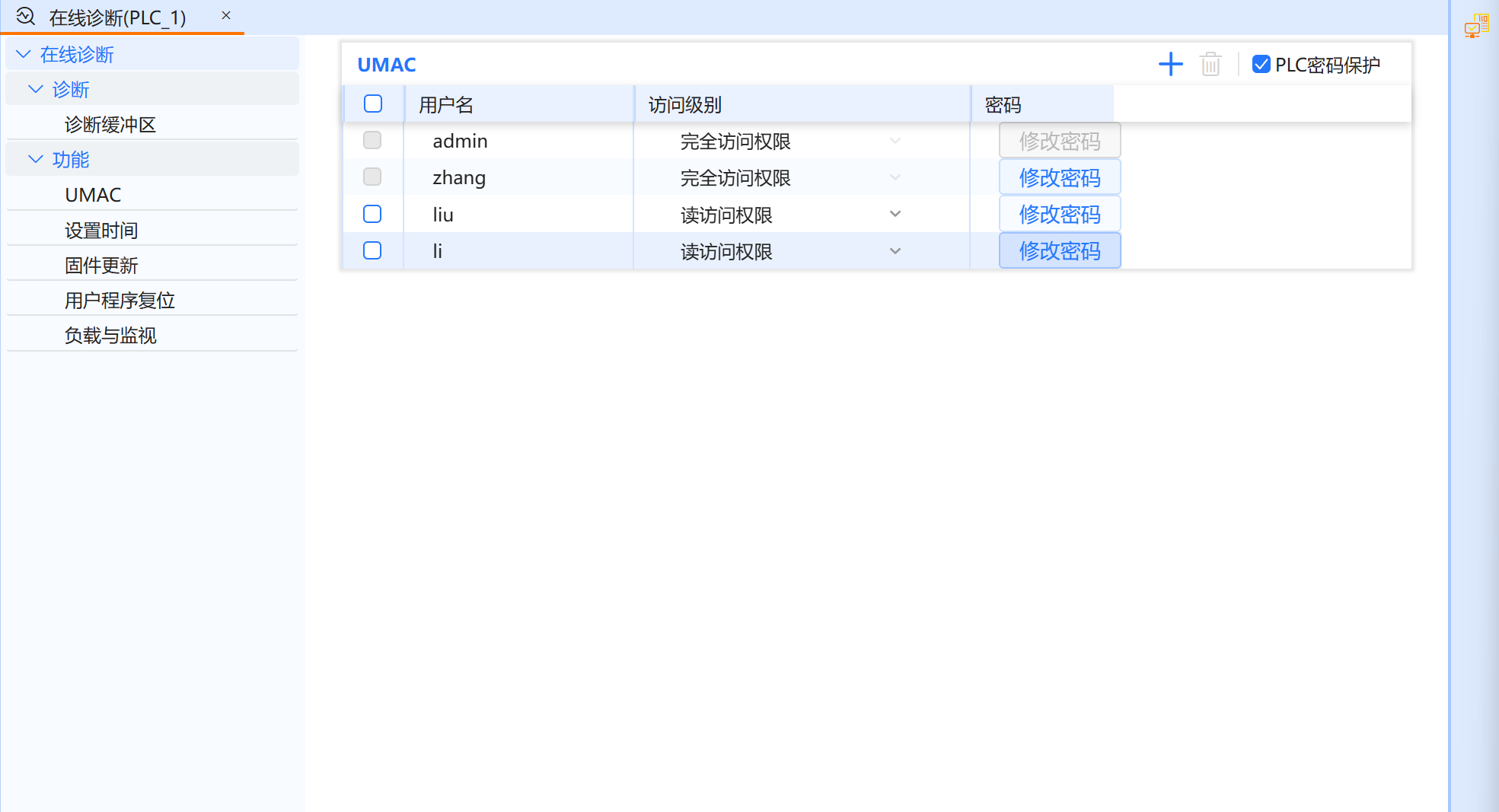
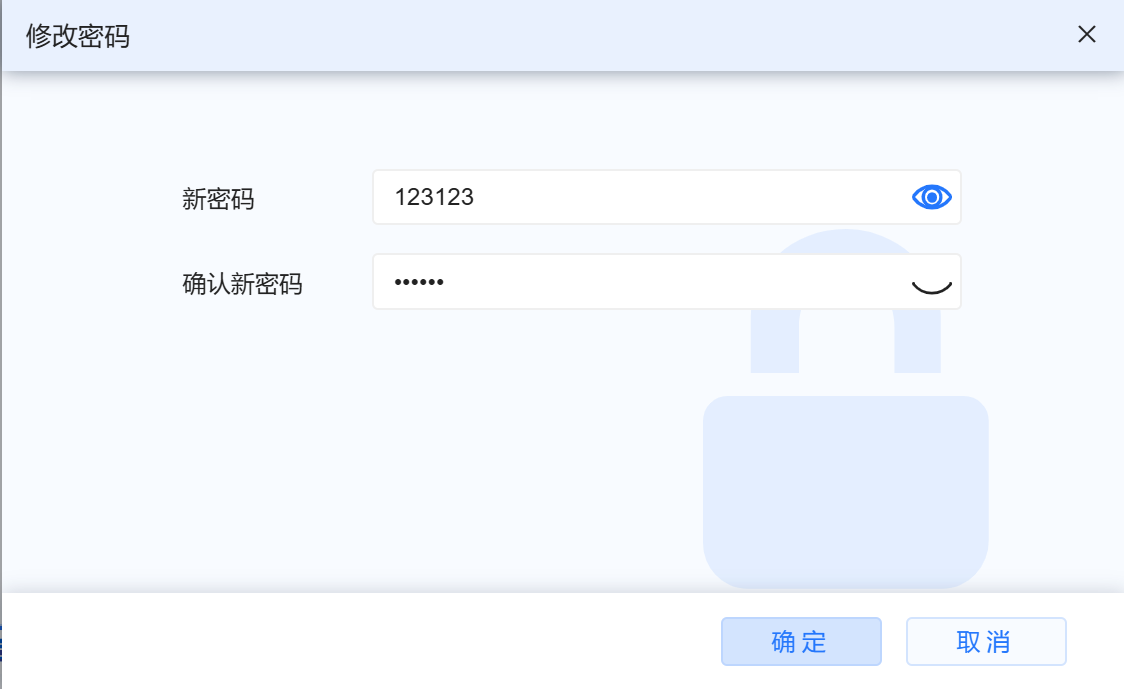
- Fill in the password and confirm again
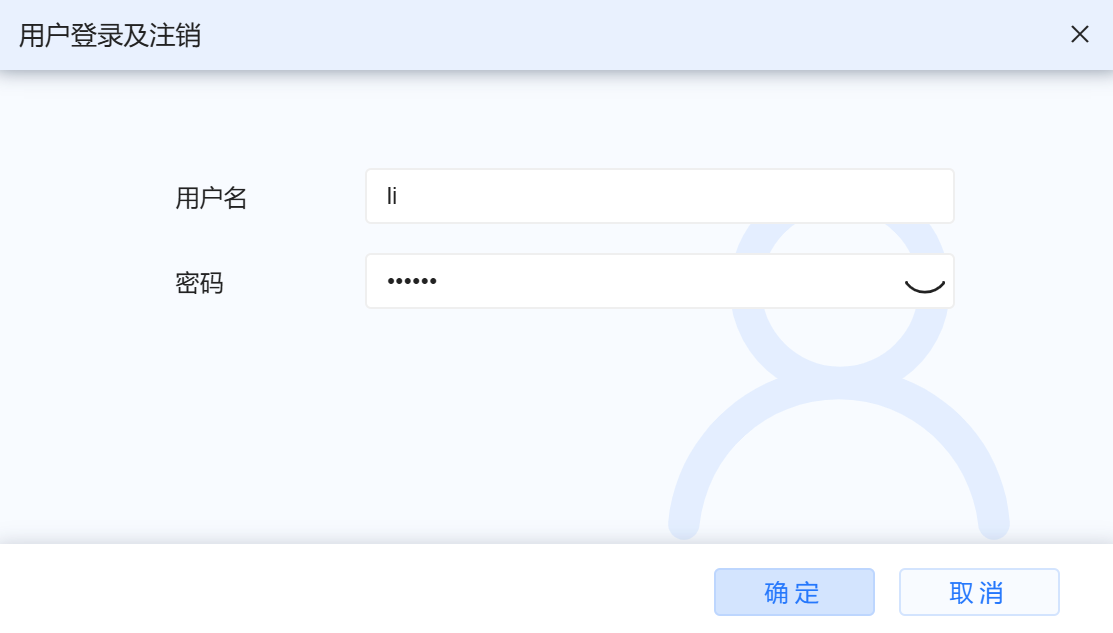
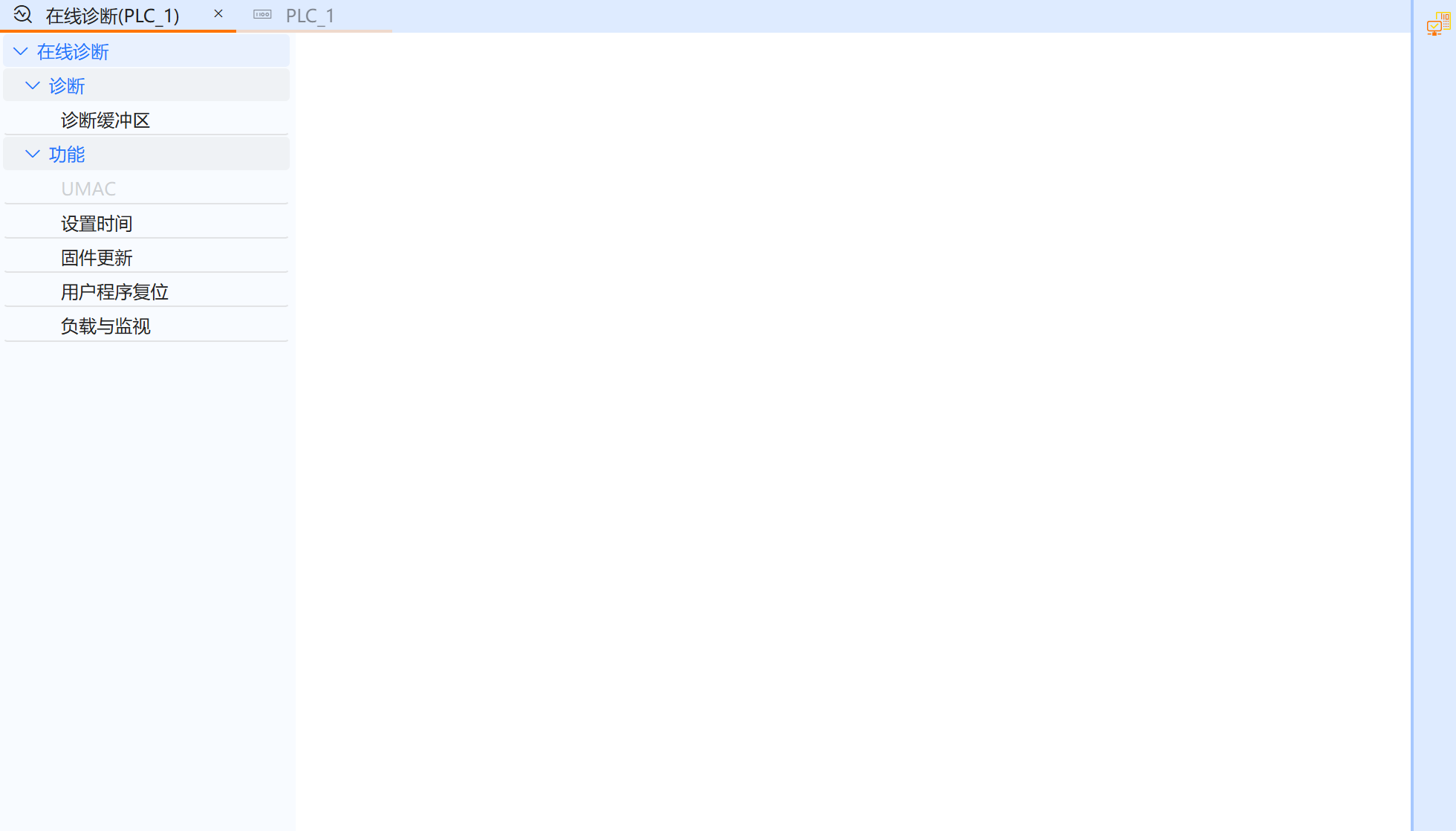
- The modification is successful. Log in to li’s account. Due to the read permission, the UMAC management page is not visible
8.1.3.5 User login and logout
- User login and logout functions can switch users and switch to corresponding permissions
The following introduces the user login and logout functions:
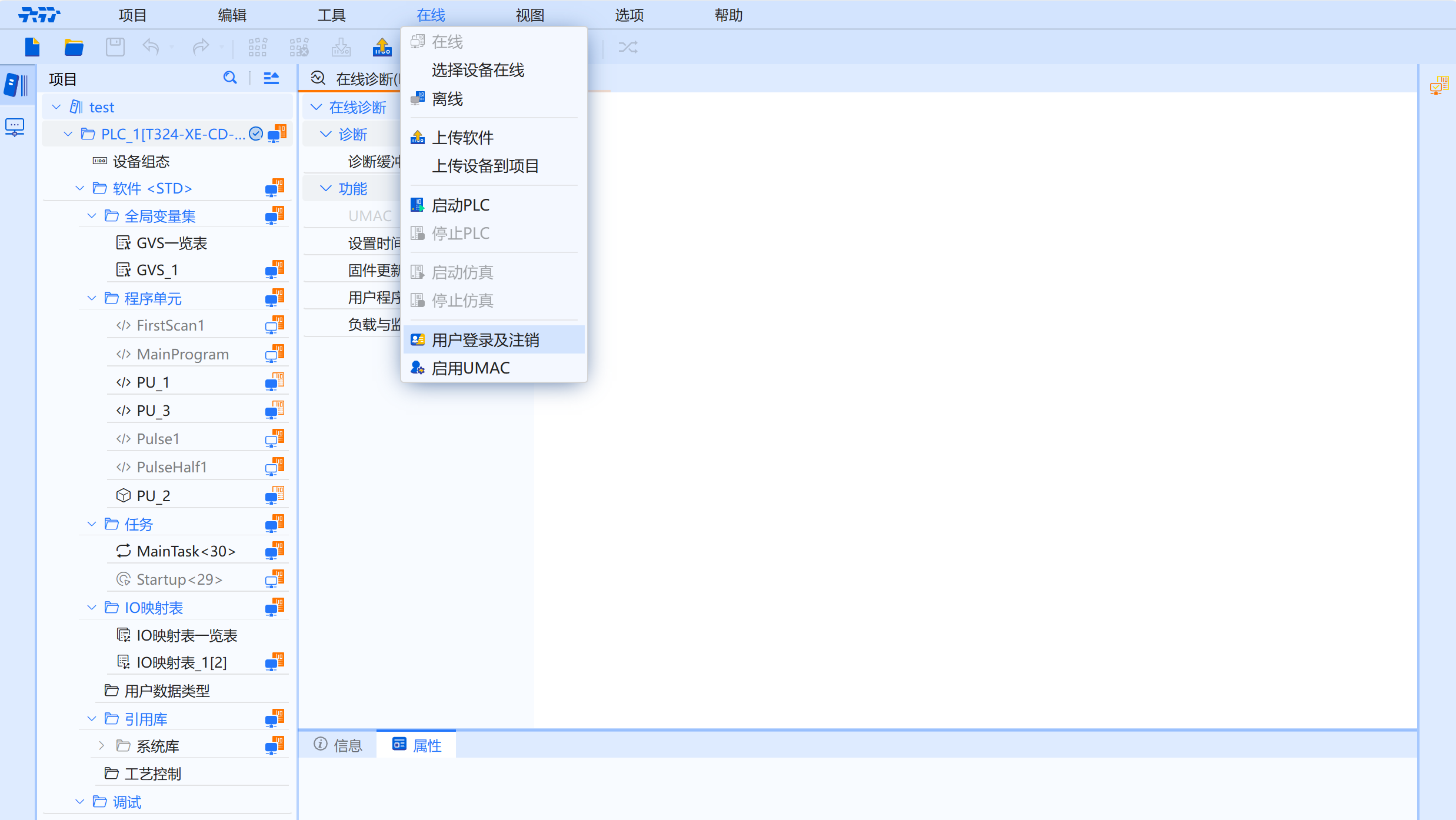
Operation steps:
- Click the first-level menu Online-User login and logout
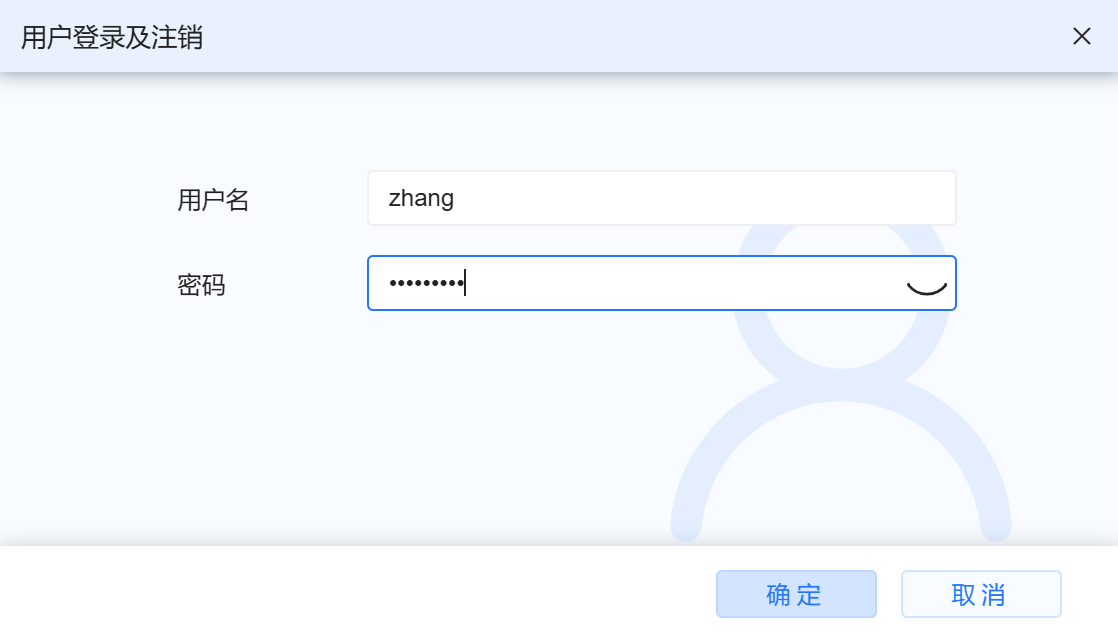
- Fill in the username and password
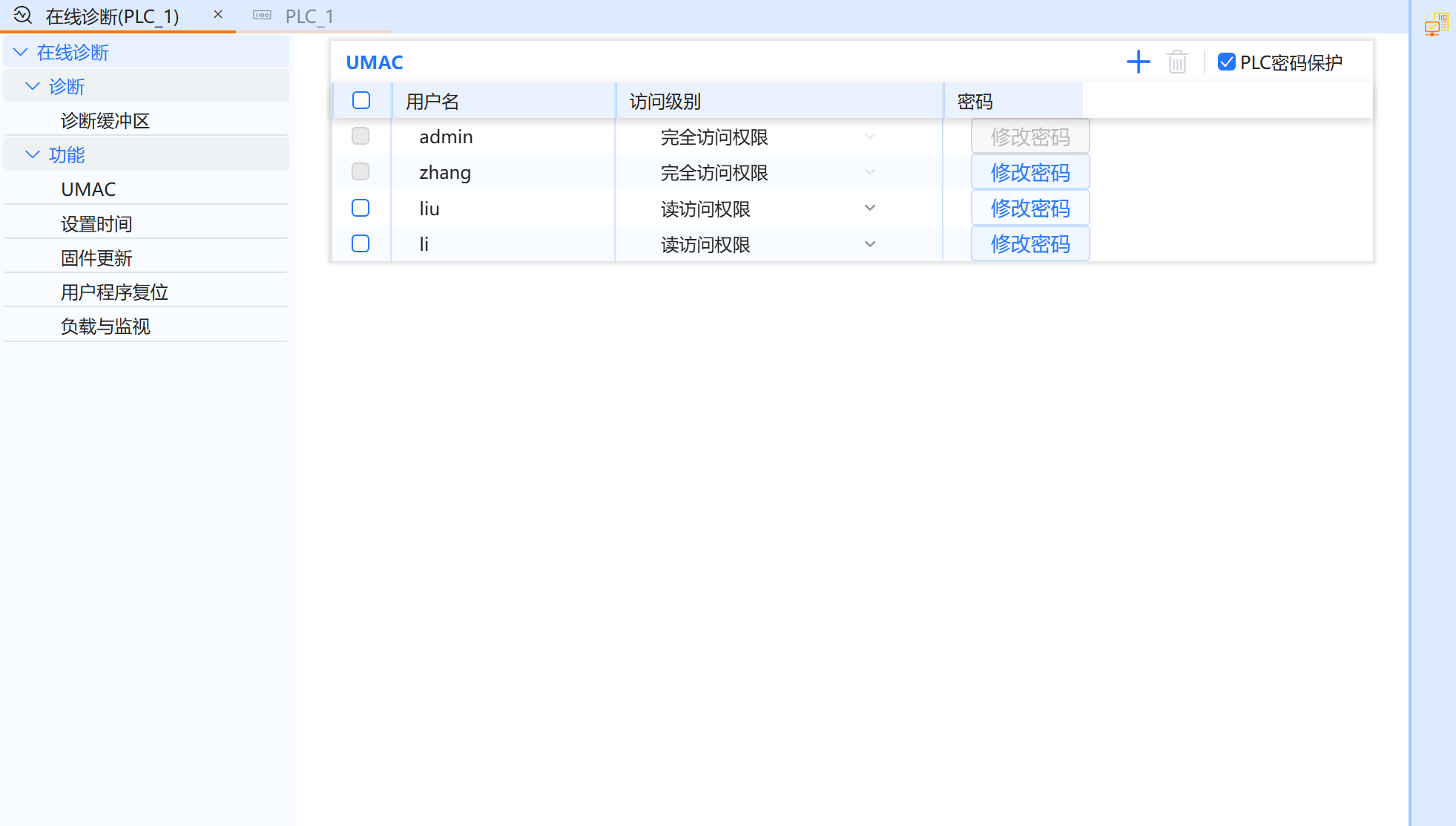
- Log in successfully and switch to full access user
8.1.3.6 Password protection
Password Protection: The system for the provisions of the four access levels of users in the implementation of the relevant rights of the corresponding password protection measures, such as write access rights to the user in the program changes to download after password verification before downloading, check to remove and determine the PLC will cancel the four categories of users within the scope of the rights of the changes in all protective measures
- The PLC password protection option in the upper right corner of the list is checked by default when entering the UMAC management page for the first time. Users can only cancel password protection by logging in with admin or logging in as a user with full access rights. When users with full access rights cancel password protection, they need to enter the password again
- After checking to cancel password protection measures, in the online diagnosis page, user cannot enter the UMAC page to enter user management, and all protection measures are cancelled. user can only enter the UMAC management account after logging in with a full access account in the first-level menu Online-Enable UMAC
The following describes the password protection function:
Operation steps:
- Log in to the admin account, open the first-level menu online - enable UMAC, and enter the UMAC management page
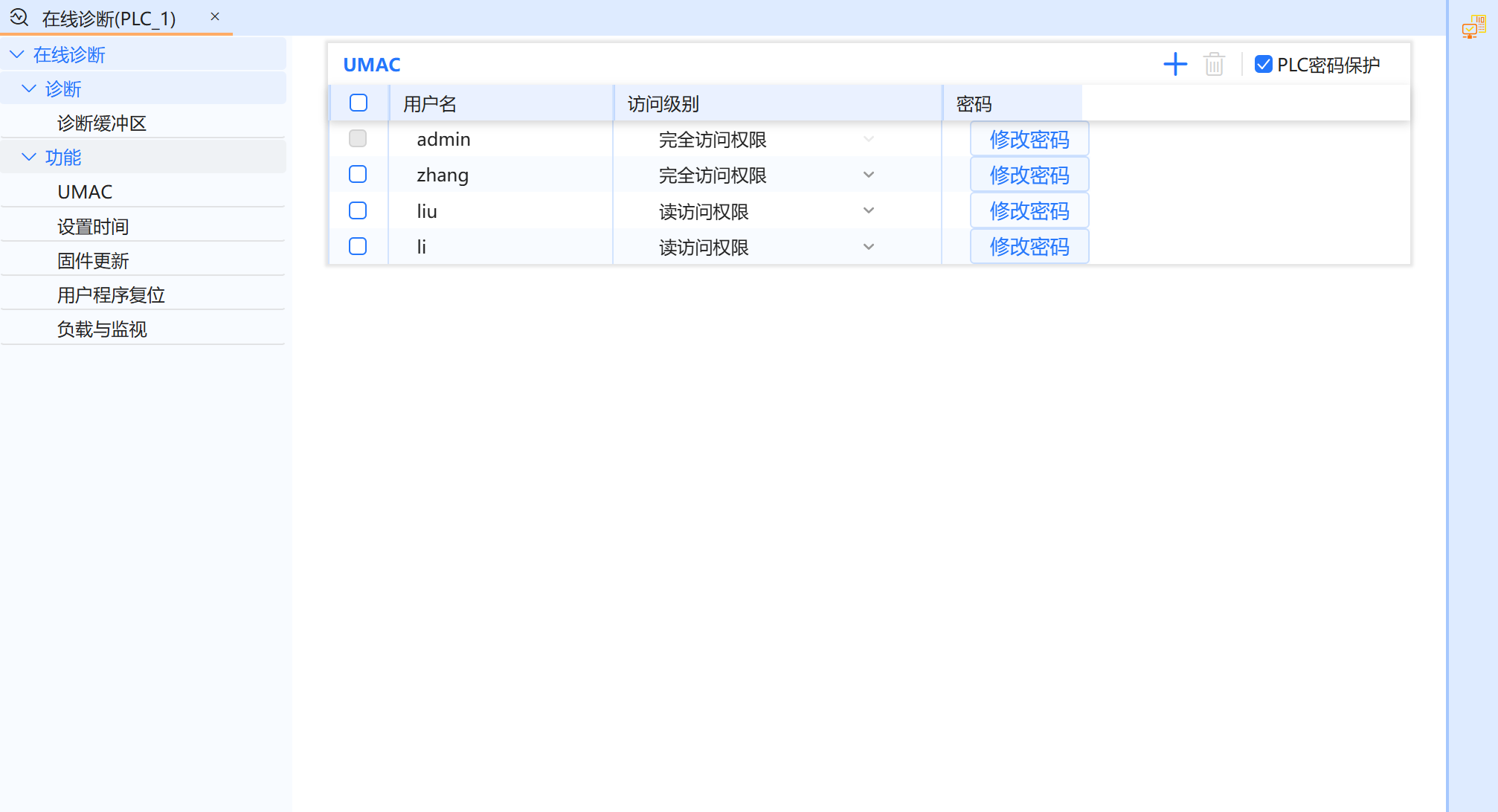
- The PLC password protection in the upper right corner is checked by default. Click the check mark to cancel the password protection
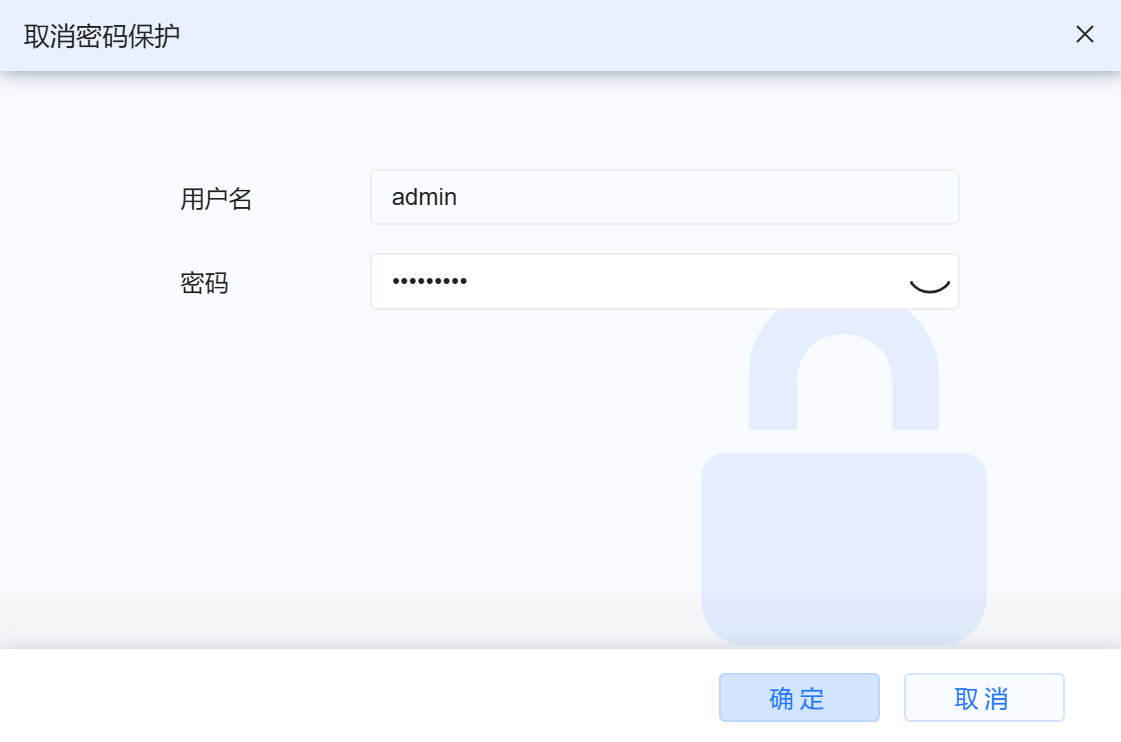
- Enter the admin account password again and click OK. user can see that the password protection has been cancelled