3.4 System Library
info
- This section can be used in conjunction with System Library Description
3.4.1 Concept description
System Library
- System library files will be released and upgraded together with Baosky IDE. Therefore, the system library files will be automatically imported into the controller after the software is started, so there is no need to add them manually.
3.4.2 Quote
- After the user creates or opens a project
3.4.2.1 Automatically add system library objects to the reference library
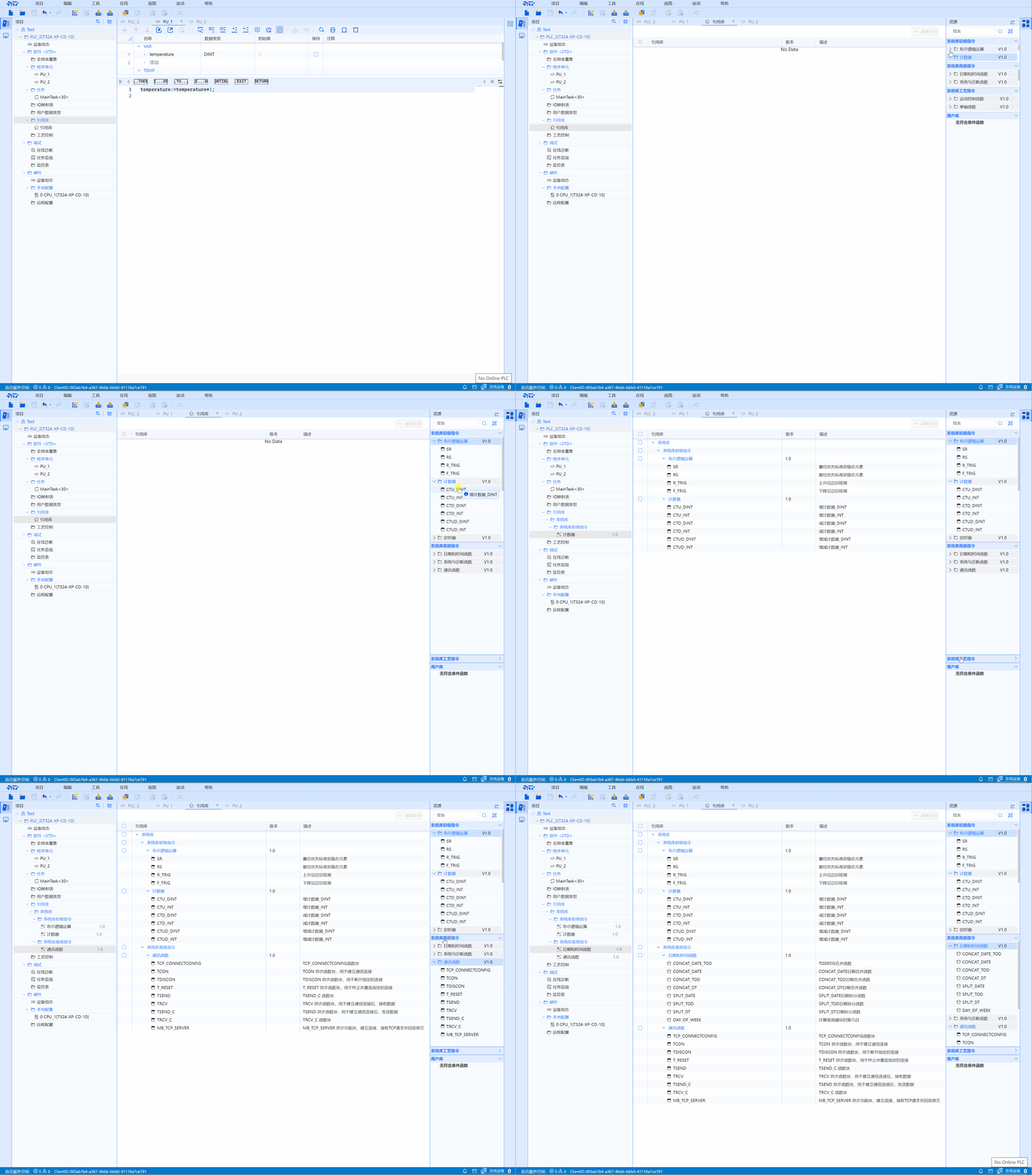
- In the LD or ST editor, when the user drags the system library function or system library function block to the user program, Baosky IDE will automatically add the used objects to the reference library.
3.4.2.2 Manually add system library objects to the reference library
- In the project tree reference library, users can open the reference library with a right-click shortcut, and manually drag and drop the relevant system library objects from the resource system library to the reference library.
3.4.2.3 Remove references
- On the reference library page, select the instruction that needs to be removed and click "Remove Reference" to remove the corresponding object from the reference library.
3.4.3 Quote examples
Shortcut
Click the "'Star' Favorites" shortcut key on the taskbar, and the favorite shortcuts, shortcut pages for ST and LD pages will appear on the programming page.
info
For specific instructions, please refer to System Library Description
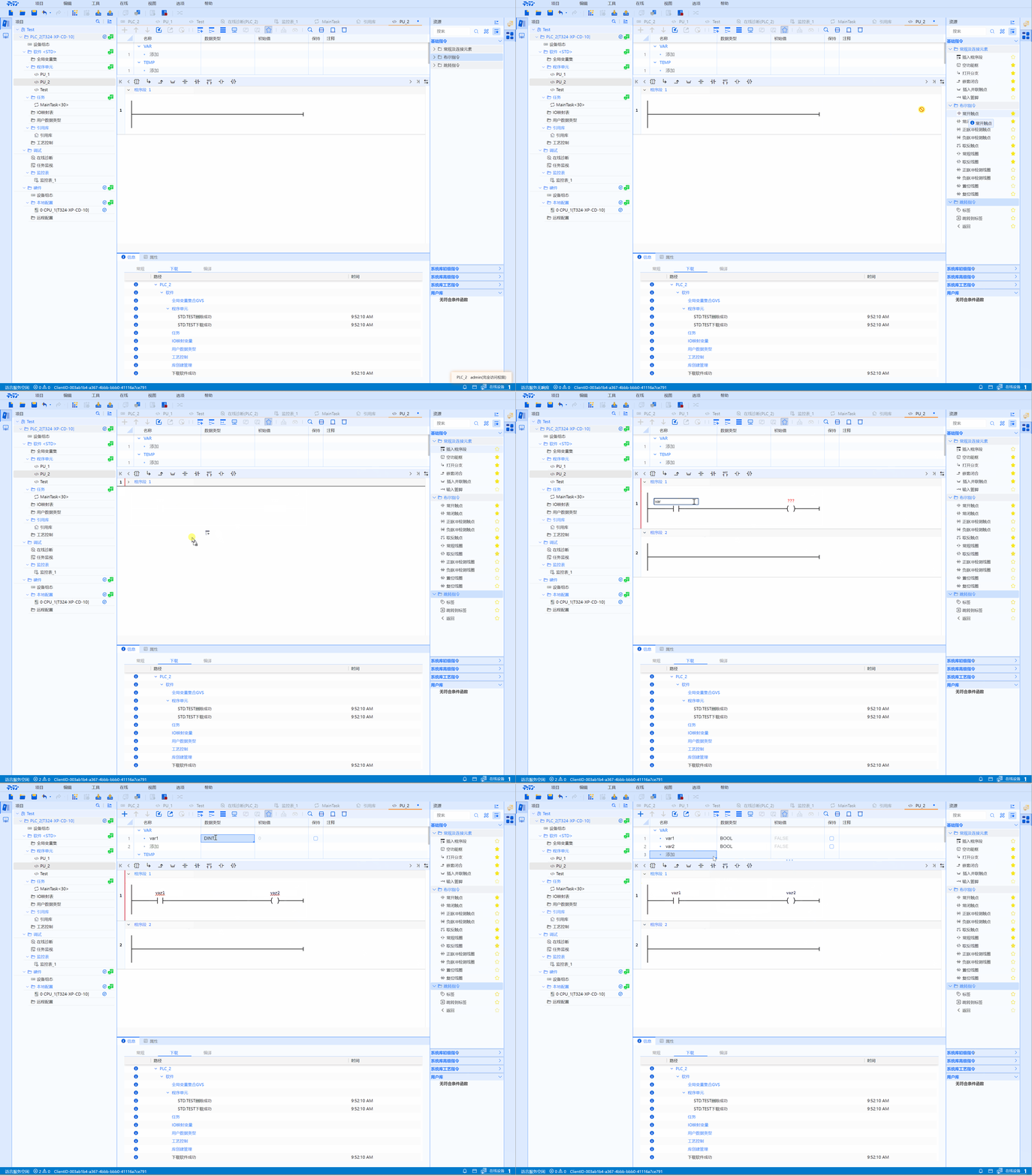
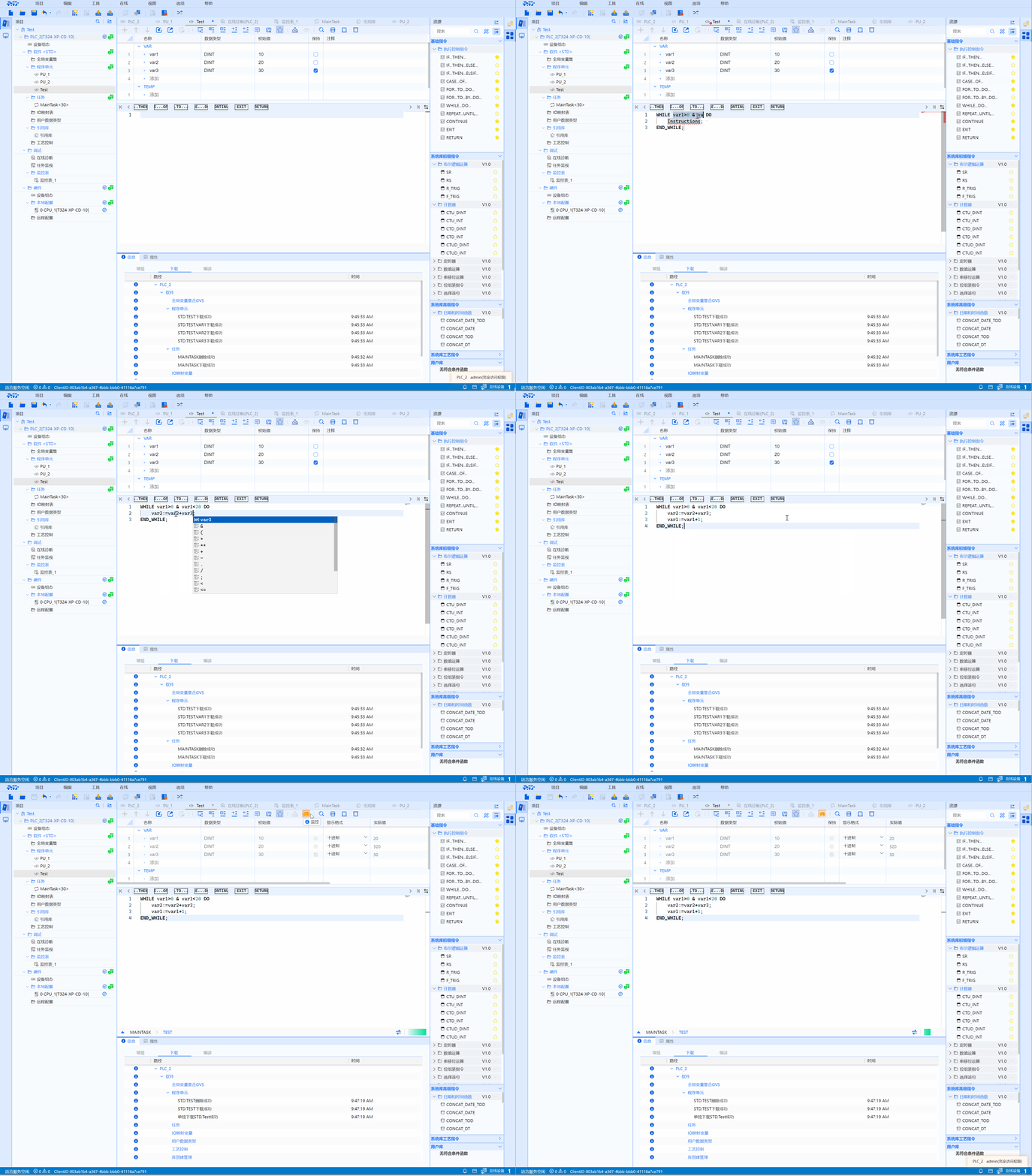
(a). ST
- After double-clicking or dragging the instruction to add it to the user program, double-click the corresponding object to modify the program
Operation steps
- After quoting the instruction, double-click the red part to modify the specific value of the function
(b). LD
- Double-click the corresponding command to change the command in the drop-down box
Operation steps
- Right-click the variable name and click "Define Variable" to directly define the current variable on the pop-up page without having to define it again in the "Variable Definition Page"