3.3 User Library
3.3.1 Overview
- The user library is a collection of FB, FC and UDT that can be used multiple times by user. User library is application library that can be configured for different system versions and hardware device environments.
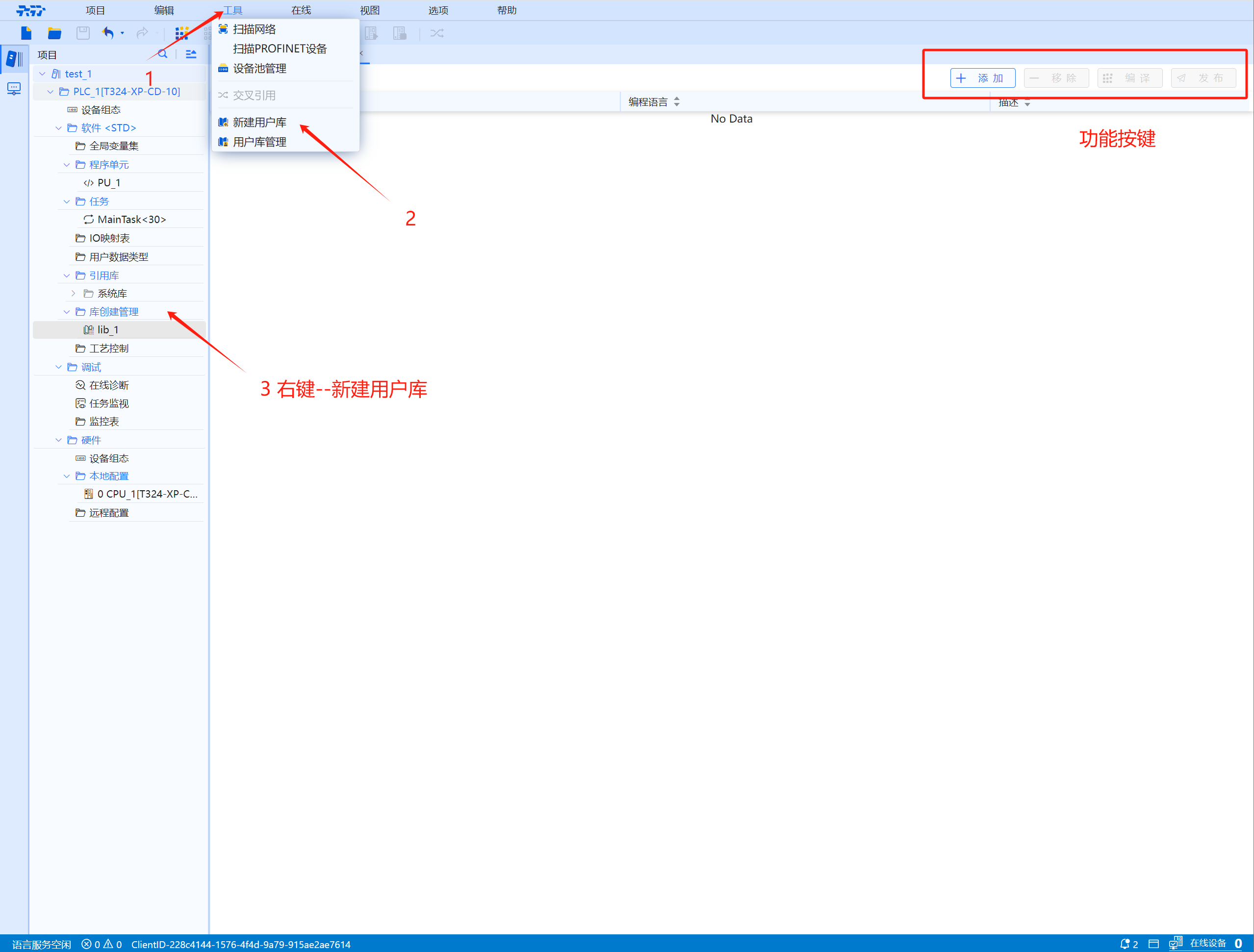
- Under the project menu "Tools", there are buttons for "New User Library" and "User Library Management"
3.3.2 User library creation
- Create a new user library, including the creation and release of user libraries
- The user library created by this server project is directly visible in the list of installed user libraries without installation.
- When creating a user library, it is recommended that you do not use STD as the namespace to avoid duplicate names and affect the user library reference.
3.3.2.1 How to create user library
-
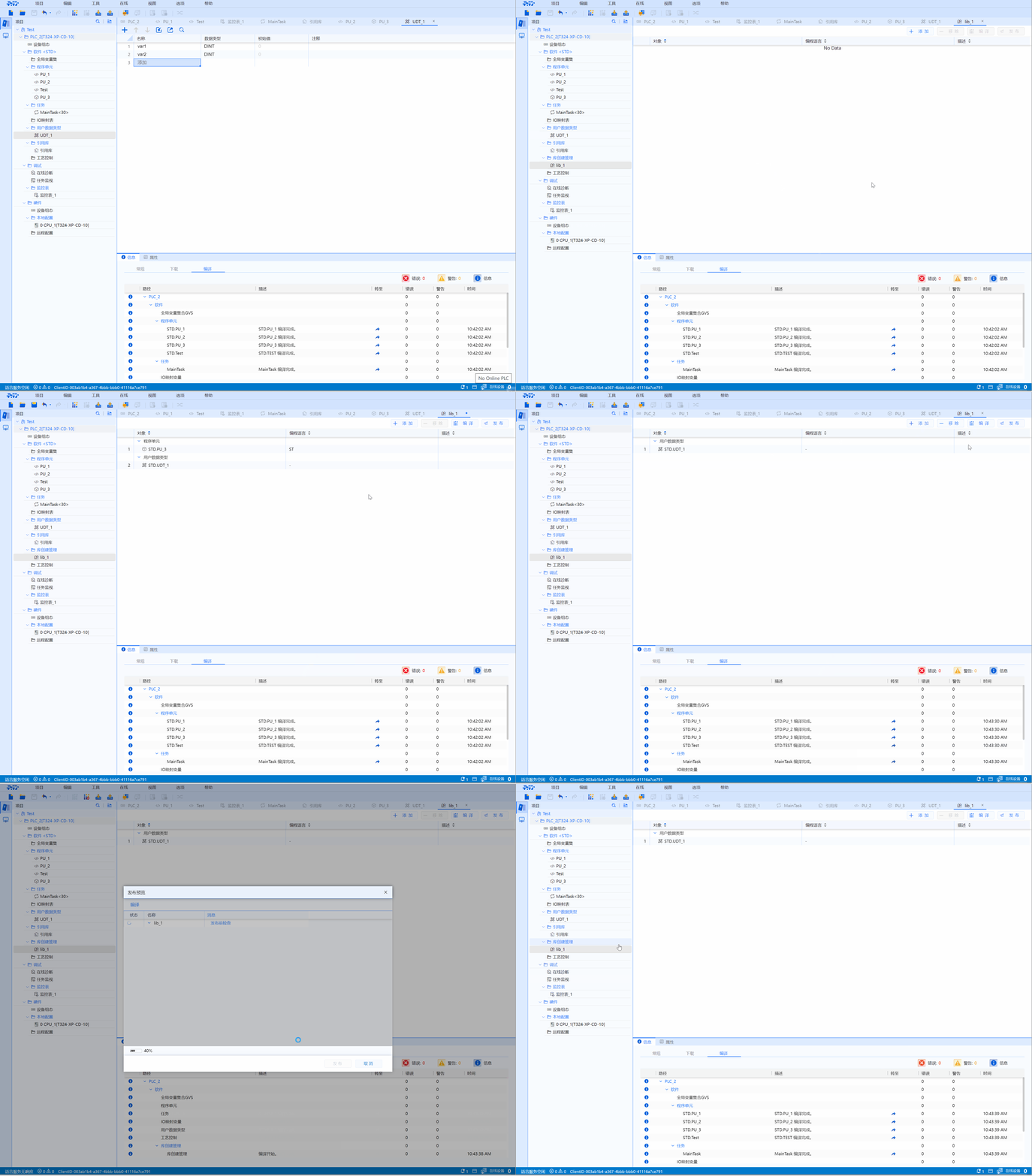
Method 1: Create user libraries in the project, add UDT, FB, FC and compile successfully to generate a new user library.
-
Method 2: Open the already created user library in the project, add and delete UDT, FB, FC and compile successfully to generate a new user library.
- The created user library is displayed in the "Library Creation Management" list of the project tree
- If the user does not start "Tools-New User Library" or the object in "Library Creation Management" is empty, the "Library Creation Management" on the project tree will be hidden
3.3.2.2 Operation steps
-
Via the menu "Tools-New User Library". Create a new user library. You can only create a new user library through the menu for the first time
-
Right-click "Library Creation Management" on the project tree and select "New User Library"
-
Double-click to open the user library under "Library Creation Management" in the project tree, open the user library editor to modify and compile the user library.
-
The user library creation editor has "Add", "Remove", "Compile", "Publish", and other function buttons
- Before adding user library members (FB, FC, UDT), FB, FC, UDT must be added first
- Otherwise, it will fail to add
(a). Add
Operation steps: Click the "Add" button in the editor to enter the add page, check the program unit that needs to be added in the project tree list, and click OK
- Check "Show default namespace" to display the namespace above the program name
(b). Remove
Operation steps: Click the serial number of the program that needs to be removed, and click the "Remove" button to remove it.
(c). Compilation
Operation steps: After successfully adding the program unit, click the "Compile" button.
- Click Go in the information box at the bottom of the interface to go to the corresponding page
(d). Publish--Version
- When clicking publish, the files that have been added to the library will be automatically compiled. After successful compilation, the release generation library will contain the following mandatory information:
- Library name
- Version (The second digit of the version number is automatically upgraded with each release)
- author
- company
- Note
- After the user library is successfully released, it will be automatically installed in the local library warehouse.
(e). Reason for publishing failure
- The following situations will cause user library publishing to fail
-
When publishing a user library, if the system library version of the dependent user library conflicts with the system library version that the current PU depends on, the release of the user library fails.
-
If the local library repository contains a user library with the same library name and version, the release will fail.
3.3.3 User library management
Operation steps: Under the project menu "Tools", click "User Library Management" button
- User library management, including "add", "delete", "install", "uninstall", and "export" of user libraries
- "Add", "Delete" can be implemented by ticking and unchecking "Added"
3.3.3.1 Library creation management
3.3.3.2 Installation
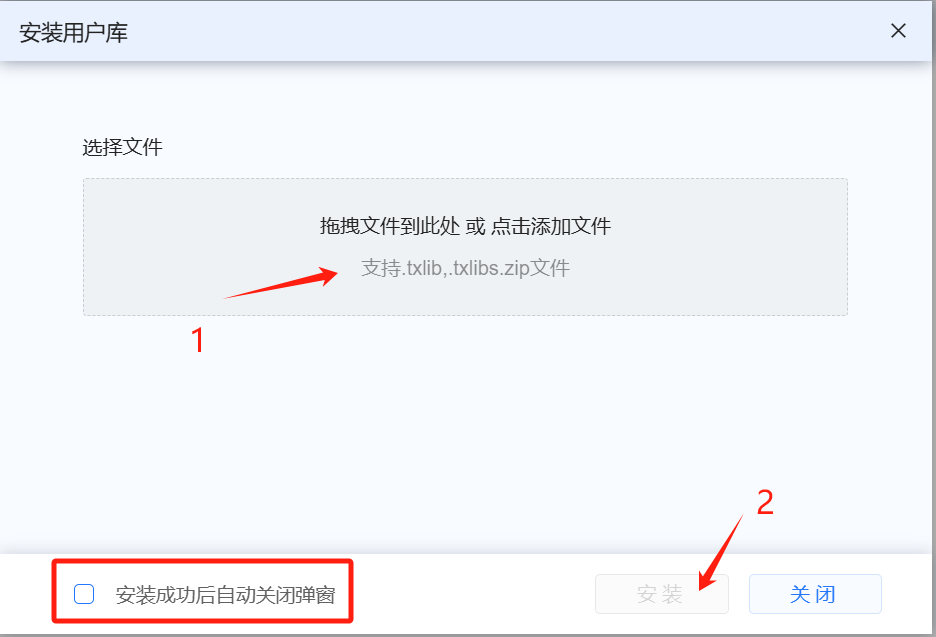
Operation steps: Users can install the user library files in the directory specified on the WEB side of the engineering station to the local machine or project server through the "Install" command in the user library management editor.
- You can check to automatically close the pop-up window after successful installation
3.3.3.3 Unload
- Users can delete user libraries that have been installed on the local machine or project server through the "Uninstall" command in the user library management editor.
3.3.3.4 Export
Export of user library
Operation steps: User libraries can be exported through "User Library Management Editor"
- Users can export the successfully created user library to the specified directory on the engineering station through the user library "Export" command; the default file name for export includes version information. If there are duplicate file names, the system will automatically rename the export and the export will not fail.
3.3.4 Call
-
Reference to system library
-
For specific reference methods, please refer to User Manual-->Software Module-->System Library-->Reference Jump link--> System Library
3.3.5 Add user library operation video