3.5 Find
3.5.1 Overview
3.5.1.1 The search function implemented by Baosky IDE
- Find and replace in the editor
- Global search, search throughout the entire project or selected device
- Search throughout the selected device--software
- Search throughout the project
3.5.1.2 Entry
- Use shortcut icons
- Use "Find and Replace" in the edit menu
- Press the shortcut key "Ctrl + F"
3.5.2 Find and replace
3.5.2.1 Operation steps
Text can be found in the editor. Finds all text containing the search keyword in the currently open editor only. The results will be selected in order in the editor that opens.
- Find
-
Open the "Find and Replace" dialog
-
Enter the search term in the "Find" drop-down list
- Alternatively, select a recently found entry from the drop-down list
-
Select the desired search option
-
Click Find
- The first search result will be marked in the editor
-
Click "Find" again to display the next search result
- The next search result will be marked in the editor. Repeat this step as necessary until the last find is displayed
- Replace
-
In the Replace drop-down list, enter the text you want to replace the keyword with. As an alternative, you can select one of the most recently entered text from the drop-down list
-
Click the "Replace" button to replace the selected search result with the specified text
- The found text will be replaced and the next search result will be marked in the editor.
- Repeat this process until all desired search results have been replaced. To jump to the next find result without replacing the highlighted word, click the Find button instead of Replace
Click "Replace All" to replace all search results
3.5.3 Project tree lookup
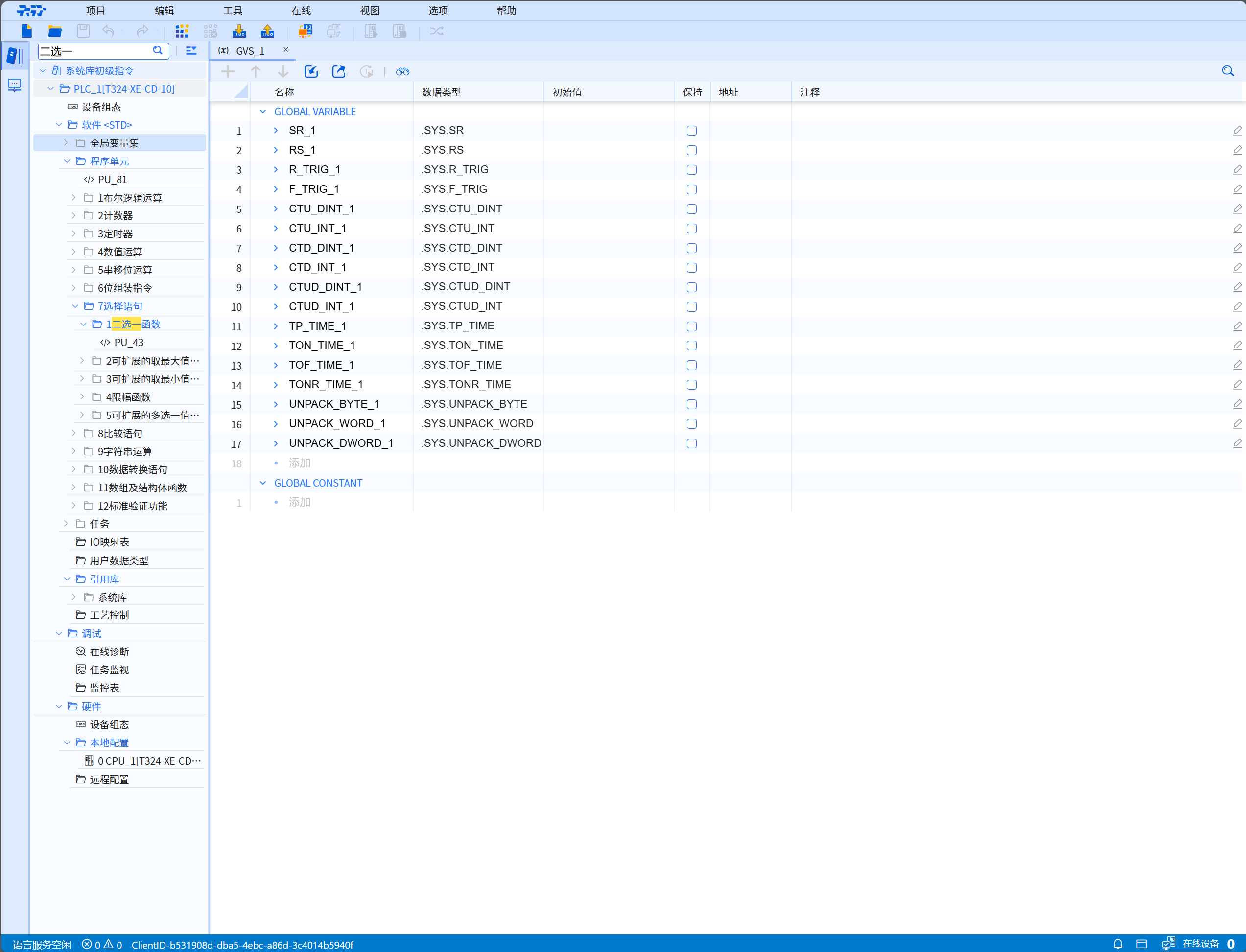
Enter a specific text in the project tree search dialog box to find the corresponding text in the project tree