4.3 Add User Data Type
- In addition to using the data types provided by the system, users can also use custom data types to define table columns or declare variables as needed
4.3.1 Introduction
4.3.1.1 Definition
-
The purpose of user-defined data types is for variable declaration or declaration of other user data types
-
User-defined data types can be used anywhere basic data types can be used
- This section will introduce in detail the addition of user data types from three aspects (manual direct addition, external import addition, export user data type)
4.3.2 Add
4.3.2.1 Manually add
Manually add user data types directly to the project. The steps are as follows:
(a).Open
Operation steps:
Project-->User data type-->Right mouse button-->Add user data type
(b). Add
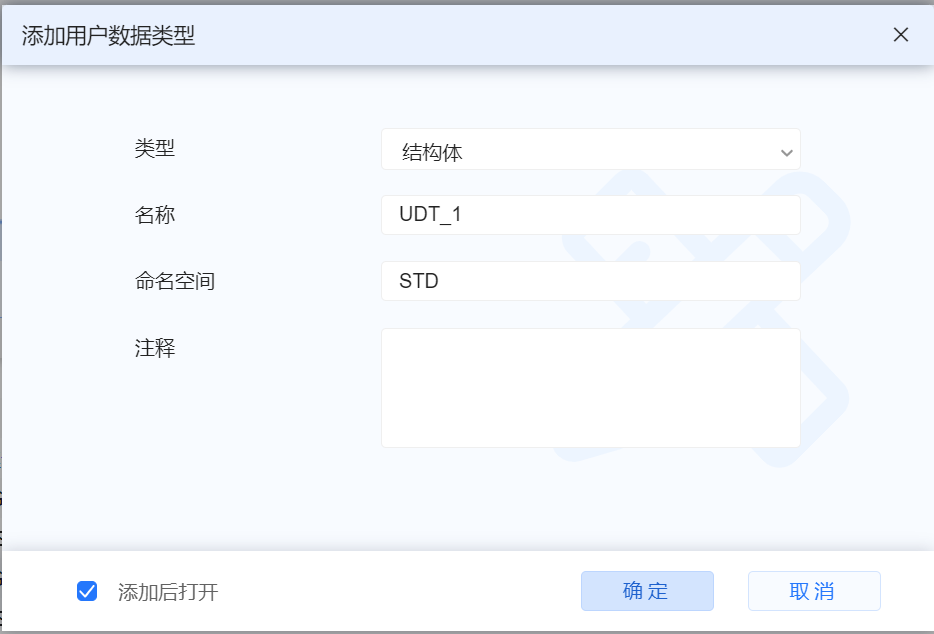
- (Note to check "Open User Data Type", if already checked, ignore this item)
Operation steps:
Select the user data type and fill in the "namespace" (usually just follow the default) Note:The name format must be in the form of xxx_xxx, just check "OK" to add it
(c). Set
- Enter the added data type name, data type, and initial value in the corresponding position
- If there are missing variable rows after adding, click "+" to add the number of rows (select the corresponding row and click "+" to add the corresponding variable row)
- In the variable table, select the entire row and click "Up Arrow or Down Arrow" to move the variable position up or down
4.3.2.2 External import added
Operation steps:
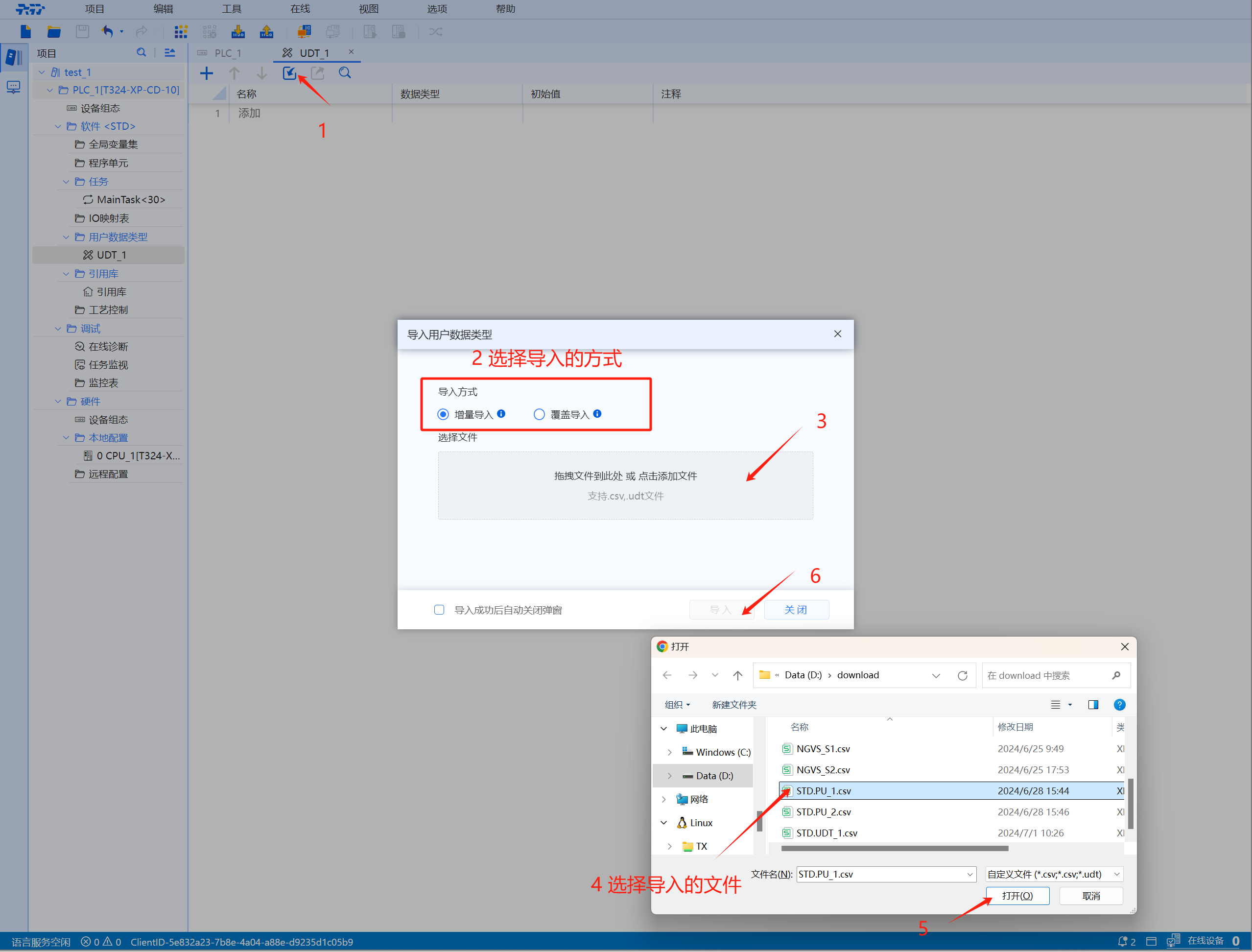
Add user data types directly from the outside, click the "Import arrow" in the user data type menu bar, select the import method --> select the file (click the blank box) --> click the "Import" button ( User can choose "Automatically close the pop-up window after successful import")
- There are two ways to import:
-
Incremental import: Skip the import of variables with the same name
-
Overwrite import: Overwrite variable import with the same name
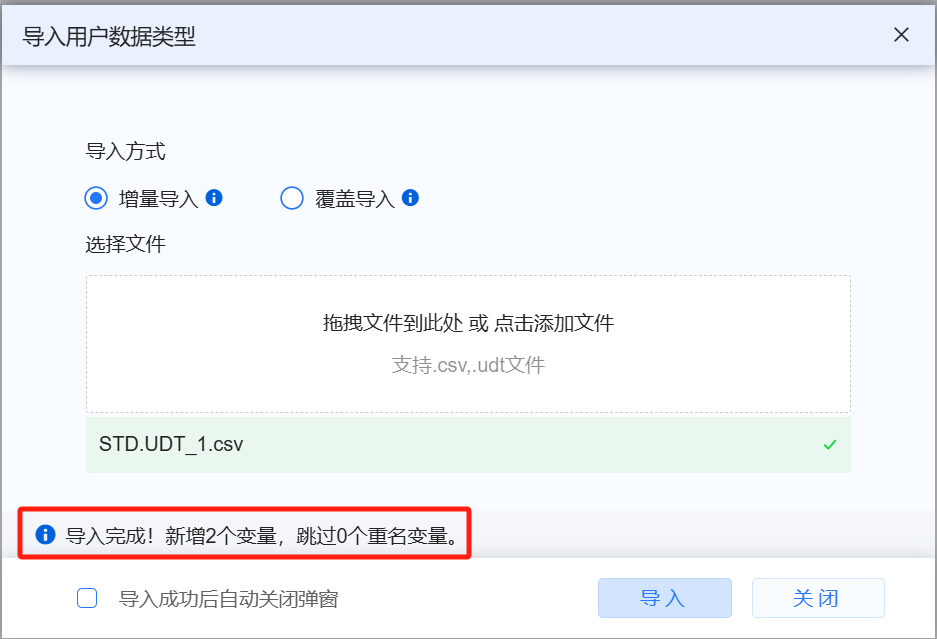
- Note: After the import is successful, the newly added and skipped variables with the same name will be displayed on the import interface
(If user choose to automatically close the pop-up window, it cannot be displayed)
4.3.2.3 Export
Operation steps:
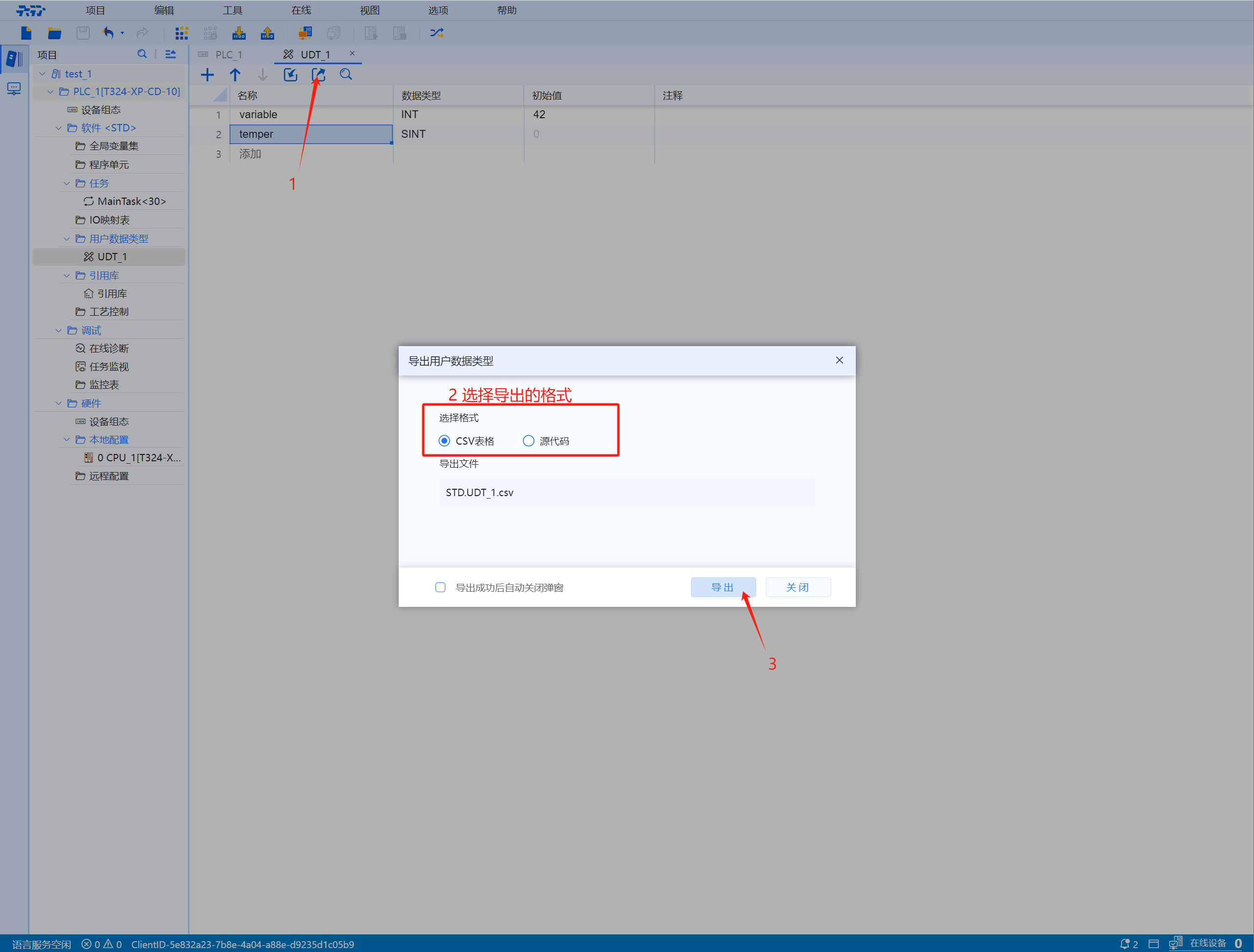
If user want to export an existing user data type, click the "Export arrow" in the user data type menu bar, select the export format, and click "Export"
- Export formats are divided into two categories
-
CSV table: Export to table format
-
Source code: Export to code format