4.2 Add Network Global Variable
4.2.1 Introduction
- Communication between PLCs using Baosky IDE can be achieved by configuring the network global variable group (NGVS). Network Global Variable Group (NGVS) is a global variable group (GVS) that acts on communication between PLCs
4.2.2 Add a network global variable table
4.2.2.1 Add
Operation steps:
- Open the global variable set
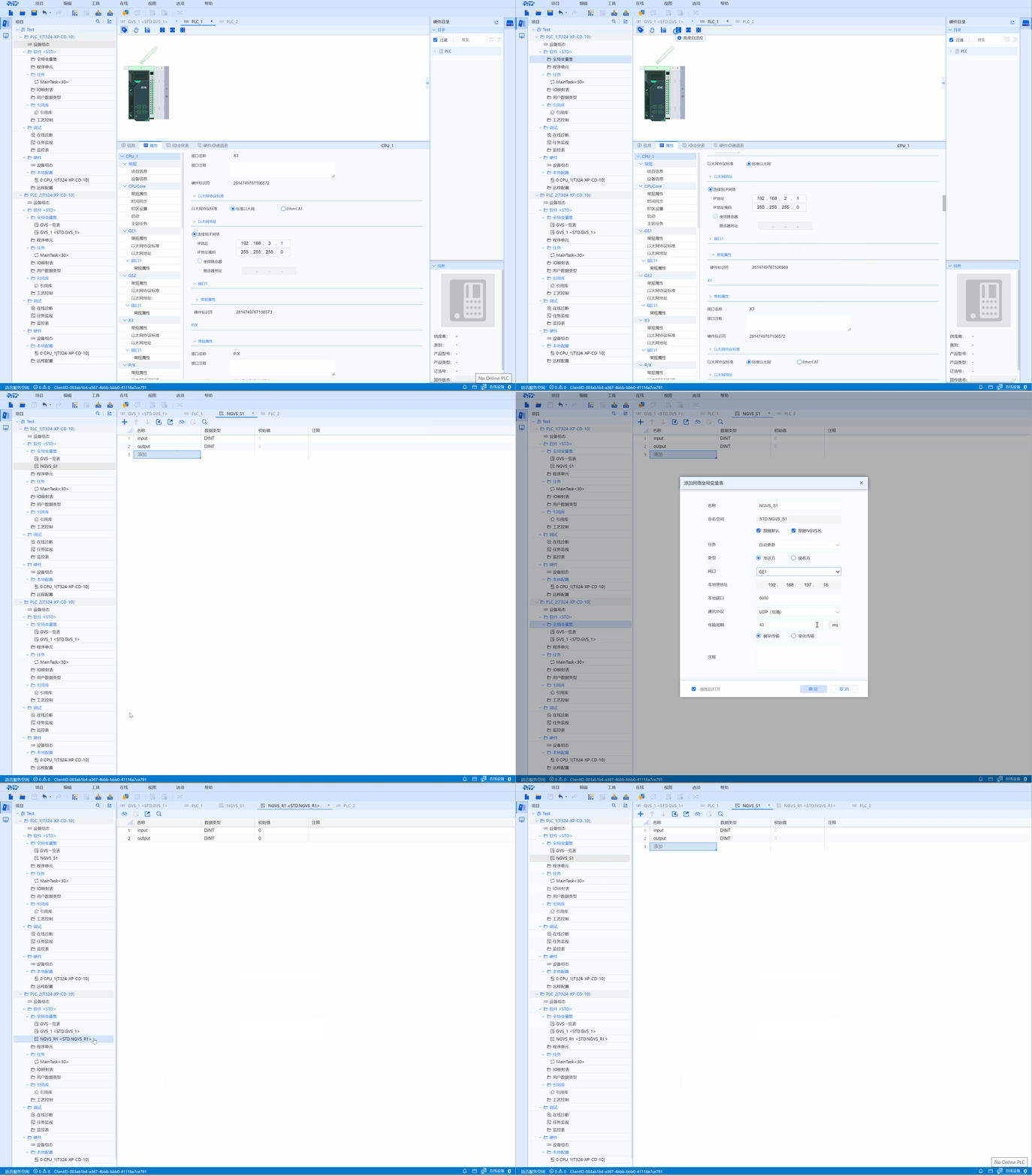
Project-->Global variable set-->right mouse button-->Add a network global variable table
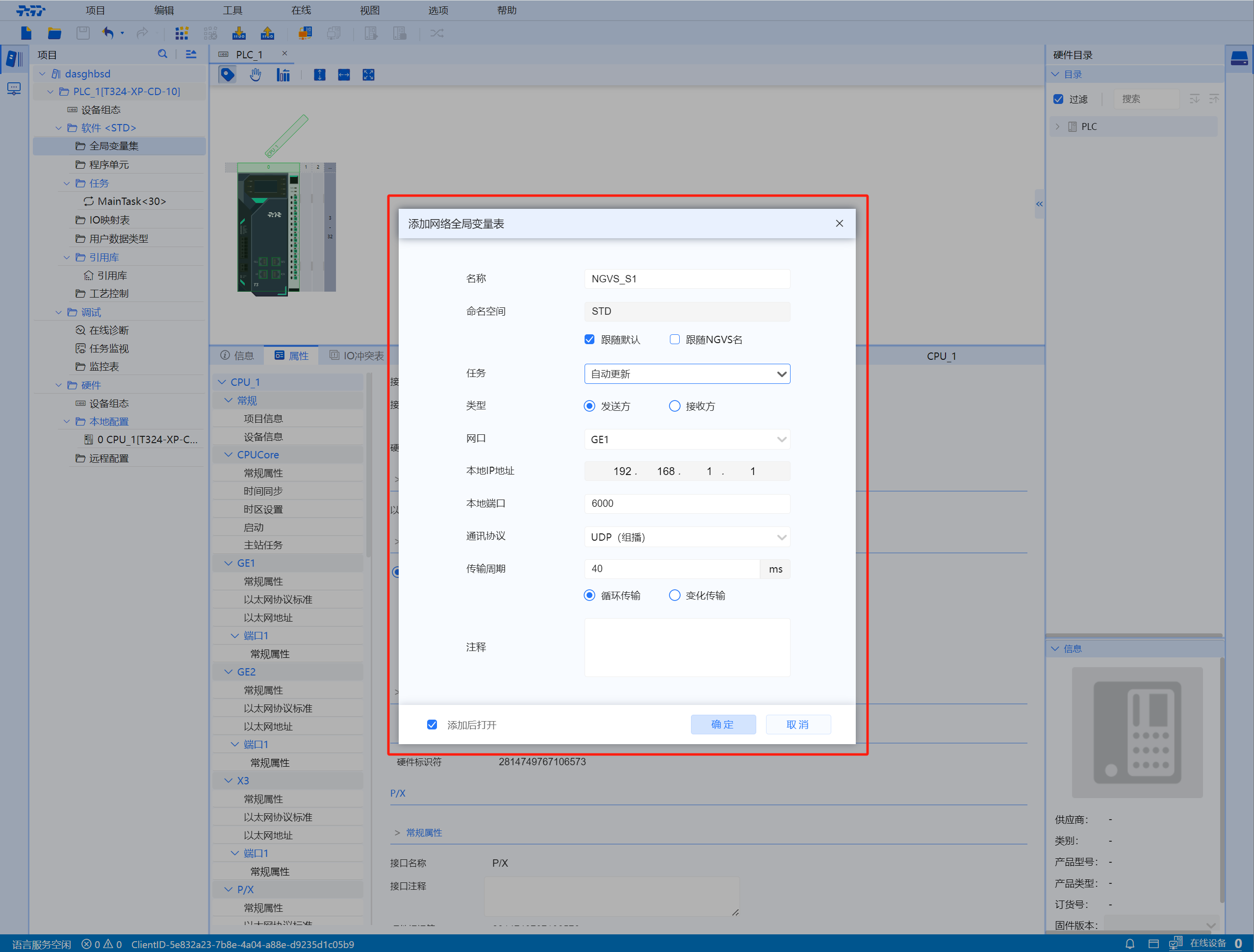
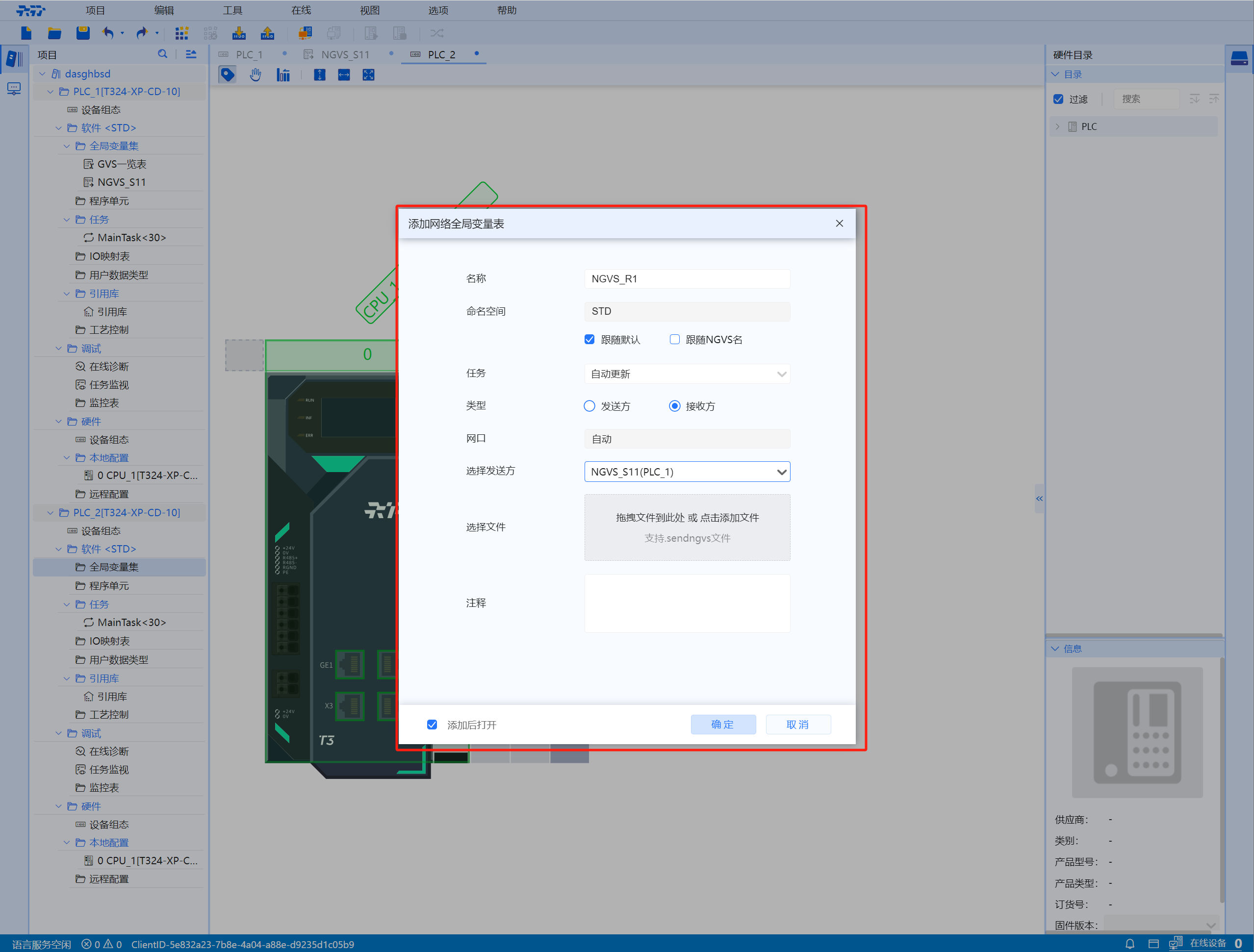
- Add the network global variable table (note to check "Automatically open after adding", if it is checked, ignore this item) Fill in the relevant information and check "OK" to add it
- Set the network global variable table
- Enter the added variable name, data type, and initial value in the corresponding position
- If there are missing variable rows after adding, click "+" to add the number of rows (select the corresponding row and click "+" to add the corresponding variable row)
- In the variable table, select the entire row and click "Up Arrow or Down Arrow" to move the variable position up or down
4.2.2.2 Import
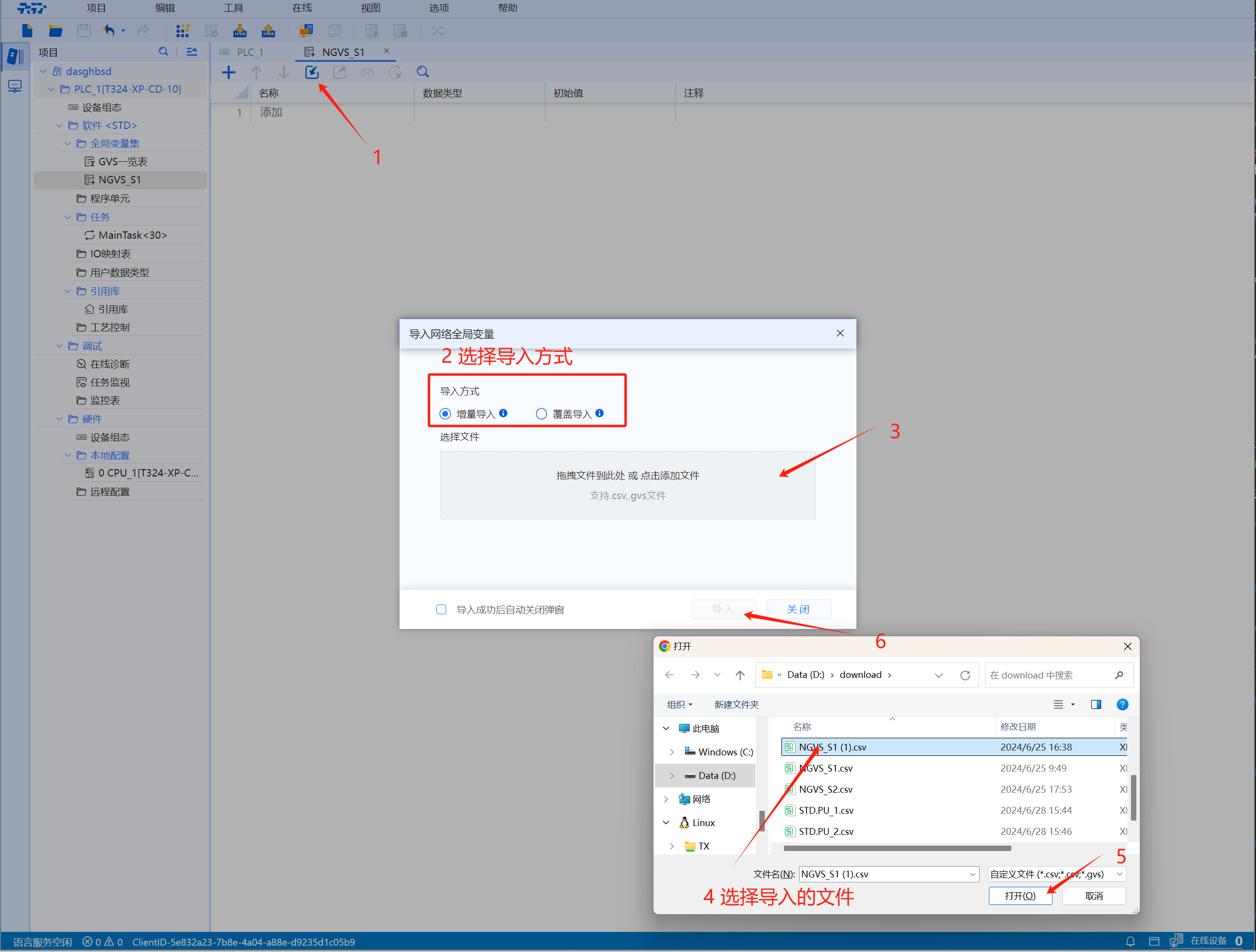
Operation steps: Add the network global variable table directly from the outside, click the "Import arrow" in the global variable table menu bar, select the import method --> select the file (click the blank box) --> click the "Import" button (User can choose "Automatically close the pop-up window after the import is successful")
- There are two ways to import:
- Incremental import: Skip the import of variables with the same name
- Overwrite import: Overwrite variable import with the same name
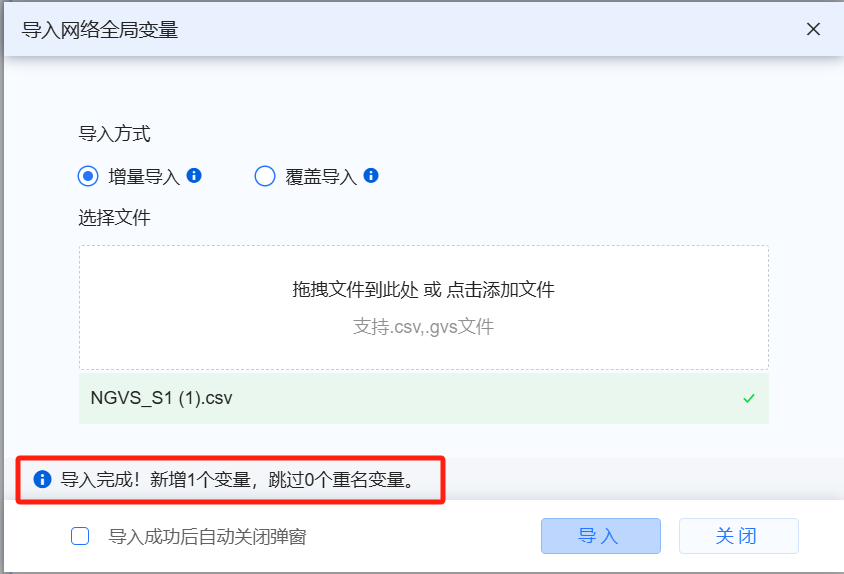
- Note: After the import is successful, the newly added and skipped variables with the same name will be displayed on the import interface (If user choose to automatically close the pop-up window, it cannot be displayed)
4.2.3 Sending and receiving of network global variable table
Variables in NGVS are transmitted as broadcasts in one direction only: sender to receiver
However, the same PLC can act as both sender and receiver in network communication.
Therefore, the same PLC can include one or more NGVS (SENDER) as well as one or more NGVS (RECEIVER) at the same time.
- Transmission period default value rule
- T3: defaults to 20ms
- T4: default is 10ms
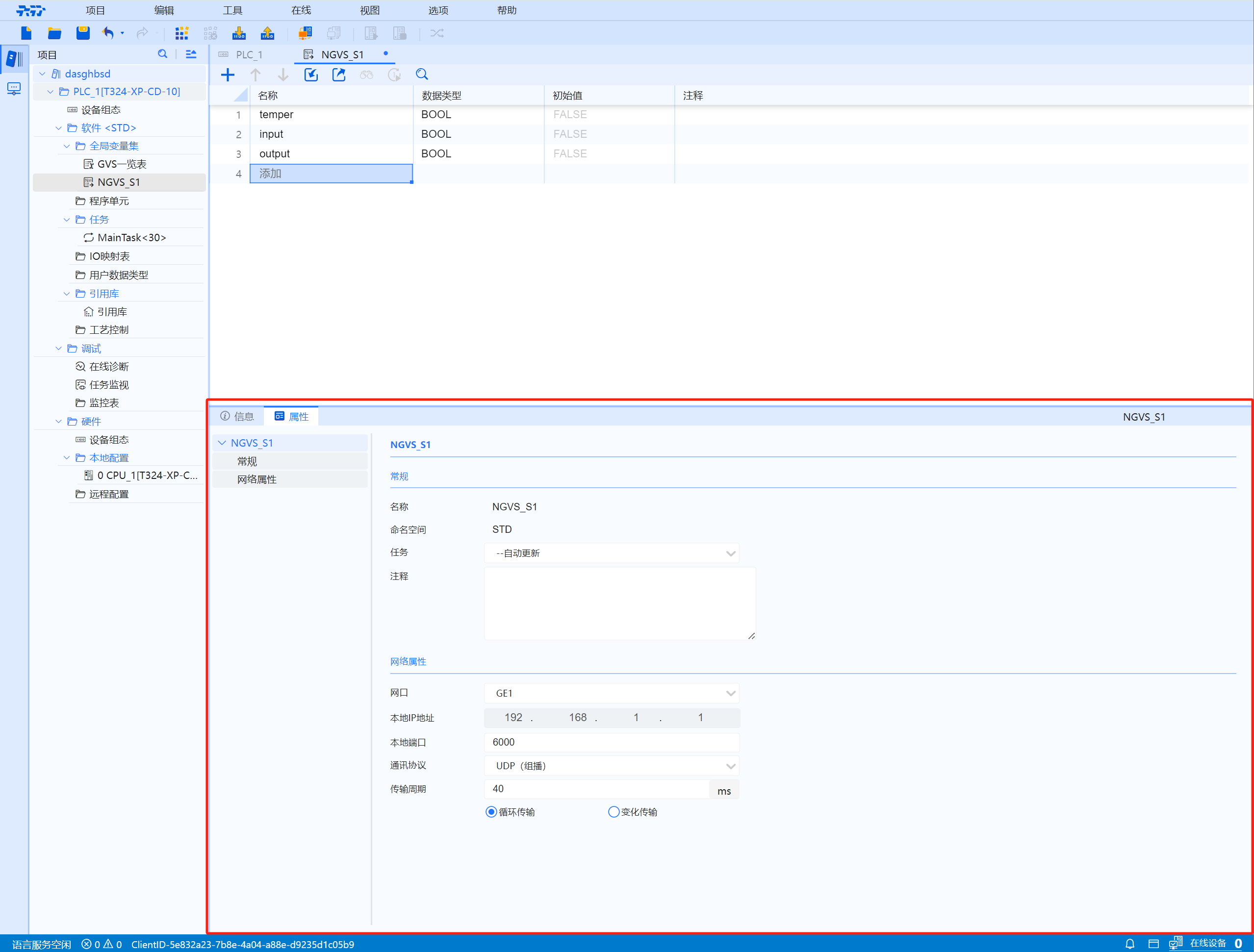
- Click on the folder in the lower right to collapse or expand the properties configuration box.
- The sender's properties can be viewed and modified in Network Properties.
- The sender's properties can be changed in General.
4.2.3.1 Sender
- 1.Name: Fill in the name of the network global variable table (usually just follow the default)
- 2.Task: Automatic update, MainTask, None
- Choose appropriate tasks based on the actual situation
- Other tasks can be added manually (added in the task node of the project tree)
- Send variables at the end of the task loop
- 3.Type: sender, receiver
- Choose to establish the network global variable table as the sender or receiver
- 4.Network port: GE1, GE2, X3
- 5.Local IP address: Can be changed at Device Configuration-->Ethernet Address
- 6.Local port:
- 7.Communication protocol: UDP (multicast), TCP
- 8.Transmission cycle: cyclic transmission, change transmission
- Select a value between 20-10000
4.2.3.2 Receiver
- 1.Name: Fill in the name of the network global variable table
- 2.Task: Automatic update, MainTask, none
- 3.Type: Sender, receiver
- 4.Network port: Automatic
- 5.Select sender: Import from file, file on the same device
- 6.Select file: Support .sendngvs files
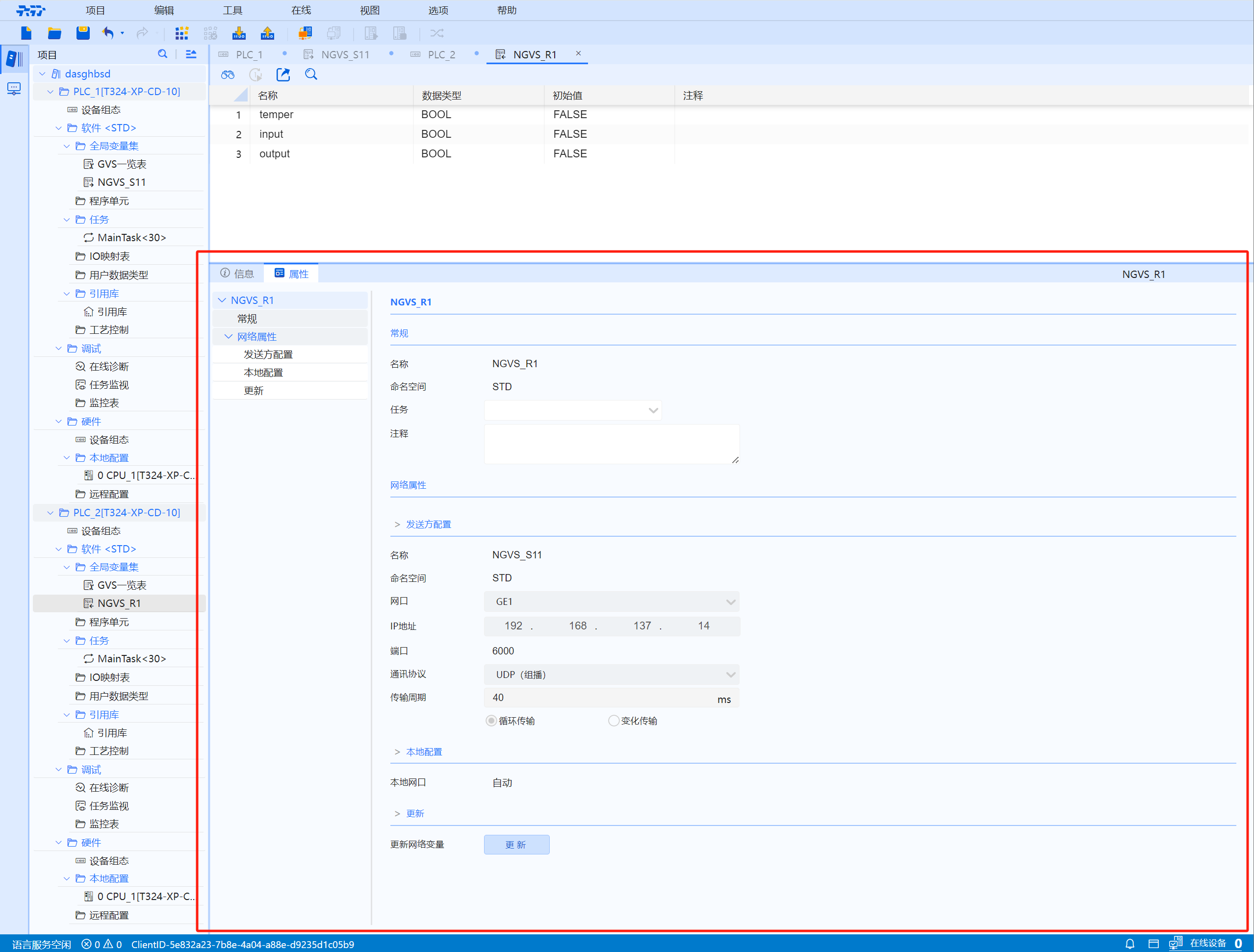
- Click Folder on the lower right to collapse or expand the property configuration box
- The sender's property configuration can be viewed in Network Properties-->Sender Configuration. The receiver cannot modify it. Only the sender's property configuration is allowed to be modified
- User can change the receiver's property configuration in General
- Manual Update: After the sender changes the relevant information, it can be manually updated in the receiver's network global variable table --> Properties --> Network Properties
4.2.3.3 Transfer
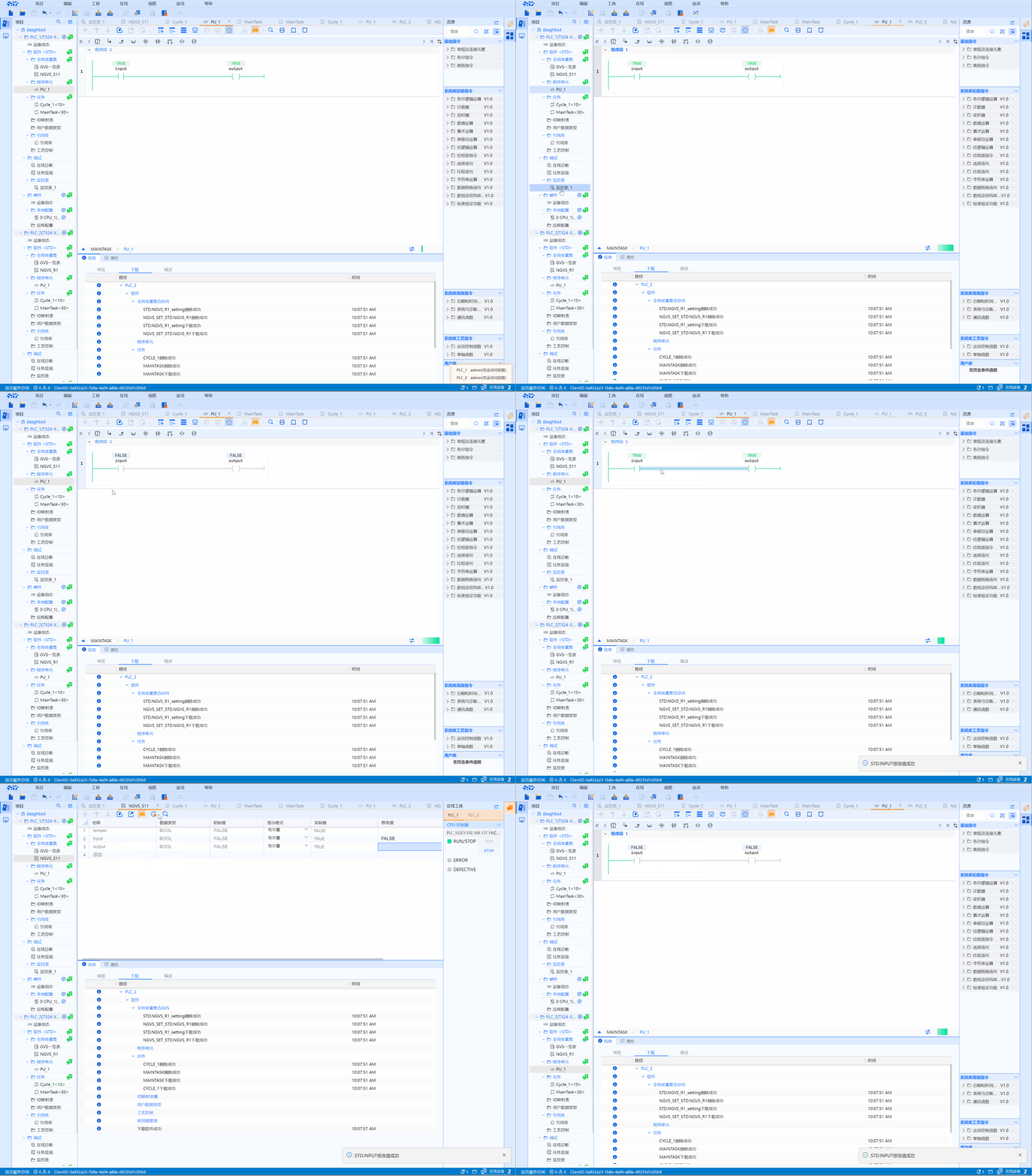
Take PLC_1 and PLC_2 as an example
- Add 2 or more devices under the project tree-project name
-
Set PLC_1 as the sender; set PLC_2 as the receiver. For specific settings, please refer to the sender and receiver configuration
-
Create a simple project (including network global variable table, LD program, monitoring table)
-
After changing the parameters in the modified value of the monitoring table, click "Write Once" and return to the program interface. User can see that the value of PLC_1 has changed, and the same change has occurred in PLC_2
-
Change the parameters in the PLC_1 program interface. User can see that the value of PLC_1 changes, and the same change occurs in PLC_2
-
Change the parameters in the sender's global variable table. User can see that the value of PLC_1 changes, and the same change occurs in PLC_2
The sender IP cannot be the same as the receiver IP
4.2.4 Import and export of network global variable table
- There are two types of network global variable groups (NGVS):
- One type is NGVS_S, defined in the sending PLC
- Another type is NGVS_R, defined in the receiving PLC
4.2.4.1 Format
- There are two formats for import and export:
- One is CSV format (pure table content, common table format)
- The other is NGVS format (content with communication attributes, communication files)
- NGVS can only be exported by NGVS_S and imported by NGVS_R
-
(1) Import and export of NGVS_S:
- Export support:
-
- Export pure table content: CSV (the file can be used in other NGVS_S, GVS import)
-
- Communication file export: NGVS format (the file is only used for import in other NGVS_R)
-
- Export support:
-
(2) Import and export of NGVS_R:
- Import support: communication files, NGVS format (send NGVS format files exported by NGVS_S of PLC)
4.2.4.2 Import
- For specific operation steps, please refer to Network Global Variables-->Add Global Variable Table-->Add External Import
Jump link --> Externally Added
4.2.4.3 Export
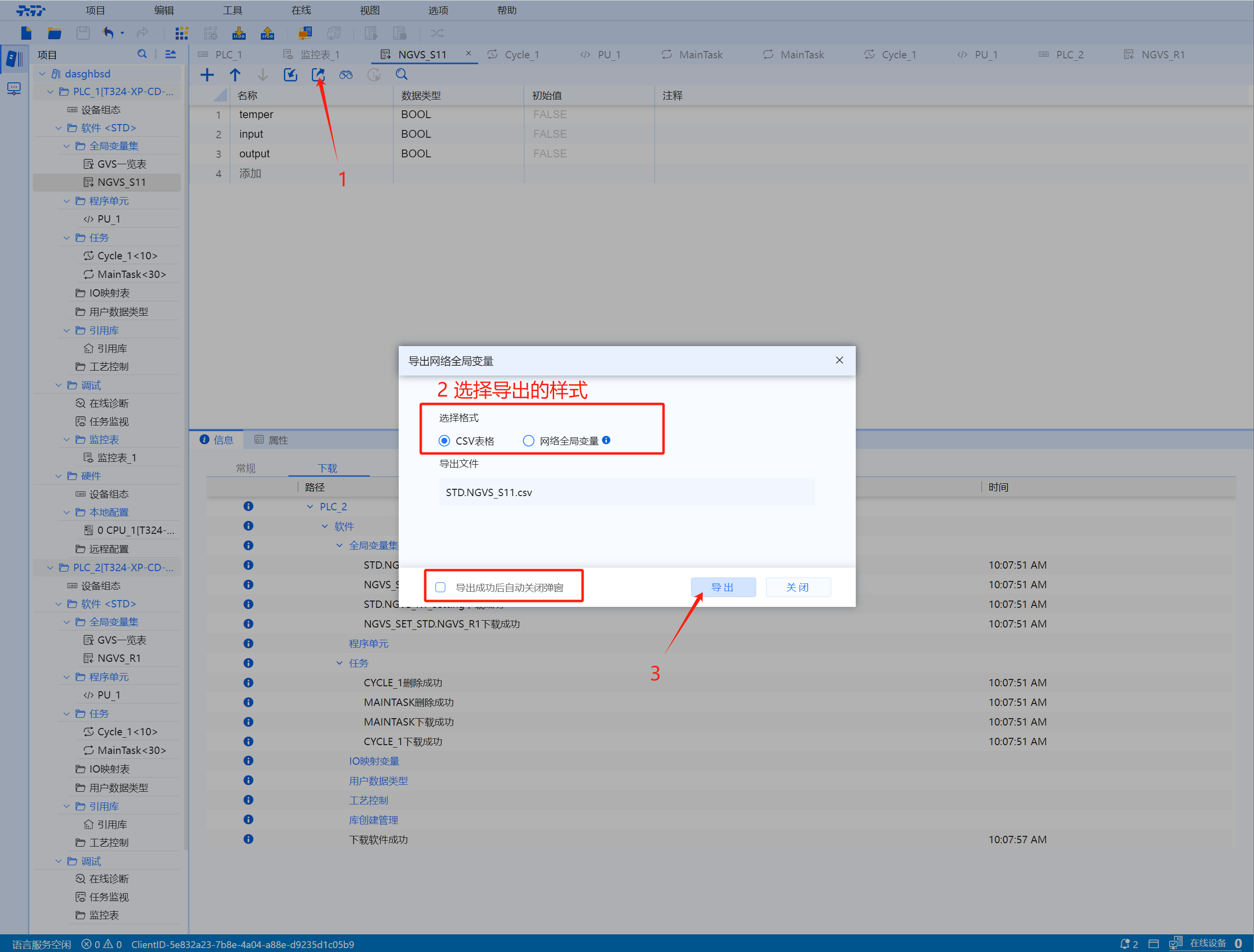
Operation steps: If user want to export the existing global variable table, click the "Export arrow" in the global variable table menu bar, select the export format, and click "Export"
- The export formats are divided into two categories (CSV table, Network global variables)
- 1.CSV table: exported to an excel table
- 2.Network global variables: The exported content includes communication protocols
- Note: For specific forms, please refer to Network Global Variables-->Import and Export of Global Variable Table-->Format
Jump link --> Format
4.2.5 Network global variable table operation video
4.2.6 Common Knowledge
4.2.6.1 NGVS Communication Protocol
- TCP/IP protocol: TCP/IP protocol is a connection-oriented transport layer protocol that provides reliable data transmission and is suitable for scenarios that require high reliability of data transmission.
- UDP: The UDP protocol is a connectionless transport layer protocol for scenarios that are more sensitive to transmission efficiency and performance overhead.
- RAPIDNET: RAPIDNET is a protocol that provides high-speed, efficient and reliable data communication for scenarios with stringent requirements for data transmission.