4.6 Add Task
- Task: Task, execution control element, which provides periodic or triggered execution of a set of PRG programs
4.6.1 Overview
- In the IEC61131-3 standard, a task is defined as an execution control element, which can be called periodically or triggered by a specified event. Multiple tasks can be created in one task configuration, and multiple main PRGs can be called in one task. The maximum number of PRGs called per task is 99
4.6.1.1 Task regulations--Maximum number of tasks
- Baosky PLC (T3 or T4) stipulates a maximum total number of tasks of 25, and each type of tasks is specified as follows:
-
The maximum number of periodic cyclic tasks is 9
-
The maximum number of continuous loop tasks is 1
- Added by default
-
The maximum number of event-triggered tasks is 15
- The maximum number of startup events is 1
- Time events (specified time, repeated time; 6 each)
- Program events
- The maximum number of programming errors is 1
- The maximum number of task execution timeouts is 1
4.6.1.2 Task Configuration
- In the task configuration, define it with the name, priority and properties of the task
- Under the same PLC, all task names cannot have the same name. Otherwise, a compilation error will be reported
4.6.1.3 Task Priority
- For specific content, please refer to Programming Guide-->Program Structure-->Task-->Task Priority
Jump link--> Task
- Different event-triggered tasks allow setting the same priority
- Tasks or system activities with higher priority can interrupt tasks or system activities with lower priority. When a task is scheduled, it can interrupt the execution of tasks with lower priority, that is, the execution of the lower priority task is suspended until the execution of the higher priority task is completed. Therefore, a task or system activity with a higher priority prolongs the running time of the interrupted task or system activity
- A task cannot interrupt the execution of another task with the same or even higher priority. A task with a higher priority can interrupt the execution of a task with a lower priority
- If a low-priority task is triggered and a high-priority task is being executed, the task will enter the task queue sequence to be executed according to the priority. Tasks with the same priority will enter the queue sequence according to the trigger time
Baosky PLC regulation:
- The priority of continuous cyclic tasks must be lower than that of fixed-period cyclic tasks
4.6.1.4 Name specification
| Serial number | Example | Remarks |
|---|---|---|
| 1 | __a | Consecutive underscores cannot be used |
| 2 | (empty) | Name cannot be empty |
| 3 | a_ | Cannot end with an underscore |
| 4 | 1a | Cannot start with a number |
| 5 | user | Do not support Chinese |
| 6 | ~`!@#$%^&*()-+=[]:";'< >,.?/ | English special characters are not supported (please verify special characters separately) |
| 7 | ·~! @#¥%......&*()——+-=【】、:";'《》?,./ | Chinese special characters are not supported |
| 8 | Entering spaces is not supported |
4.6.1.5 Scheduling sequence
When the PLC starts, the activation and scheduling sequence of user tasks is as follows:
-
Program error task, timeout task, startup task activation
-
Others are sorted by priority
-
Under the same priority, event tasks are started first, then periodic cyclic tasks. Periodic cyclic tasks are started first according to the short execution period
-
Different event tasks with the same priority are sorted according to the event trigger time
4.6.2 Periodic recurring tasks
Operation steps:
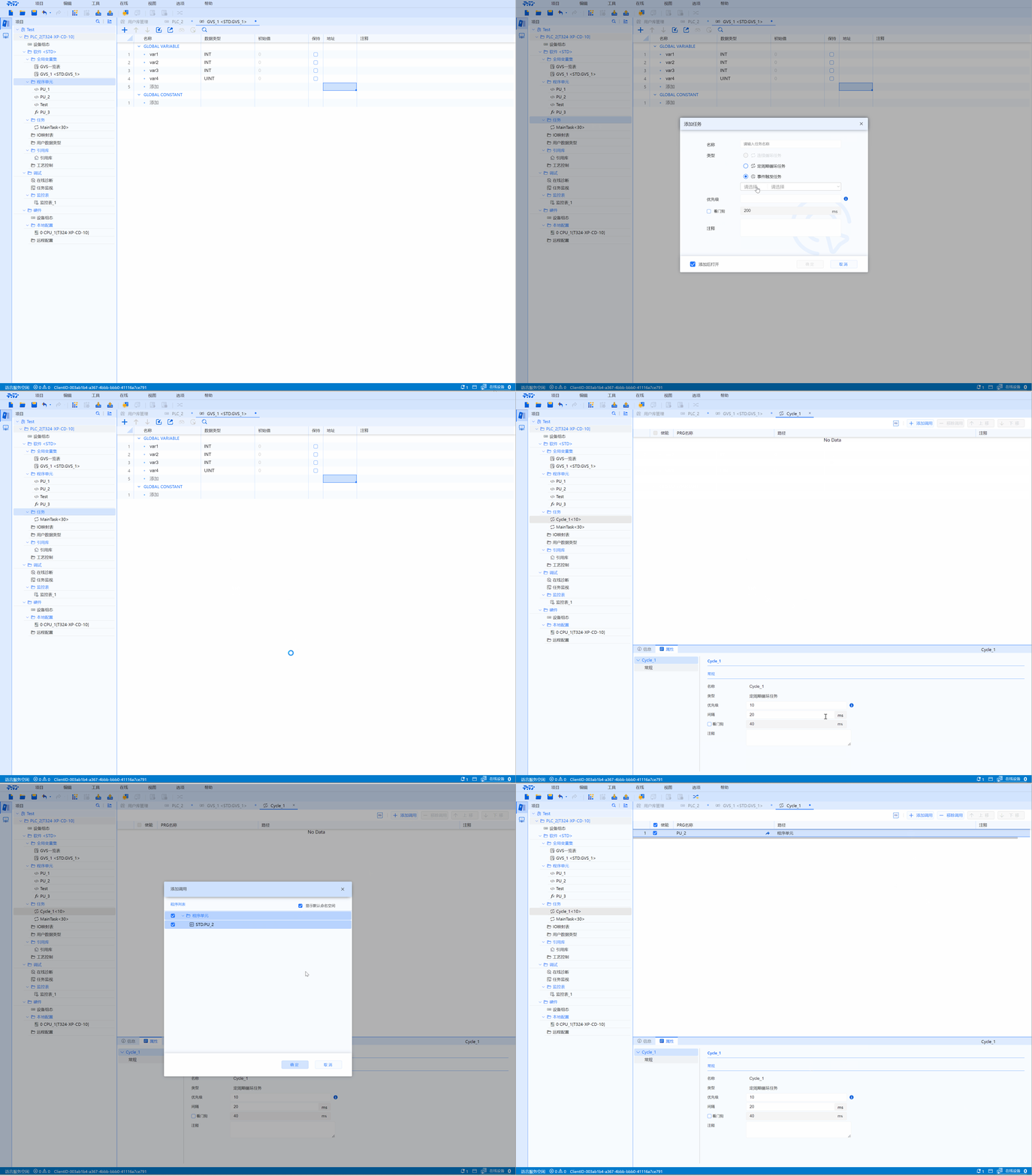
In the project tree "PLC Software", the user can right-click "Task" and select "Add Task", and then the pop-up window can select continuous cycle tasks, fixed period cycle tasks, and event-triggered tasks. Three types. And fill in the relevant information. For specific operations, please refer to each section and click OK
- Note: user can choose "Open this task" (open the task directly after adding it)
- After selecting the task type, user can jump to Task Settings
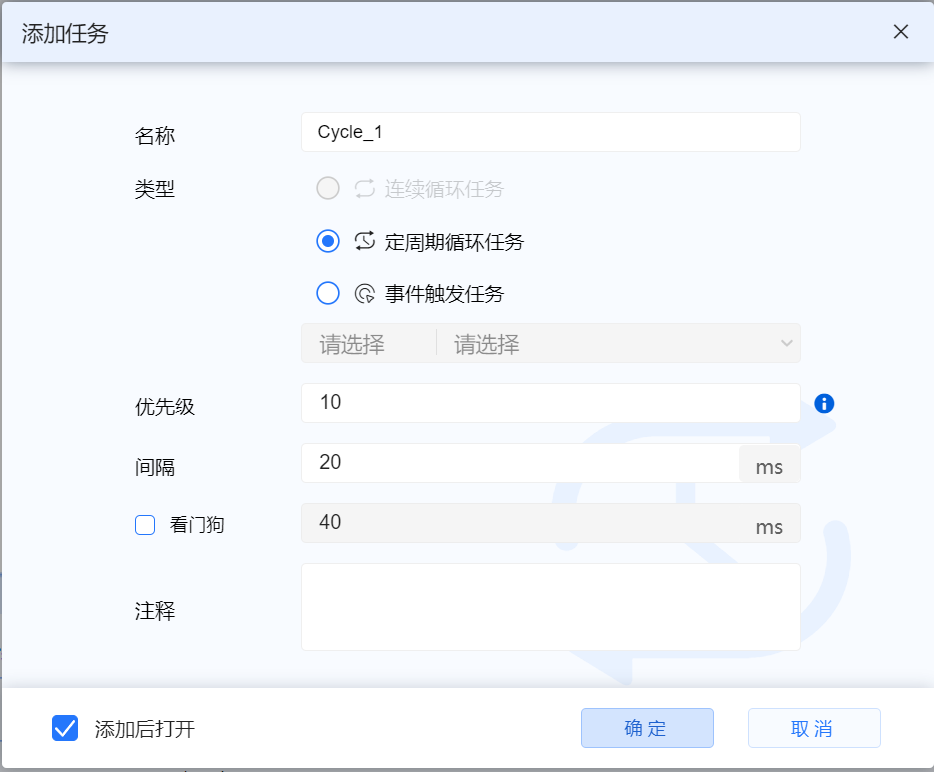
- It is recommended that the task name of the periodic task be called Cycle_1... when creating a new task (the name can be modified)
- A fixed-period cyclic task is a task call that is triggered by the system every cycle time set by the task. If there are multiple fixed-period cyclic tasks, the system will call them in sequence according to the priority
4.6.2.1 Priority setting
- Regular periodic recurring tasks, the default priority of the first established periodic recurring task is 11
- Range: 5-25 (the smaller the number, the higher the priority)
- For specific content, please refer to Task Priority
4.6.2.2 Cycle time
- Fixed periodic cyclic task, the default cycle time of the first established periodic cyclic task is 20ms
- Fixed cycle cycle task, settable cycle time range: 1ms - 60000ms (maximum cycle 1 minute)
4.6.2.3 Watchdog settings
Check "Watchdog" to set the watchdog timer
- The watchdog is not selected by default (can be modified). The default timeout time is 2 times the fixed period time, which can be modified by the user (but cannot be less than the period setting time, the maximum setting time: 60000ms)
- For specific content, please refer to Task Priority
- Note: If the CPU discards the start event of a periodic cyclic task, the report event overflows into the diagnostic buffer
4.6.3 Continuous Loop Tasks
-
Continuous sequential tasks are created by default and cannot be deleted (There is and only one)
-
It is recommended that the task name of the continuous loop task be named MainTask when creating a new task (the name can be modified)
-
Baosky PLC (T3) can only set one continuous cycle task. The priority system default value in "Task Configuration" is 30
-
The default watchdog enable is allowed (can be modified), the default is 200ms, and the user can modify it. Minimum setting time 10ms, maximum setting time: 60000ms
4.6.4 Event trigger task
- Concept: Acyclic execution tasks triggered by events can be classified as event-triggered tasks
Event trigger type classification
This task type is mainly divided into three categories: Startup task, time event task (repeat time, specified time), program task (timeout task, program error task-->automatically generate the corresponding PU)
- When the triggering conditions of the event trigger task are met, the event task is triggered and executed according to the task priority
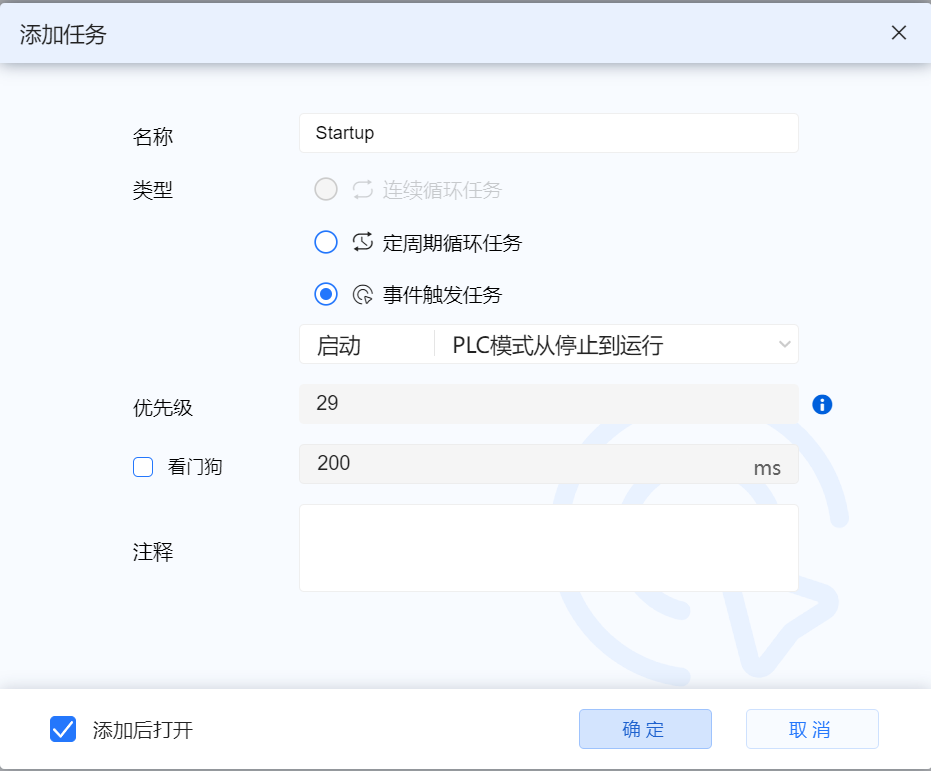
- The default watchdog enable is not selected (can be modified), the default timeout time is 200ms, the user can modify it (minimum setting time 10ms, maximum setting time: 60000ms) ( Watchdog cannot be set for timeout tasks)
4.6.4.1 Start task
-
The task name of the startup task is recommended to be named Startup when creating a new task (can be modified)
-
After the user configures the PLC startup event to trigger the task, every time the PLC goes from STOP to START, the startup self-test is completed
- Startup tasks can only be interrupted by user program error tasks and execution timeout tasks
(a). Priority setting
- This type of priority is fixed
(b). Watchdog settings
Check "Watchdog" to set the watchdog timer
- For specific content, please refer to Task
4.6.4.2 Time event tasks
- Specify time (once): The task name of the time event task to be executed once. It is recommended that the task name be ExecutionOnetime_1~ExecutionOnetime_6 (can be modified) when creating a new one
- Repeat time: The task name of the interval execution time event task is recommended to be named Intervals_1~Intervals_6 (can be modified) when creating a new task
(a). Possible running conditions of time event tasks
- Specified time (once)
- Run only once at a preset time (date with day clock): set the activation time (year, month, day, time, minute, and second)
-f3b984ee4904357aec220bd8efcb74b4.png)
- Repeat Time
- Runs periodically at a preset start time (date with day clock), the following time intervals (repeat times) can be set:
- Hourly, daily, weekly, monthly (The preset start time and date can only be 1-28), end of each month (only day and time, without date), every year
-15b57b738ce3a74ca34f9c8b3dd0d0a5.png)
(b). Priority setting
- Range: 5-29; the smaller the number, the higher the priority
For specific content, please refer to Task Priority
(c). Watchdog settings
Check "Watchdog" to set the watchdog timer
- For specific content, please refer to Task
4.6.4.3 Program Tasks
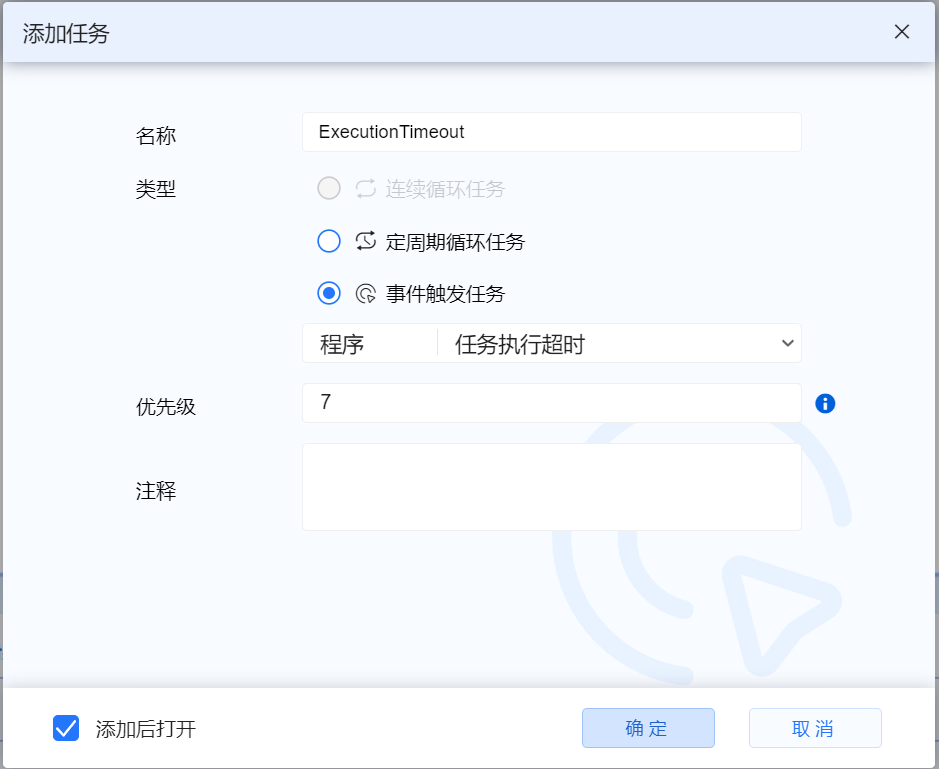
- Execution timeout task: It is recommended that the task name can be modified when creating a new task. ExecutionTimeout
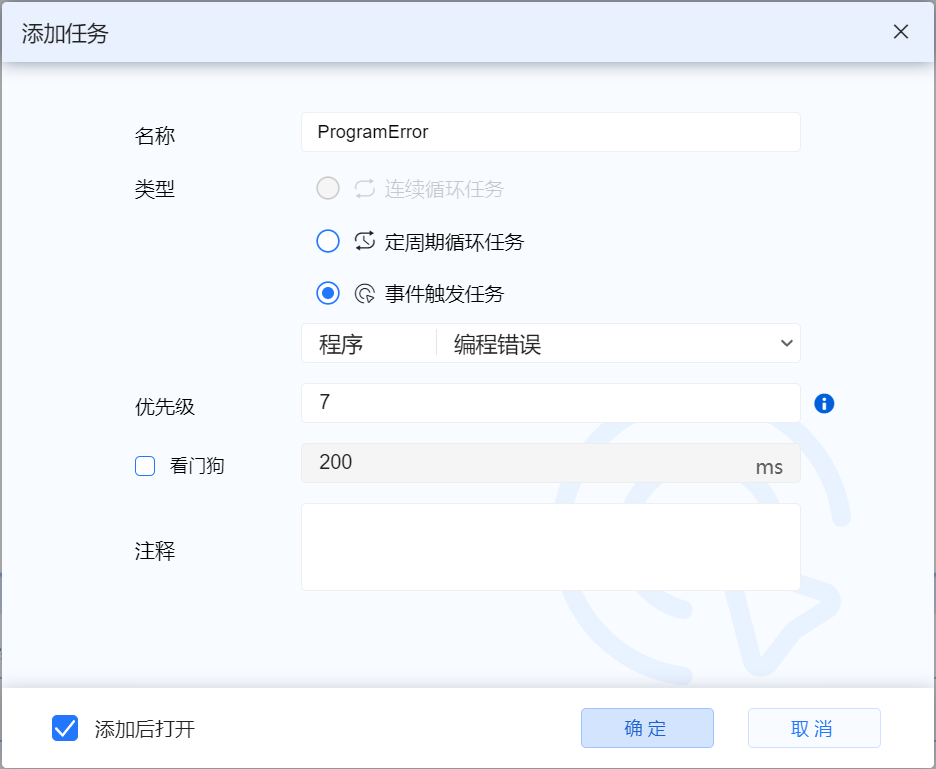
- Program Error Task: It is recommended that the task name be modified when creating a new one. The default namespace ProgramError will be automatically added when creating a new one. This PRG can be modified
(a). Task execution timeout
Trigger conditions
- When the watchdog time setting is enabled, the task execution time exceeds the watchdog setting time
Task execution timeout task, if its execution exceeds the watchdog time, the CPU will directly STOP
Priority setting
- Range: 5-29; the smaller the number, the higher the priority
For specific content, please refer to Task Priority
(b). Programming Error Task (Programming Errors)
If user need to create a PRG corresponding to the programming error task (usually added by default)
On the programming error page, user can use the shortcut key next to "Add Remove Call" to add it with one click
Trigger conditions
- When accessing ARRAY through variable subscript, the subscript value exceeds the valid ARRAY limit
Priority setting
-
Range: 5-29; the smaller the number, the higher the priority
For specific content, please refer to Task Priority
Watchdog settings
Check "Watchdog" to set the watchdog timer
- For specific content, please refer to Task
(c). Program error system handling method
| Number | Program error | Handling method |
|---|---|---|
| 1 | The result of a numeric operation exceeds the range of its data type value | The integer result directly overflows; the floating point result gets positive infinity or negative infinity The calling program error task will not be triggered. Will not enter the diagnostic buffer |
| 2 | Attempt to divide by zero | Use the replacement value "1" as the divisor and continue execution Report the error into the diagnostic buffer; the calling program error task will not be triggered |
| 3 | When accessing ARRAY through variable subscript, the subscript value exceeds the effective ARRAY limit | The error is reported into the diagnostic buffer; the calling program error task is triggered The user does not configure the program error task, CPU STOP The user configured a program error task, CPU NO STOP, and the related variable access results are random values |
| 4 | Call nesting exceeds 16 levels | The error is reported into the diagnostic buffer; the calling program error task will not be triggered CPU STOP |
- Note: real numbers are positive infinity and negative infinity
4.6.5 Task Settings
4.6.5.1 Add call
Operation steps:
After opening the task, user can select "Add call button" to add the program unit. After entering the add page, check the added program unit in the add list and click "OK" to add it successfully
- Check the "Show namespace prefix" button in the add call interface to display the namespace in the add task interface
4.6.5.2 Remove call
- Select the row of the program unit user want to remove and click "Remove Call Button" to remove it
4.6.5.3 Display namespace
- If user want to display the namespace above the PRG name on the main page, click the "ns" button on the task interface to successfully display the namespace
4.6.5.4 Move up and down
- In the task interface, select the entire row and click "Up Arrow or Down Arrow" to move the calling position up or down
4.6.6 Add task operation video
- Take the regular cycle task as an example